
March 2, 2026
This release introduces AI Agent automation capabilities, HTML document templates, enhancements to Data Integration file retrieval, and overall usability improvements.
Release Details
AI Agent Automation
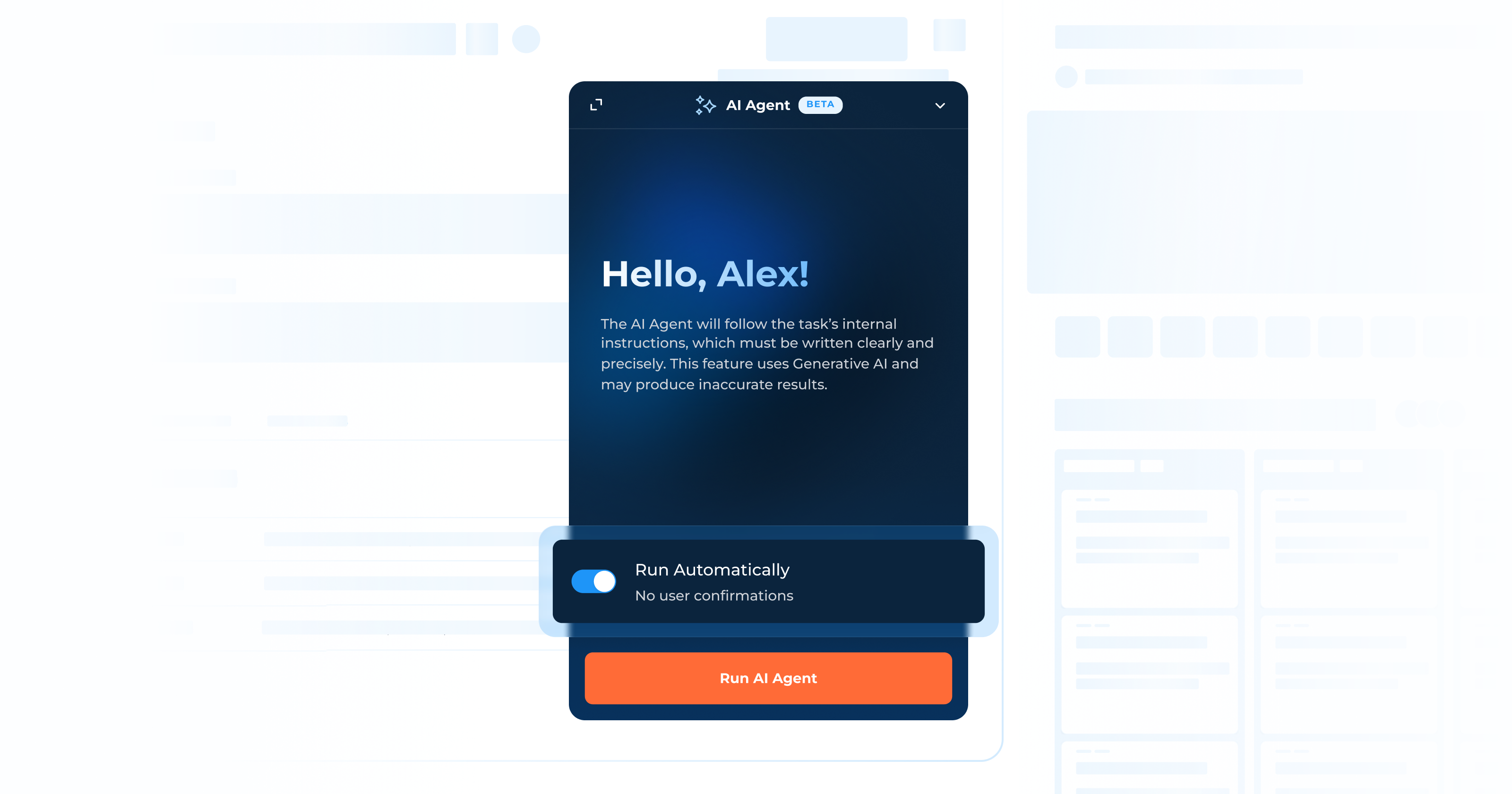
DigiFi now enables automated execution for the AI Agent, allowing it to process defined tasks independently. This reduces manual workload and supports continuous, workflow-driven execution.
The new “Run Automatically” toggle (enabled by default) lets the AI Agent execute tasks autonomously, without user confirmation.
The AI Agent interface has also been updated for a clearer and more intuitive user experience.
Run AI Agent in Automation Builder
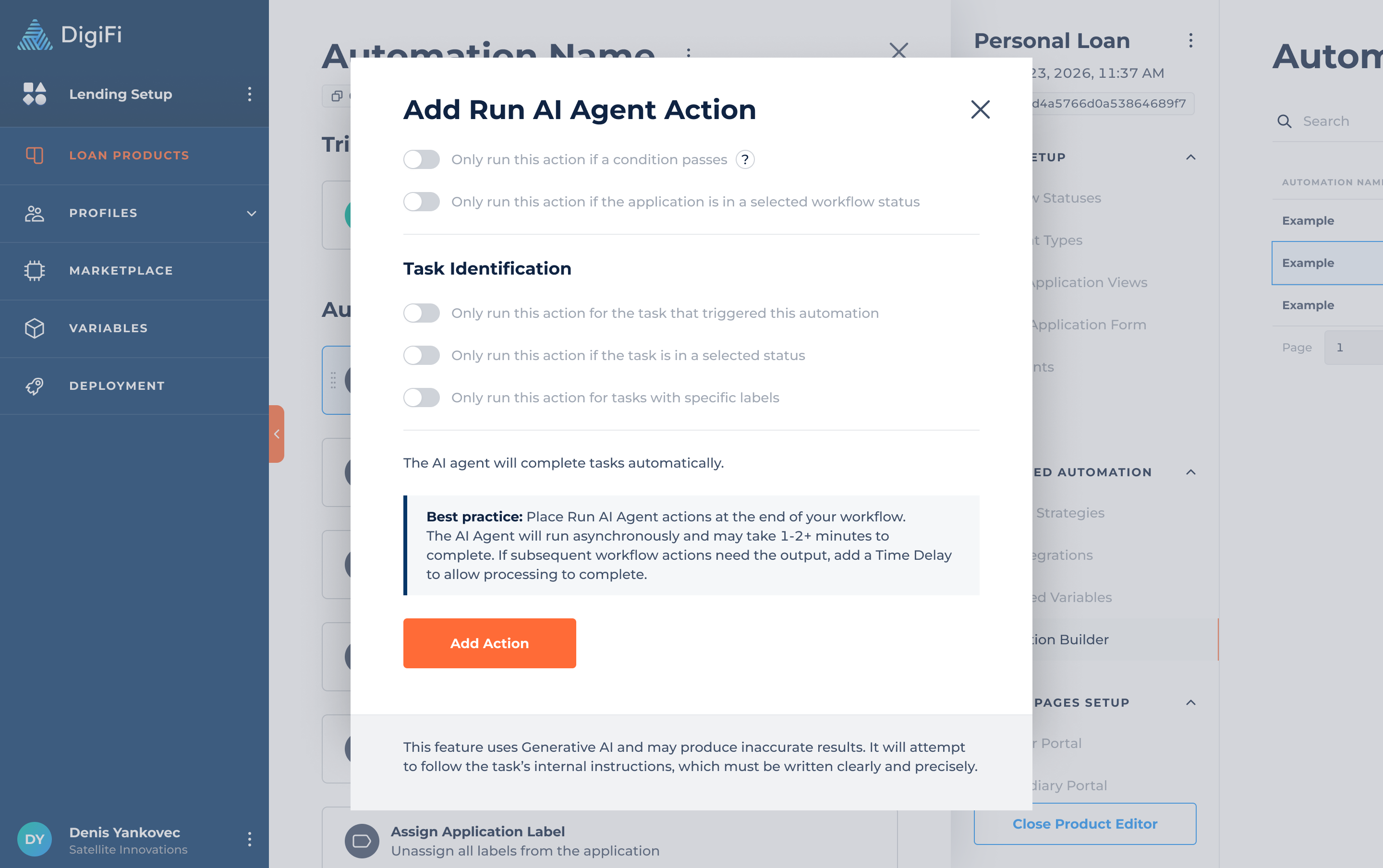
A new “Run AI Agent” action is now available in Automation Builder under the Task Management group.
This action allows you to:
- Trigger the AI Agent automatically within workflows.
- Define the task where the Agent will run using a Task Identification block.
- Apply standard workflow conditions.
When configured for automatic execution, the Agent:
- Processes all defined steps without user interaction.
- Logs events and provides a complete history after execution.
Best Practice:Place Run AI Agent actions at the end of your workflow. The AI Agent runs asynchronously and may take a couple of minutes to complete. If subsequent actions depend on its output, add a Time Delay to ensure processing is finished before continuing.
HTML Document Generation
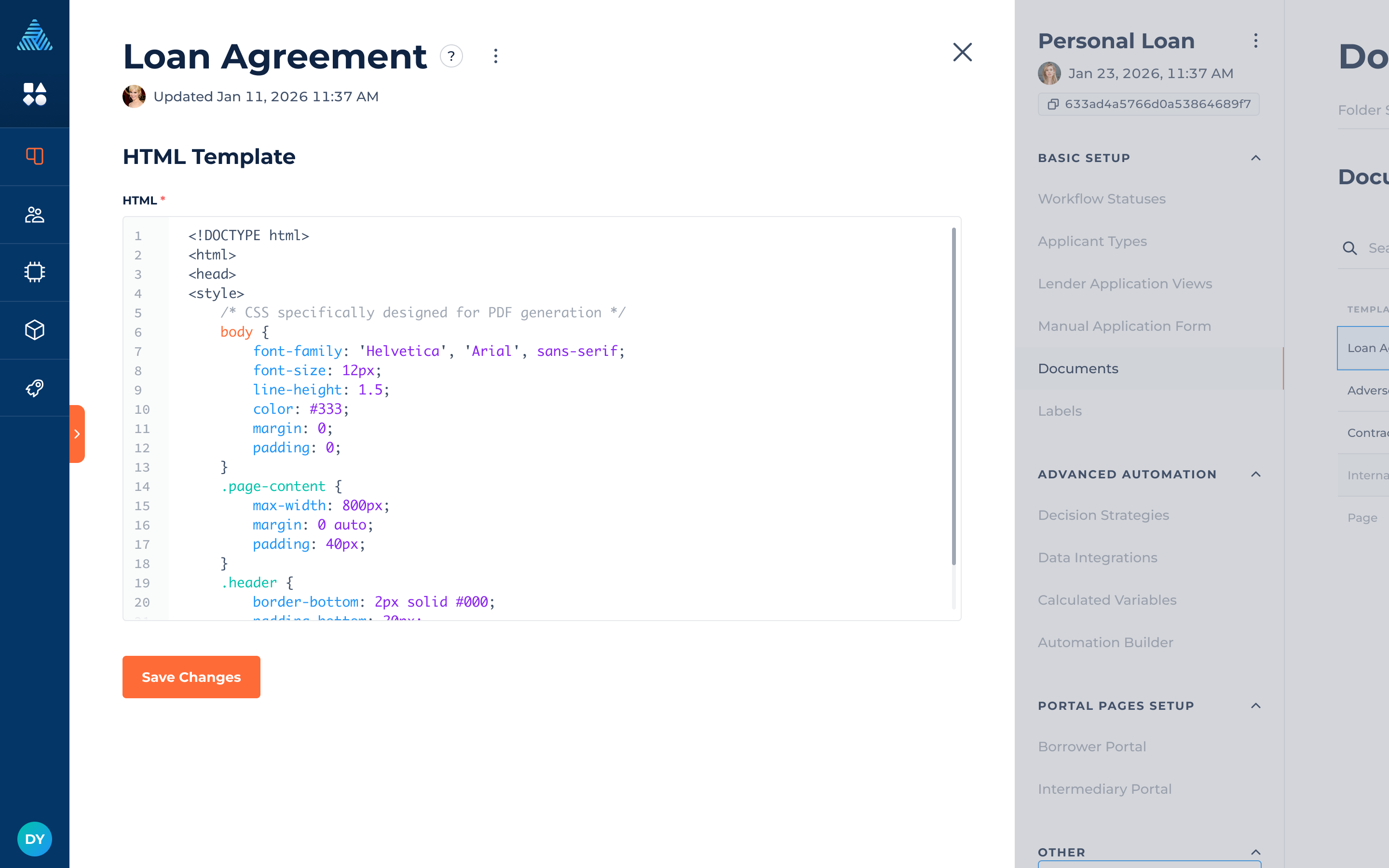
DigiFi now supports HTML-based document templates alongside existing PDF templates.
You can create custom HTML templates by adding your own HTML code, where you can reference application variables, calculated variables, and system fields. This enables richer layouts, dynamic data population, and scalable document generation.
For detailed guidance, including variable references, conditional logic, and iteration helpers, see our Developer Guide: HTML Template Engine.
Create & Manage HTML Templates
Users can create new HTML templates via the New Template > Create HTML Template option. Once created, templates can be:
- Edited for content, variables, and system fields
- Updated with basic information (name and description)
- Archived when no longer needed
Generated documents are produced as non-editable PDFs and saved under Application > Documents.
Data Integration: Additional Configuration Updates
We’ve added new options in Additional Configuration to give you more control over how Data Integrations handle files and request data.
Assign Custom Names and Labels to Retrieved Files
When retrieving files via Data Integration, you can now:
- Assign a custom file name (supports application variables).
- Apply labels to retrieved files.
Where to set up: Lending Setup > Loan Product > Data Integration > Advanced Configuration > Additional Configuration
Example configuration:
{
  "response": {
    "retrievedFileProperties": {
      "name": "{{borrower_first_name}} document",
      "labelIds": ["labelId1", "labelId2"]
    }
  }
}
Optional Removal of Empty Fields
You can now configure Data Integrations to automatically remove empty fields from outgoing requests:
- Applies to JSON and XML request bodies.
- Useful when external systems require null or empty values to be omitted.
- By default, empty fields are not removed.
Example configuration:
{
  "request": {
    "removeEmptyFields": true
  }
}