
November 9, 2026
This release introduces the Application AI Assistant, enabling users to explore application data through natural-language conversations. It also expands AI usage and billing controls, adds new document automation actions and Xactus credit report integrations, introduces mandatory two-factor authentication, and delivers additional platform and API improvements.
Release Details
Application AI Assistant
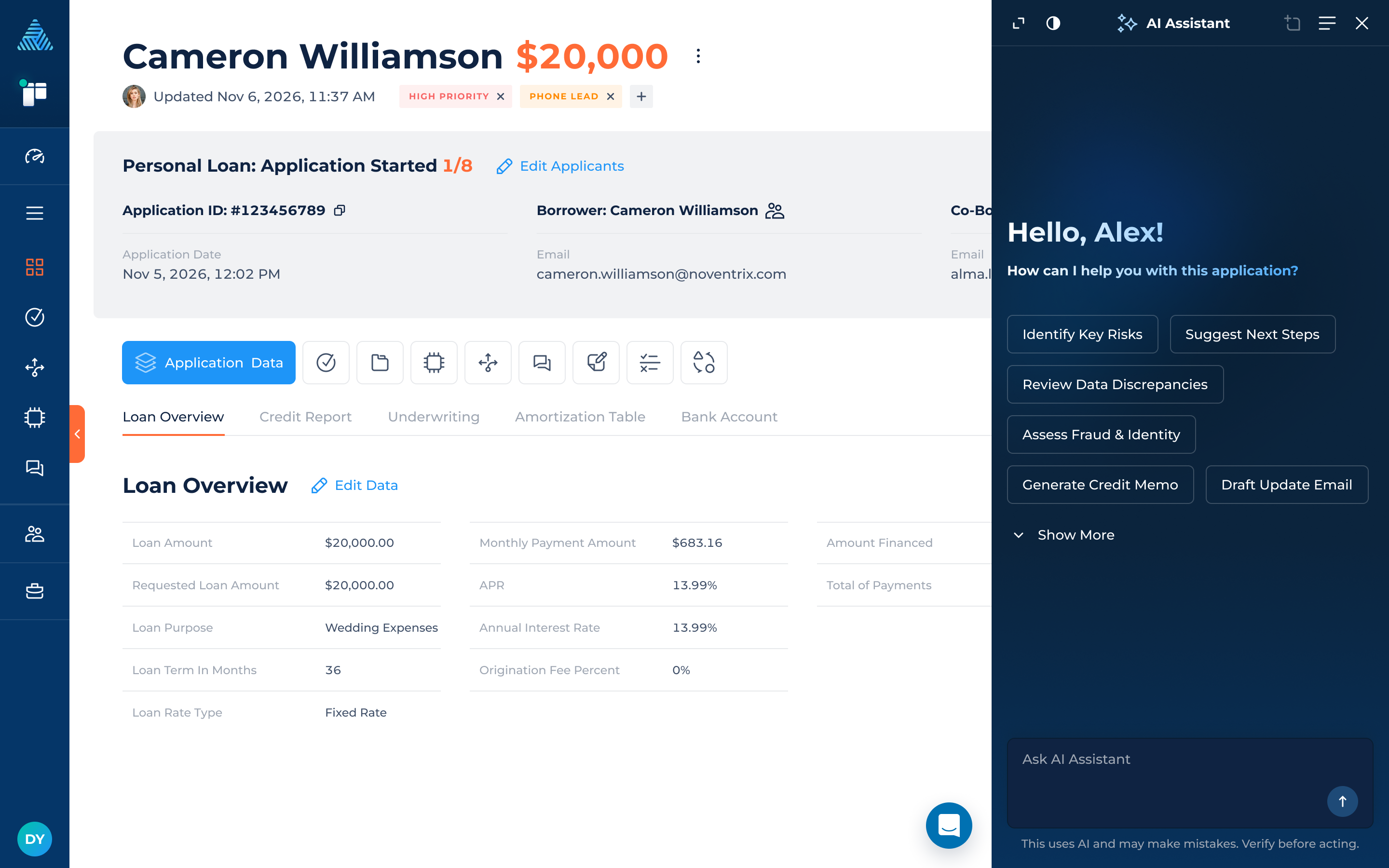
Introducing the Application AI Assistant, a powerful new way to explore application data, understand underwriting decisions, and investigate workflow activity through an interactive chat experience.
Available directly from the Application Details page, the assistant helps users find relevant information, gain insights into applications, and better understand results without manually reviewing multiple records.
Application Data and Insights
The Application AI Assistant helps users explore application data and understand lending workflows by asking questions and getting AI-powered insights.
Users can:
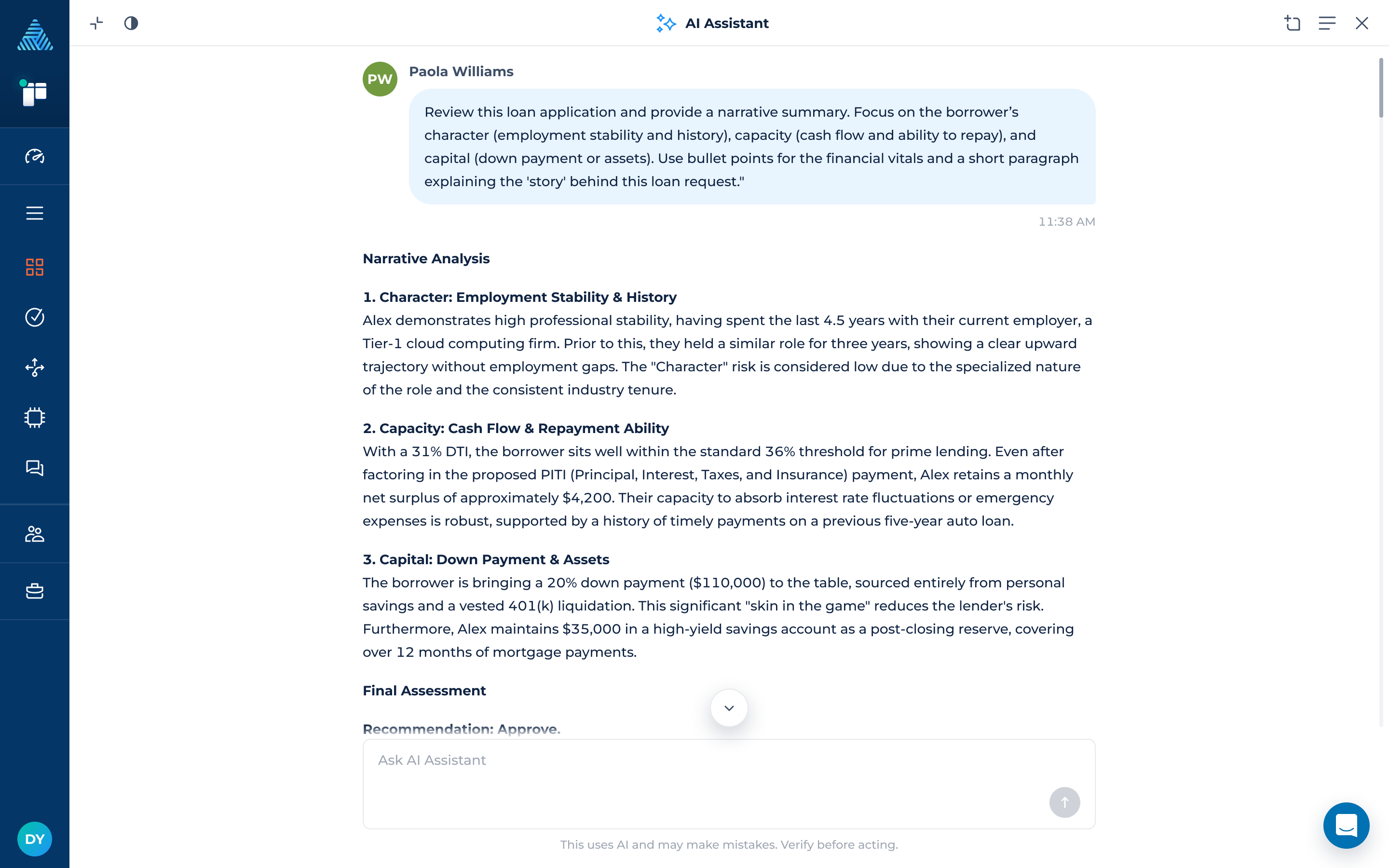
- Ask questions about application data. Get answers based on relevant information from application variables, tasks, Decision Strategy results, data integration executions, documents, communications, notes, and application history.
- Investigate application details and issues. Get summaries of relevant records, review task details, understand integration errors, and request more information when needed.
- Understand underwriting decisions. Review decision results, find out why a decision succeeded or failed, and examine the information used to reach that outcome.
- Find documents and communications. Find documents by name, type, or upload date, and look up communication records. The assistant asks for confirmation before reading a document’s contents.
Chat Experience and Customization
Users can manage their conversations and customize the assistant interface:
- Start conversations easily. Choose from suggested prompts or enter a custom question.
- Return to previous conversations. Browse chat sessions associated with an application. Users can view sessions created by other users but cannot send messages in those sessions.
- Customize the workspace. Minimize or expand the assistant while working in the application. The assistant remembers its window size and state, and users can choose between dark and light themes, with their preference saved for future sessions.
- Chat Session Limits: When a session reaches its usage limit, users can continue reading the conversation but cannot send additional messages. They can start a new chat to continue, and other existing sessions remain accessible.
Security and Permissions
The Application AI Assistant respects application, section, and variable-level permissions. Users can only access information they are authorized to view, including sensitive variable values.
When a user opens a previous conversation, the assistant checks their current permissions against the information accessed during the session. If the session includes information from sections the user is no longer authorized to access, it is displayed in a No Permissions state.
These checks ensure that access to previous conversations reflects the user's current permissions.
Note: The assistant can retrieve and analyze application information but cannot modify application records or perform actions on the user’s behalf.
Activation and Configuration
The Application AI Assistant can be activated or deactivated from the AI Tools section of the Marketplace. If the assistant is not activated, users see a prompt directing them to the Marketplace.
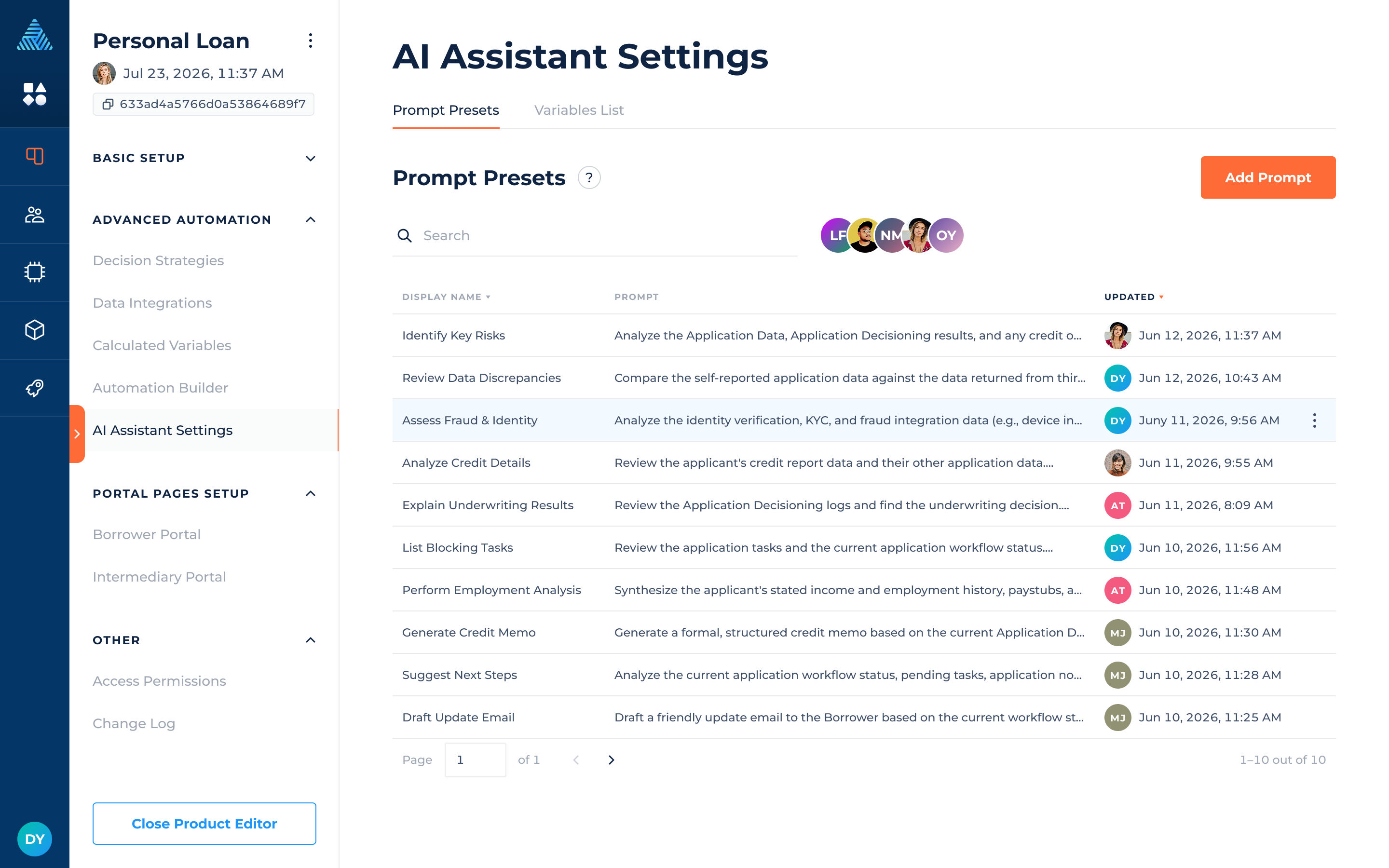
Configuration options are available under Lending Setup > Loan Product > AI Assistant Settings, which includes two sections:
- Prompt Presets: Create, edit, search, and manage reusable prompts that appear as conversation starters. Presets can be restricted to selected permission groups or made available to all users.
- Variables List: Search for and select application variables to help the assistant identify relevant information when answering questions. Up to 1,000 variables can be configured per loan product, and variables can be removed when no longer needed.
The configured variable list helps the Assistant focus on relevant application information and improve the accuracy of its responses, but does not limit it to those variables. When using its available data retrieval tools, the Assistant can also access relevant information outside the list, such as variables included in integration results and decision results, subject to the user's permissions.
Variable descriptions help the assistant understand what each variable means and when to use it. The interface highlights variables without descriptions. Ready-to-use prompt presets are also available for common underwriting and workflow tasks.
Billing: Usage & Limits
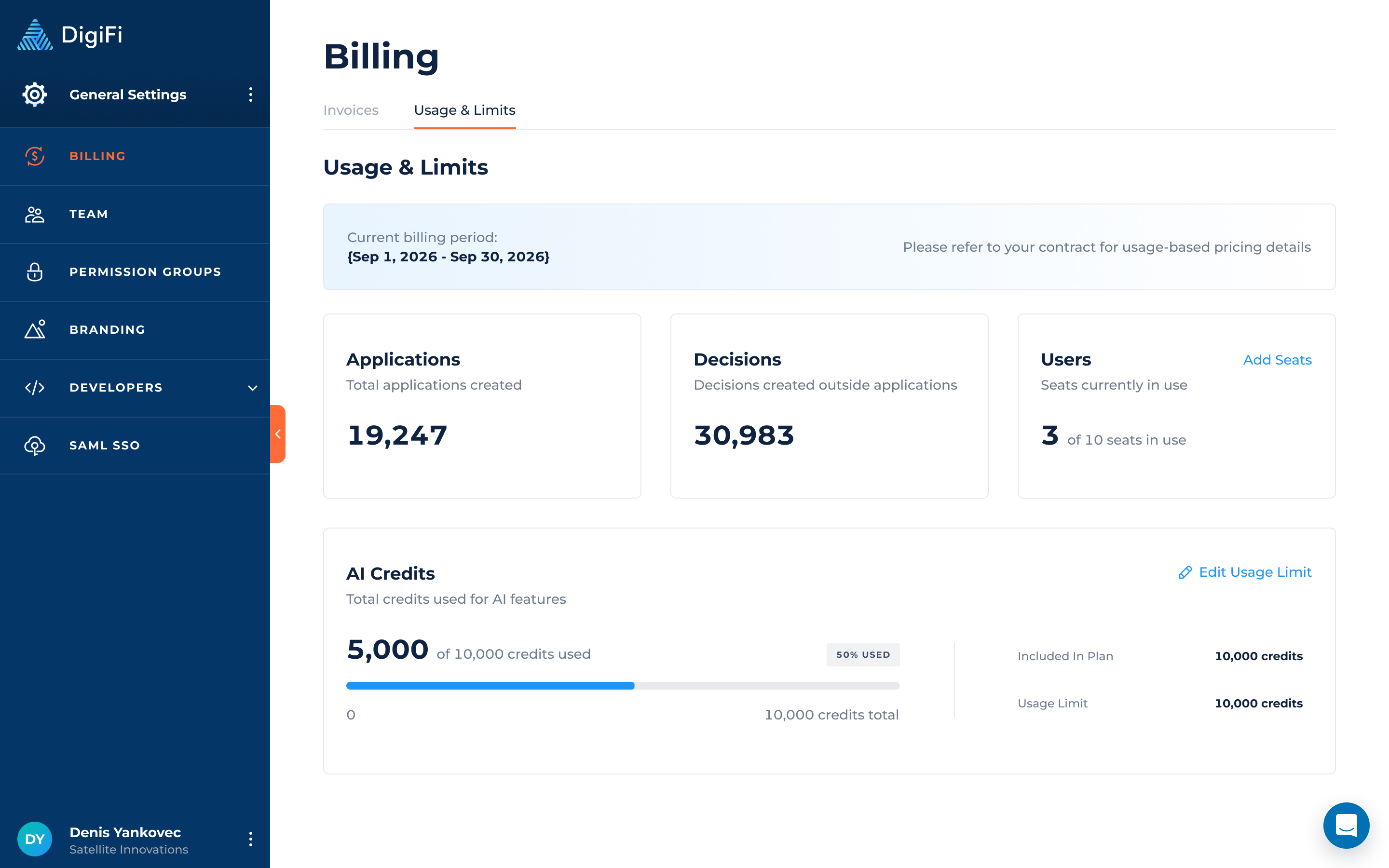
The Billing area now includes a dedicated Usage & Limits tab, giving customers a clear overview of their usage during the current billing period and more control over AI-related spending.
Usage Overview
The new tab displays:
- Billing period: The current subscription period.
- Applications: The number of applications created during the period.
- Decisions: The number of decisions created outside applications during the period.
- Users and seats: Active and pending users compared with the available seats, with guidance on requesting additional seats where applicable.
- AI Credits: Credits consumed compared with the configured usage limit, including the credit allowance included in the subscription plan.
AI Credits Usage Limits
AI Credits are the common billing unit for DigiFi AI features, including the Tasks AI Agent and AI Application Assistant.
Customers can monitor AI Credits consumption and manage their usage limit:
- Track usage: View AI Credits consumption as a total, percentage, and progress bar.
- Compare limits: See the credit allowance included in the subscription plan and how it compares with the configured usage limit.
- Set a custom limit: Choose a usage limit, with the plan-included credit allowance as the minimum.
- Apply limits across billing periods: The selected limit applies to the current billing period and all subsequent periods until changed.
- Control AI access: Raising the limit above current consumption restores AI feature access immediately. Lowering the limit below current consumption blocks further AI usage immediately.
Usage above the plan-included credit allowance is billable, subject to the configured usage limit and account settings.
Limit Enforcement and Notifications
When the AI Credits usage limit is reached, further AI usage is blocked until the next billing period begins or the limit is increased. This applies to the Tasks AI Agent in manual sessions, Automation Builder workflows, and Public API sessions, as well as to manual Application AI Assistant sessions. The interface and API provide clear feedback when the limit is reached.
Account owners receive email notifications when AI Credits consumption reaches 80% and 100% of the configured limit. Each notification includes a link to Billing > Usage & Limits, where the usage limit can be reviewed and adjusted.
Automation Builder: New Task & Document Actions
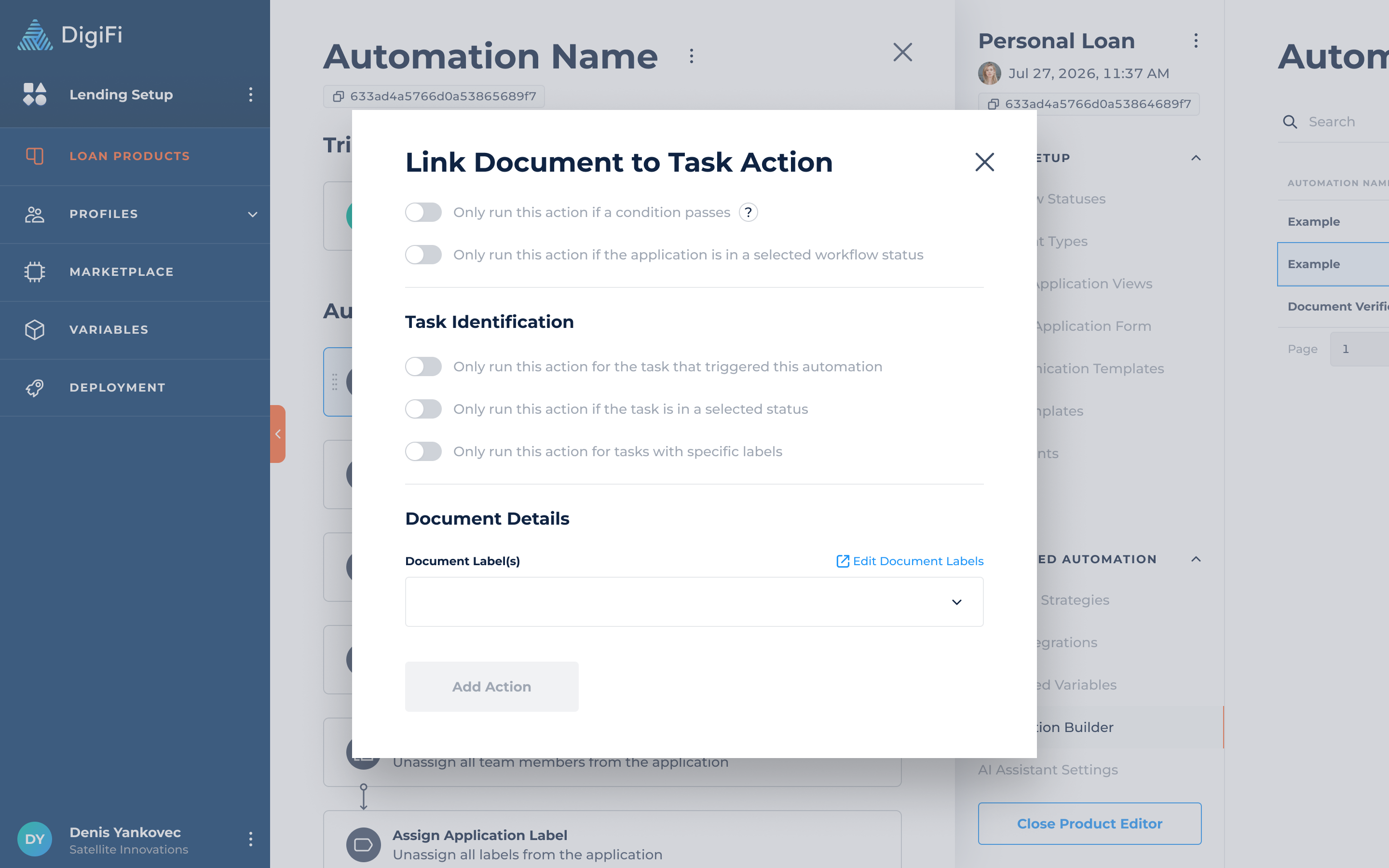
The Automation Builder now includes two new actions to simplify document handling in automated workflows:
- Link Document to Task: Automatically link documents to a specified task based on their labels.
- Move Document to Folder: Automatically move documents with specified labels to a designated folder.
These actions help automate document organization and task linking, reducing the need for manual handling.
Platform: Mandatory Two-Factor Authentication (2FA)
Two-factor phone authentication (2FA) is now mandatory for all users accessing the DigiFi Platform, adding an extra layer of protection against unauthorized account access.
- New users: Must set up phone-based 2FA when accepting an invitation before they can access their account.
- Existing users: Users who have not enabled 2FA are prompted to set it up at their next login. Users who already have 2FA enabled can continue logging in as usual, with no additional setup required.
- Phone verification: Users verify their phone number using a confirmation code. If setup is interrupted, they can resume the enrollment process. Phone numbers are used to receive verification codes.
- Change phone number: Non-SSO users can update their phone number in My Account by re-entering their password and verifying the new number.
- Reset 2FA: Owners can reset another user’s 2FA from General Settings. This ends the user’s active session, clears their stored phone number, and requires them to configure 2FA again at their next login.
Marketplace: Xactus Credit ReportX Integrations
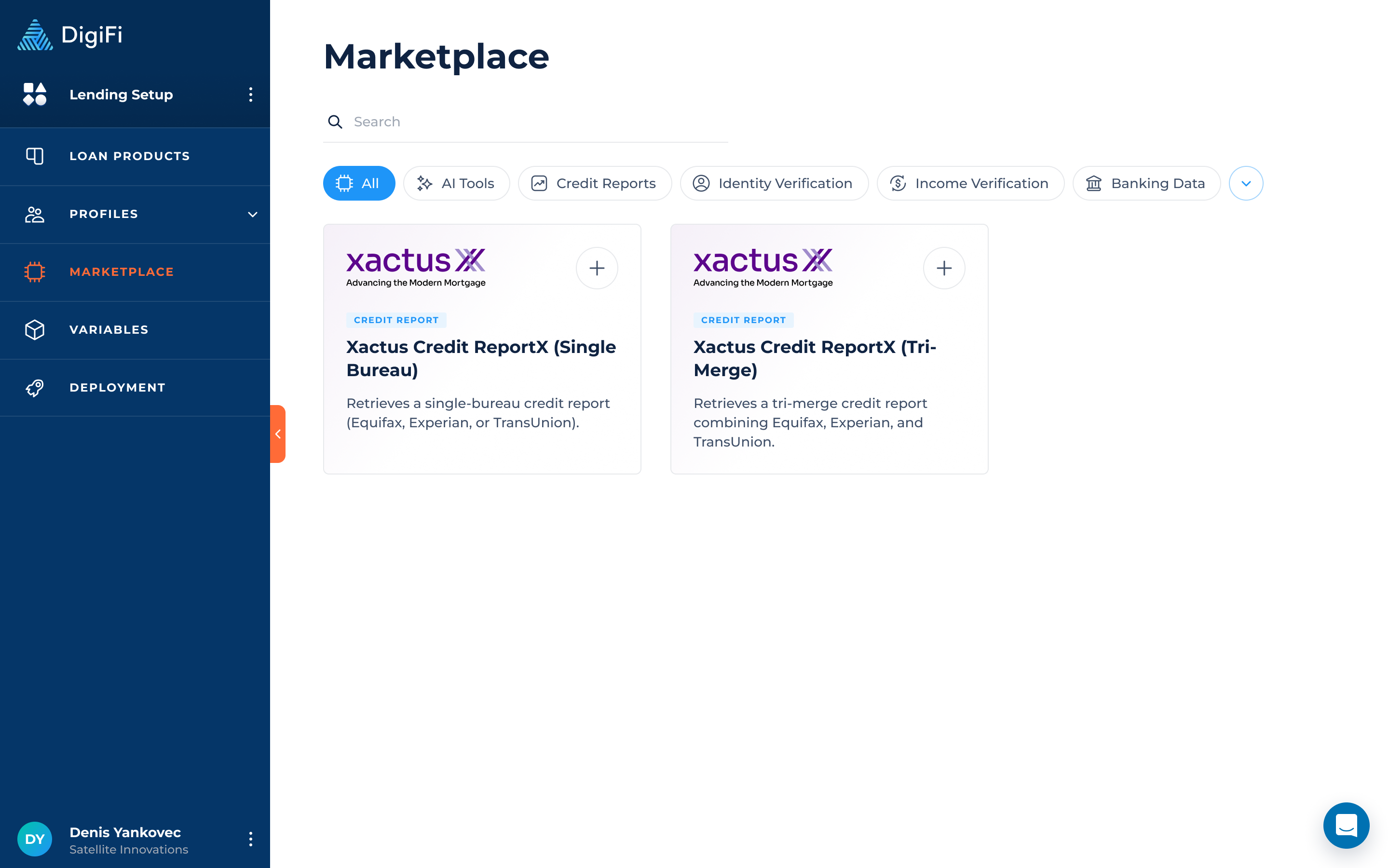
DigiFi now offers two integrations with Xactus, a verification and credit reporting company that provides mortgage and lending institutions with credit report data from the three major credit bureaus: Equifax, Experian, and TransUnion.
The two integrations are:
- Xactus Credit ReportX – Single Bureau: Retrieves a credit report from one selected bureau: Equifax, Experian, or TransUnion.
- Xactus Credit ReportX – Tri-Merge: Retrieves a combined credit report using data from Equifax, Experian, and TransUnion.
These integrations give lenders flexibility in selecting the credit report option that best fits their lending and underwriting workflows.
Additional Platform & API Improvements
List Variable Enhancements
List Variables and Multi-select List Variables now support up to 1,500 options, allowing users to manage larger lists.
Users can also add multiple options at once by pasting a comma-separated list when creating or editing a variable. Duplicate and empty values are automatically ignored, making it faster to populate long lists.
API Updates: Retrieve Permission Group Name
The Public API now supports retrieving a permission group’s name using its ID.
API endpoint:
GET /permission-groups/:id