
Application AI Assistant
How to work with and configure DigiFi's AI Application Assistant.
Overview of the AI Application Assistant
The DigiFi AI Application Assistant is a built-in AI tool that helps lenders review applications, summarize information, and investigate application details through a conversational interface.
Available directly from the Application Details page, the Assistant allows users to ask questions about an application and retrieve relevant information without manually navigating multiple sections of the platform.
The Assistant can retrieve and analyze information from various application data sources, including:
- Application Variables – retrieve application data and values stored in application data tabs.
- Application Tasks – review tasks associated with the application.
- Decision Results – retrieve results from application decisioning.
- Integration Results – retrieve results from data integrations.
- Documents – retrieve document information, including document types and upload dates.
- Communications – retrieve application emails and text messages.
- Application Notes – review notes associated with the application.
- Application History – review application history records.
The Assistant uses application context and retrieves additional information as needed to answer user questions.
The AI Application Assistant is an advisory tool. It provides analytical insights based on available application data but does not make approval or denial decisions. The Assistant supports read-only operations and does not modify application data.
Accessing the AI Application Assistant
To open the Assistant:
-
Open an application.
-
Click the AI Assistant button in the Application Details page header.

-
Start a conversation by selecting a suggested prompt or entering your own question.
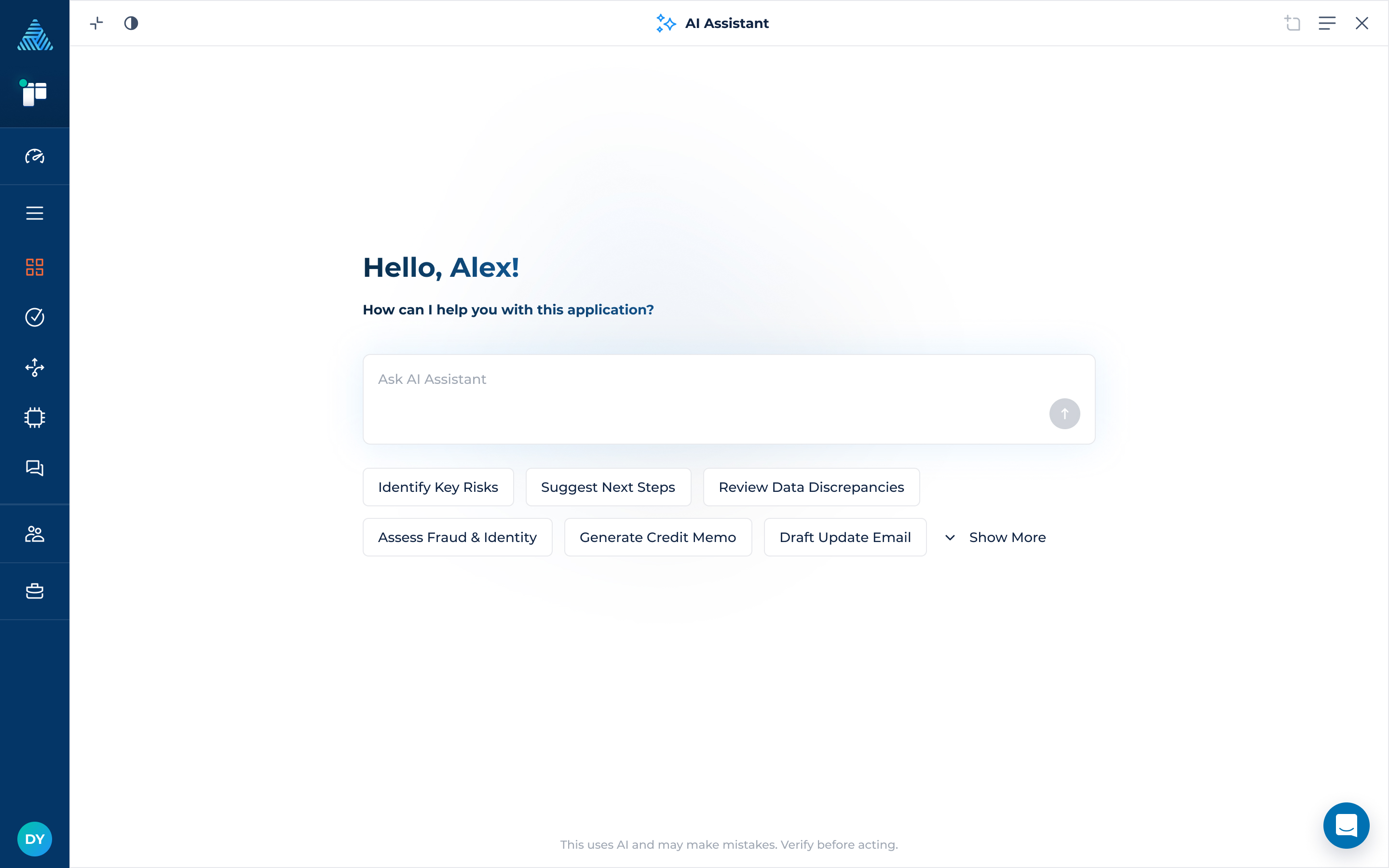
The Assistant opens in a separate window within the application interface. You can minimize or expand the window and continue interacting with the application while the minimized Assistant remains open.
Starting a Conversation
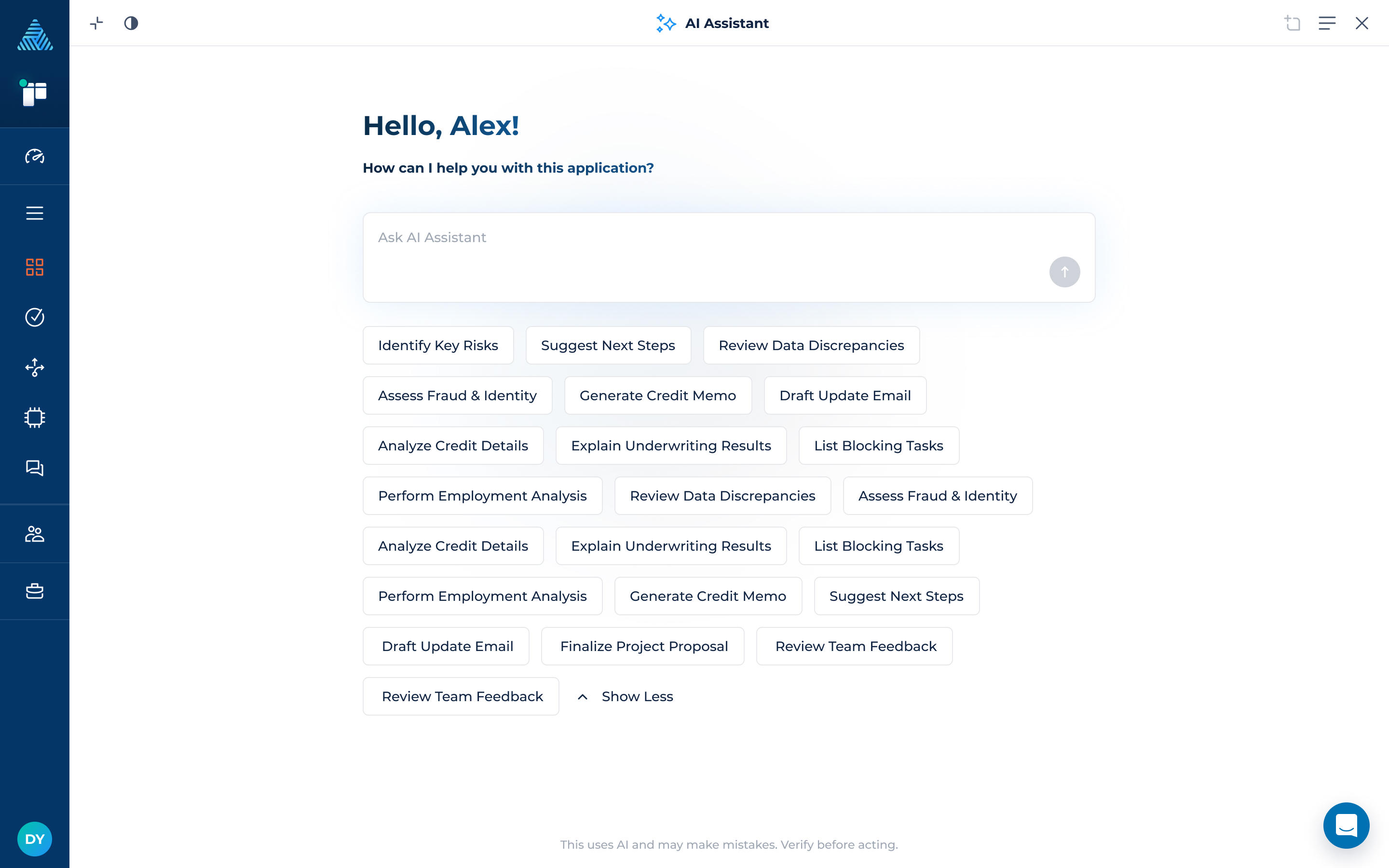
When you open the Assistant without an active chat session, the start screen displays suggested conversation starters, if configured.
- Select a suggested prompt to start a conversation.
- Click Show More to view additional suggested prompts.
- Alternatively, enter a question in the message input to start.
Managing Chat Sessions
The AI Application Assistant supports multiple chat sessions for each application. This allows users to organize conversations around different questions or areas of review.
To view existing conversations:
- Open the AI Application Assistant.
- Click the Chat Sessions button in the Assistant header.
- Select a session from the list to open it.
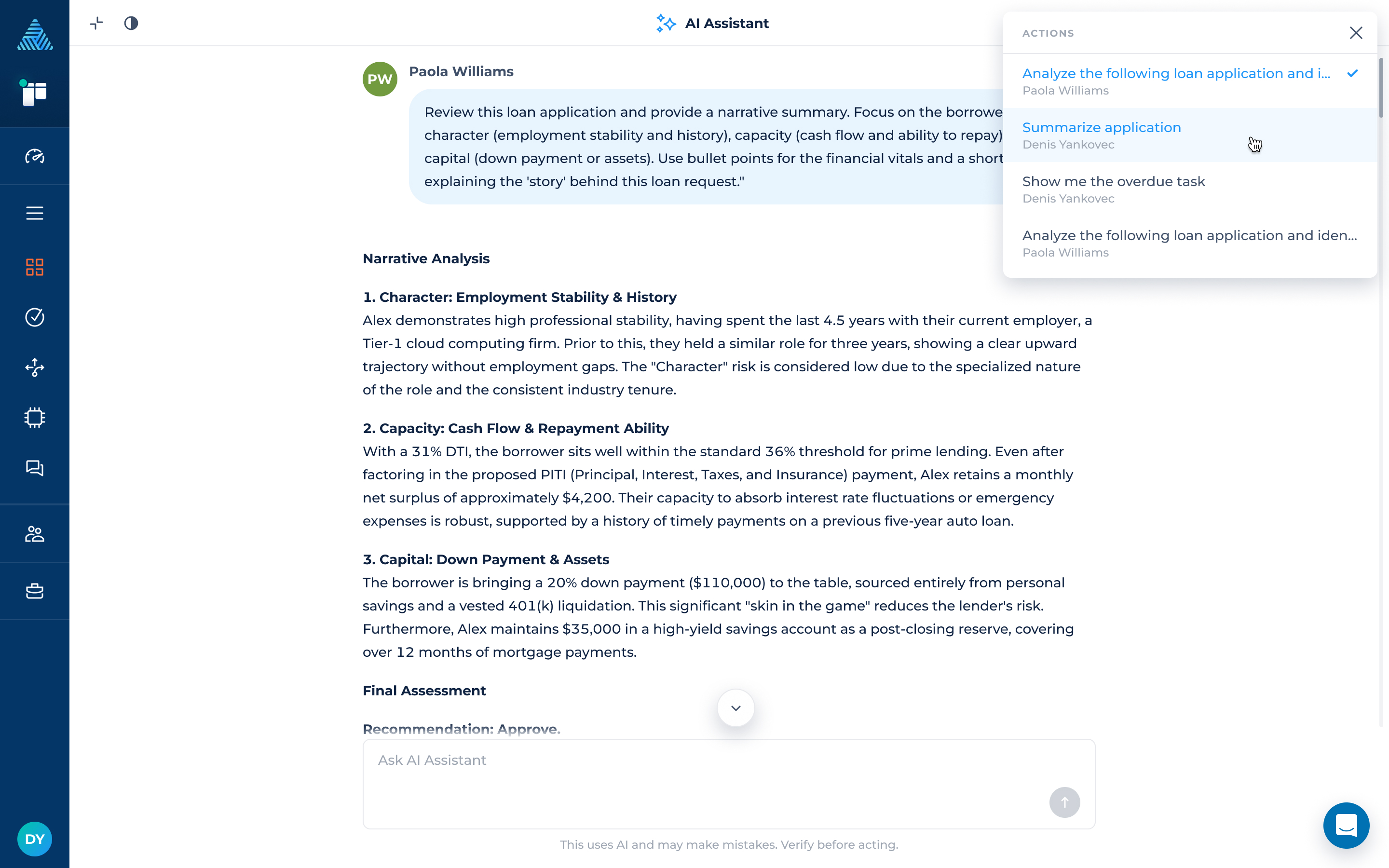
The sessions list displays chat sessions associated with the current application, including sessions started by other users.
Users can read other users' chat sessions but cannot send messages in those sessions. Each user can start and continue their own independent conversations.
AI Application Assistant Permissions
The AI Application Assistant enforces the user's current permissions when accessing application information.
- Application access: The Assistant can only retrieve information that the user is authorized to access.
- Chat session access: Users can read other users' sessions but cannot send messages in them.
- Permission changes: When a user opens a chat session, the system checks whether the user currently has permission to access the data referenced by the session's tool calls.
- Restricted sessions: If a session contains tool calls involving data sections the user cannot access, the session is displayed in a No Permissions state.
Permission checks reflect the user's permissions at the time the session is opened. If permissions change after a conversation was created, access is evaluated using the updated permissions.
Configuring AI Assistant Settings
You can customize the AI Application Assistant for each loan product using settings in Lending Setup:
- AI Assistant Prompt Presets – configure suggested conversation starters to help users quickly begin common application-related tasks.
- Variables List – specify application variables that the Assistant uses for semantic search when answering high-level questions about application data. Clear variable descriptions help the Assistant interpret the data correctly.
For configuration instructions and details, see AI Assistant Settings.
Best Practices for Using the AI Application Assistant
Follow these guidelines to get more useful and accurate responses:
- Ask specific questions. Clearly identify the information you want to retrieve or analyze.
- Reference relevant data. When possible, specify the variable name, task, decision result, or other application information you want to review.
- Use clear variable descriptions. Provide meaningful descriptions for variables included in the Variables List to help the Assistant interpret application data.
- Use prompt presets for recurring questions. Configure common questions as conversation starters so users can access them quickly.
- Verify important findings. Review the underlying application data and supporting records before relying on the Assistant's conclusions.
- Account for missing information. The Assistant cannot reliably analyze information that is not available in the application context or through its supported data retrieval tools.
Be specific to optimize AI Credit usage. Clearly identify the information you want the Assistant to analyze. When possible, provide exact variable names, document IDs, task names, or other relevant identifiers. Narrowing your request helps the Assistant focus on relevant data instead of searching broadly, which can reduce unnecessary processing and AI Credit usage.
The AI Application Assistant provides analytical support and does not replace underwriting judgment. It does not approve or deny applications or provide legal, regulatory, or financial advice.
Updated 3 days ago