
Data Export
How to generate, manage, and securely download application data exports in DigiFi.
Overview of Data Export
The Data Export tool allows lenders to export data from DigiFi for a selected date range and environment. Users can generate export files for different data sets and download them directly from the platform.
The feature supports the following data sets:
- Applications – export application records (application details: application ID, current status, creation and last update dates; participants: the borrower and co-borrowers, and the intermediary associated with the application; application variables).
- Decision Results – export application decisioning results (strategy run, outcome such as approved/declined/referred, calculated values, decline reasons, input and output variables).
- Integration Results – export data integration results (integration name, execution date and status, request and response data sent to and received from the external service).
- Borrowers – export borrower records (name, contact information, borrower-level variables, related applications).
- Intermediaries – export intermediary records (name, contact information and contact persons, related applications).
- Tasks – export application task records (title, instructions, assignee, status, creation and completion dates).
- Communications – export application communication records (email or text message, direction, sender and recipients, date, subject, message body).
Access requirements: Data Export is available to account Owners only. Your DigiFi subscription must also be active. If your subscription is past due, the New Export and Download options are disabled until all outstanding invoices are paid.
Accessing Data Export
To access Data Export:
- Go to Data & Reporting
- Select Data Export.
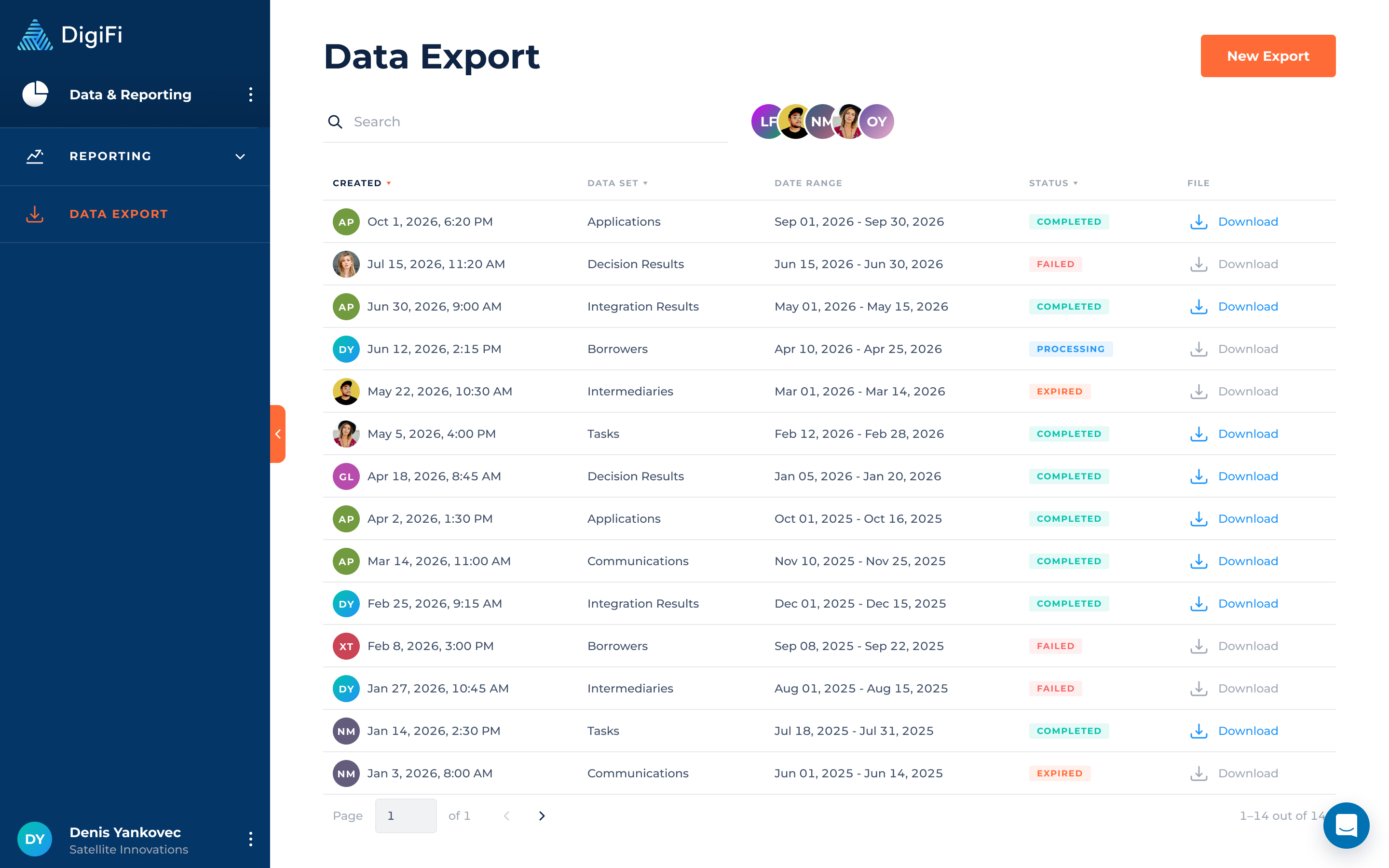
The Data Export page displays a table of previously generated exports, including their creation information, status, and available download options.
Generating a New Export
To generate an export:
- Open the Data Export page.
- Click in the upper-right corner.
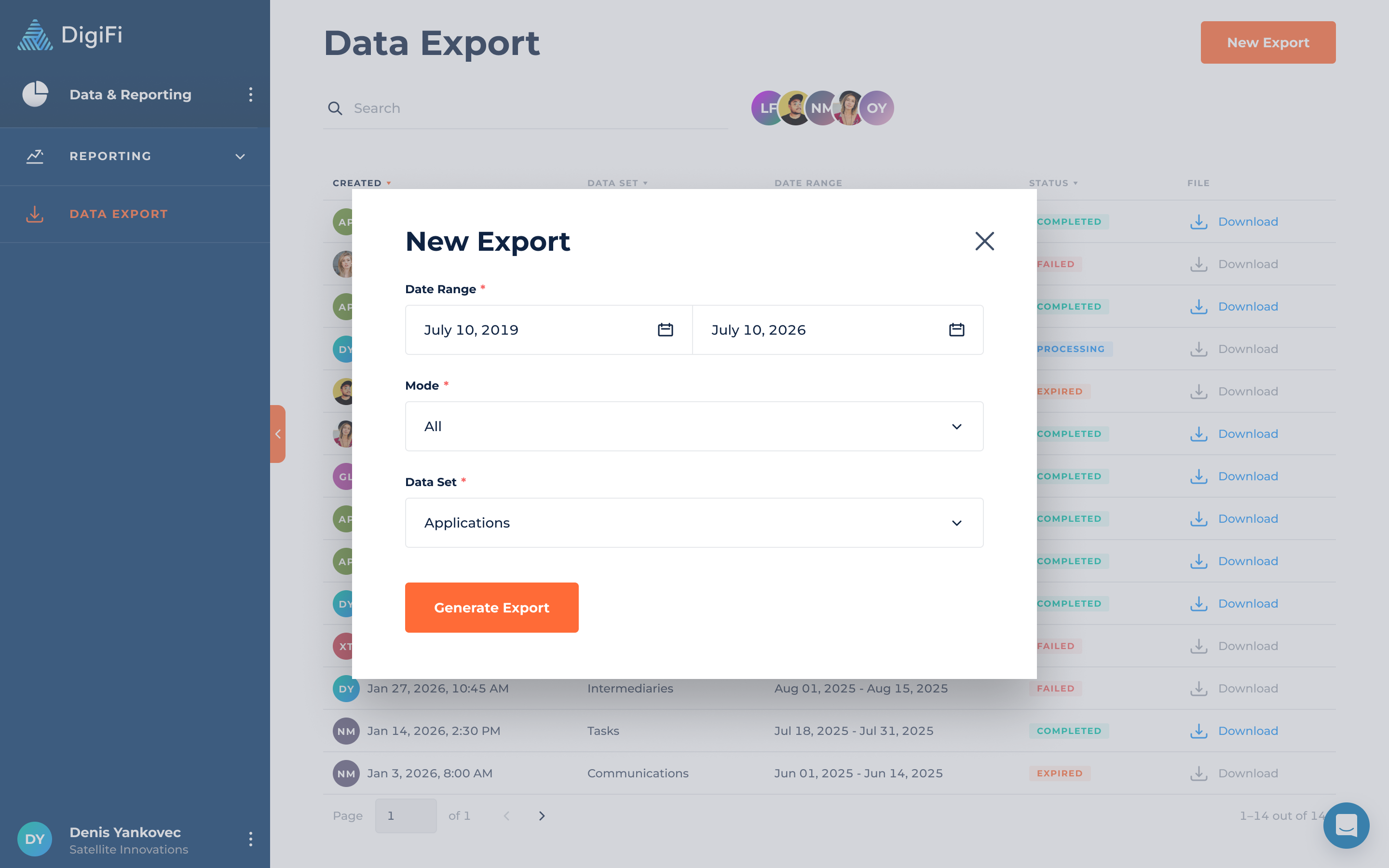
- Configure the export using the following settings.
Export Configuration
Date Range: Specify the start and end dates for the data you want to export. The selected date range determines which records are included in the export. Dates are interpreted according to your PC's date and regional settings.
Mode: Select the environment for which you want to export data:
- All – include data from all environments.
- Test – export data from the Test environment.
- Production – export data from the Production environment.
Data Set: Select the collection of data to export. Available options include Applications, Decision Results, Integration Results, Borrowers, Intermediaries, Tasks, and Communications.
Once all required settings are configured, click to start processing the file.
Managing Export Files
After an export is generated, it appears in the Data Export table. The table displays the export details and current processing status.
Export Statuses
Each export can have one of the following statuses:
- Processing – the export is being generated. The Download option is disabled until processing is complete.
- Completed – the export file is ready for download.
- Failed – the export could not be generated.
- Expired – the export file has expired and is no longer available for download.
The status is updated automatically as the export progresses.
Export Processing Limits
A maximum of 5 export files can be processed simultaneously. You can generate another export once fewer than five files remain in the Processing state.
Downloading Export Files
Once an export reaches the Completed status, the Download option becomes available in the corresponding table row.
To download an export:
- Locate the required export in the table.
- Click Download.
- Complete the additional security verification:
- Password Verification – enter your account password.
- SMS Verification – enter the verification code sent to your registered phone number.
- Once verification is successful, the file download starts automatically.
The additional verification steps help protect exported data and prevent unauthorized download
Export File Expiration
Export files and their download links are available for 7 days after the file is generated.
Once this period expires:
- The file is automatically deleted from storage.
- The export status changes to Expired.
- The Download option is no longer available.
If you need the same data after the expiration period, generate a new export.
Updated 6 days ago