
Communications
How to send and track communications to external users.
Overview of Communications
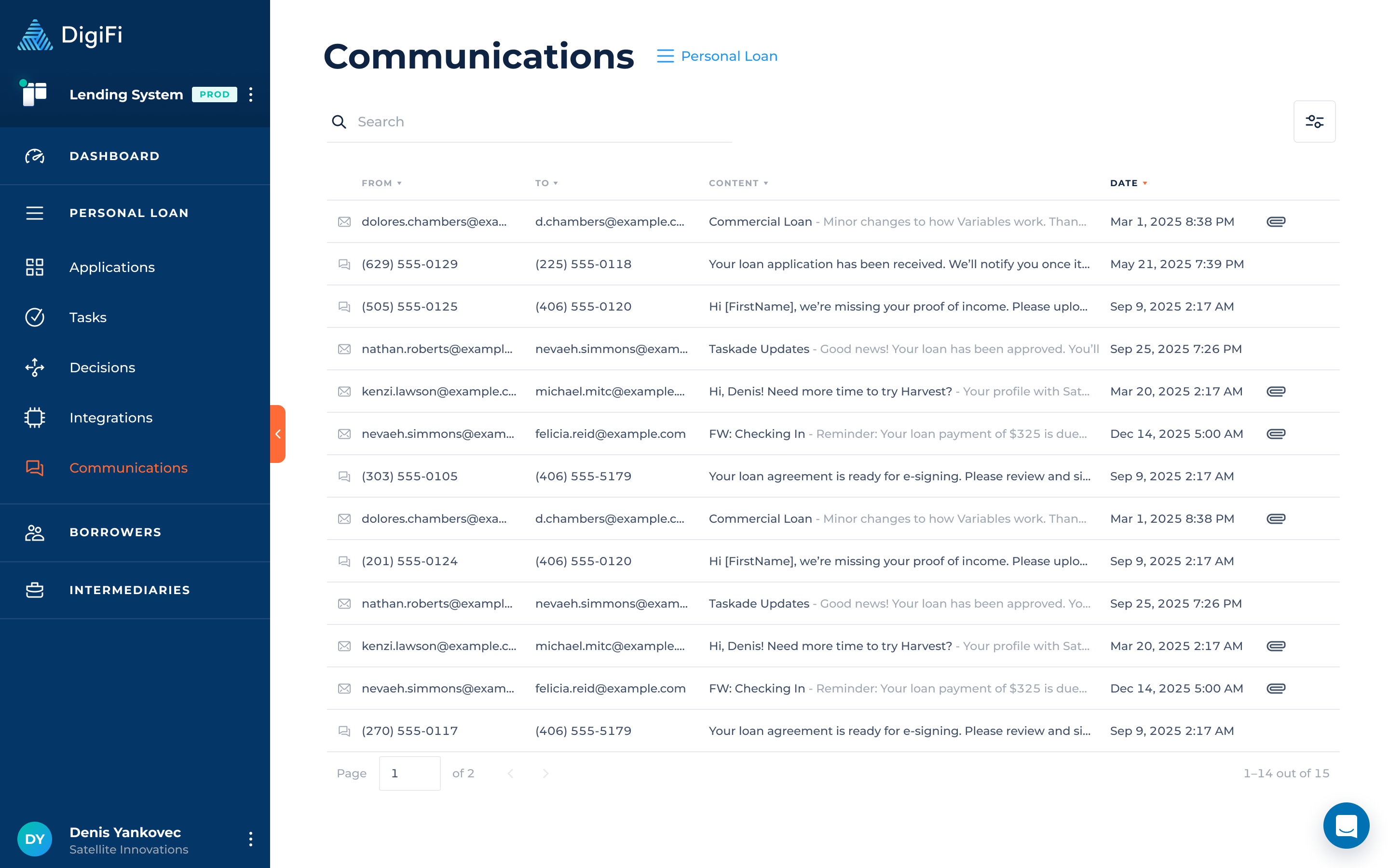
The "Communications" section provides a centralized view of all communication activity across every application in a specific loan product.
It consolidates emails, text messages, and manually recorded interactions so you can easily review all correspondence between your team, borrowers, co-borrowers, and intermediaries. This unified overview helps streamline tracking, searching, and managing communication history in one place.
Communication records can be:
- Filtered by type (emails, texts, phone calls) or date.
- Searched by email address or phone number.
From this section, you can view all the communications. Clicking on a record will redirect you to the corresponding application.
Make sure to get Twilio and SendGrid integrations set up to be able to send and track text messages and emails.
How To Send Communications
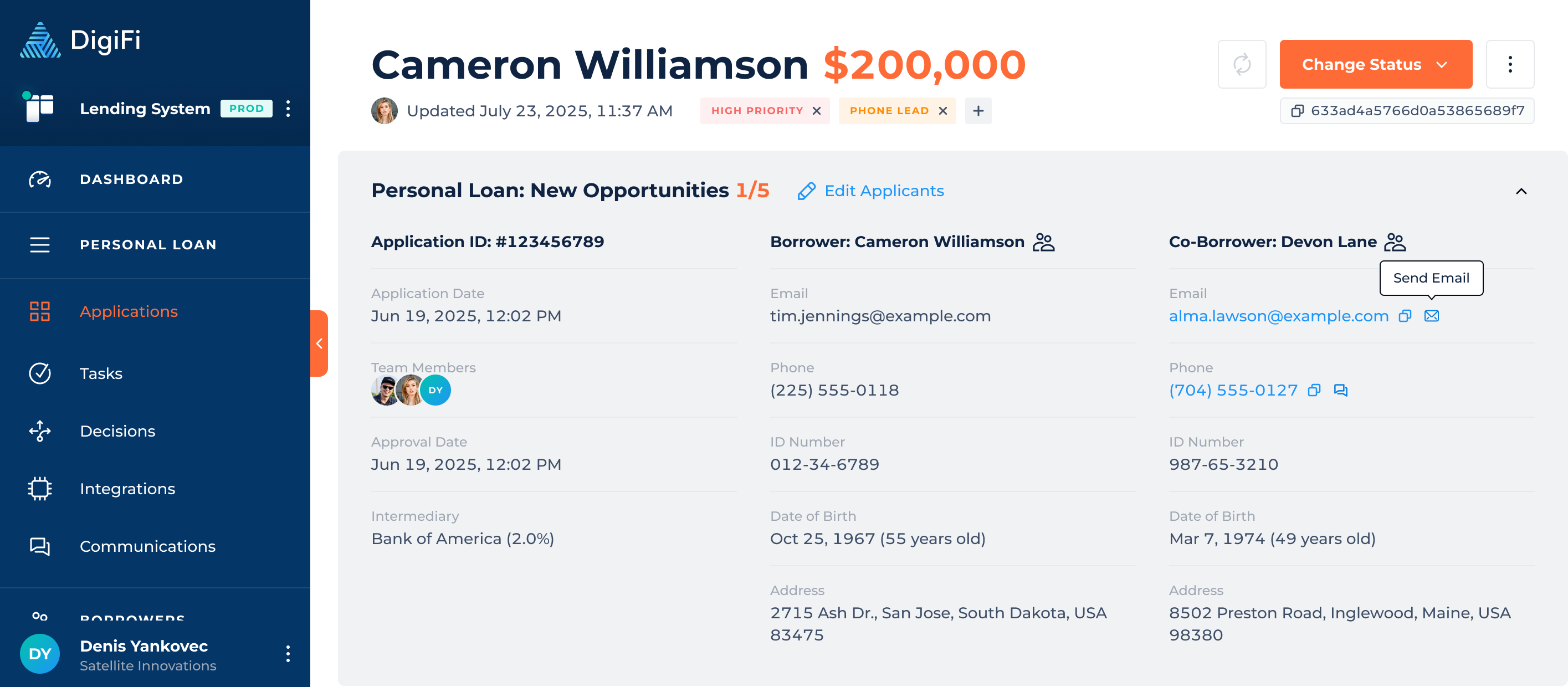
You can send emails automatically using automation builder, via Communications API or manually through Communications Tab in an application. Additionally, you can click the “send” icon next to the email address or phone number variables in the grey section containing the borrower’s basic information, as well as in Application Details.
How to View Communications Contents
To view a communication in DigiFi:
- Navigate to the "Communications" section.
- Click on the message you would like to view.
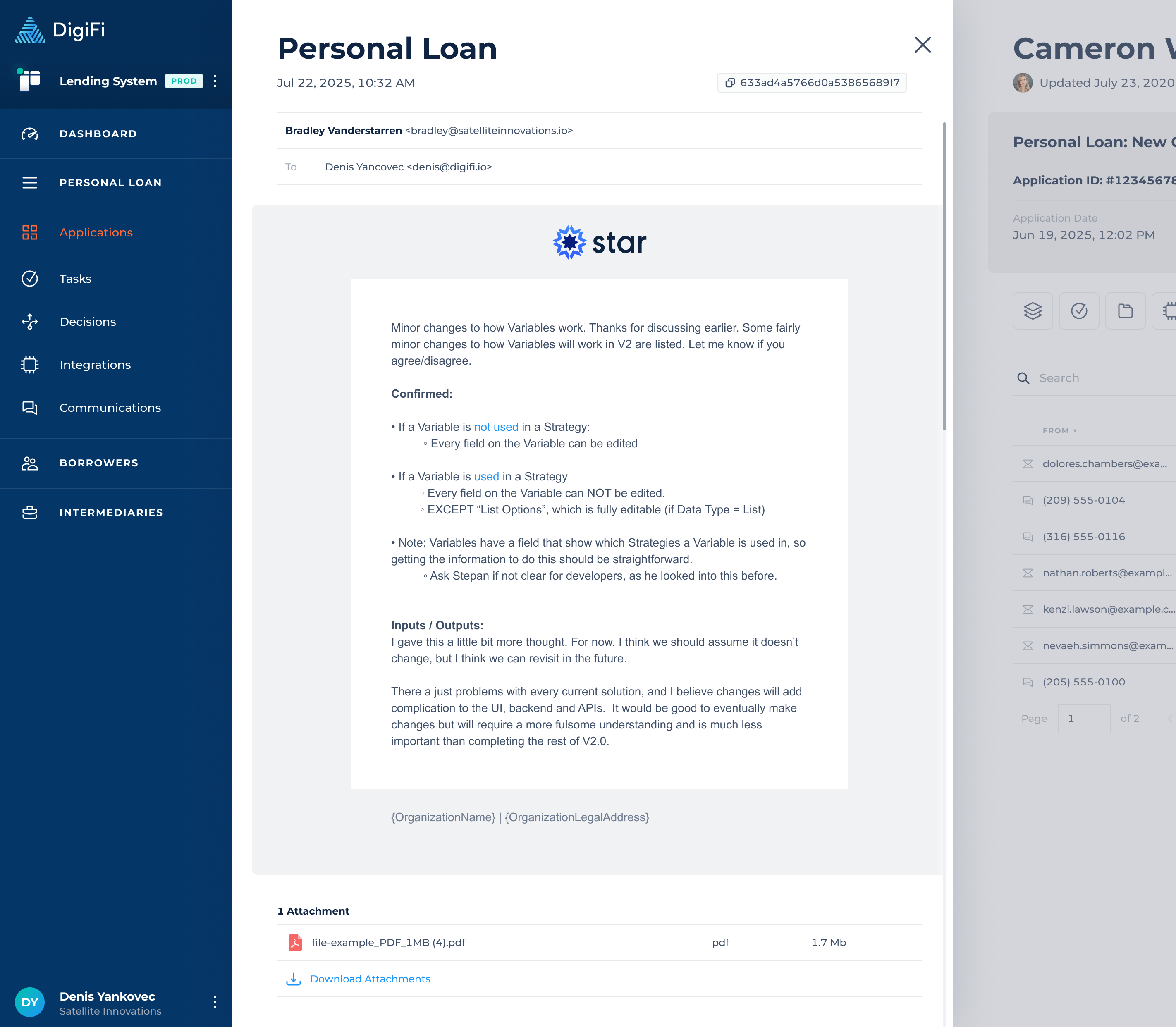
- A view will open within the application the record is associated with, displaying the full message contents and any attachments.
From this page you can also download attachments.
Updated 4 months ago