
Application Communications
How to send, track and view application-related communications.
Overview of Application Communications
The DigiFi platform provides a unified communications system that lets you send, track and view all application-related emails, text messages, and phone calls in one place. This includes:
- Automated communications (emails and text messages) sent via DigiFi.
- Automated communications sent from an external service.
- Manual records of external emails, texts, and calls.
Every communication is automatically linked to the relevant borrower, co-borrower(s), and intermediary, and is viewable in the Communications tab. This section allows users to search, filter, and view the communications history.
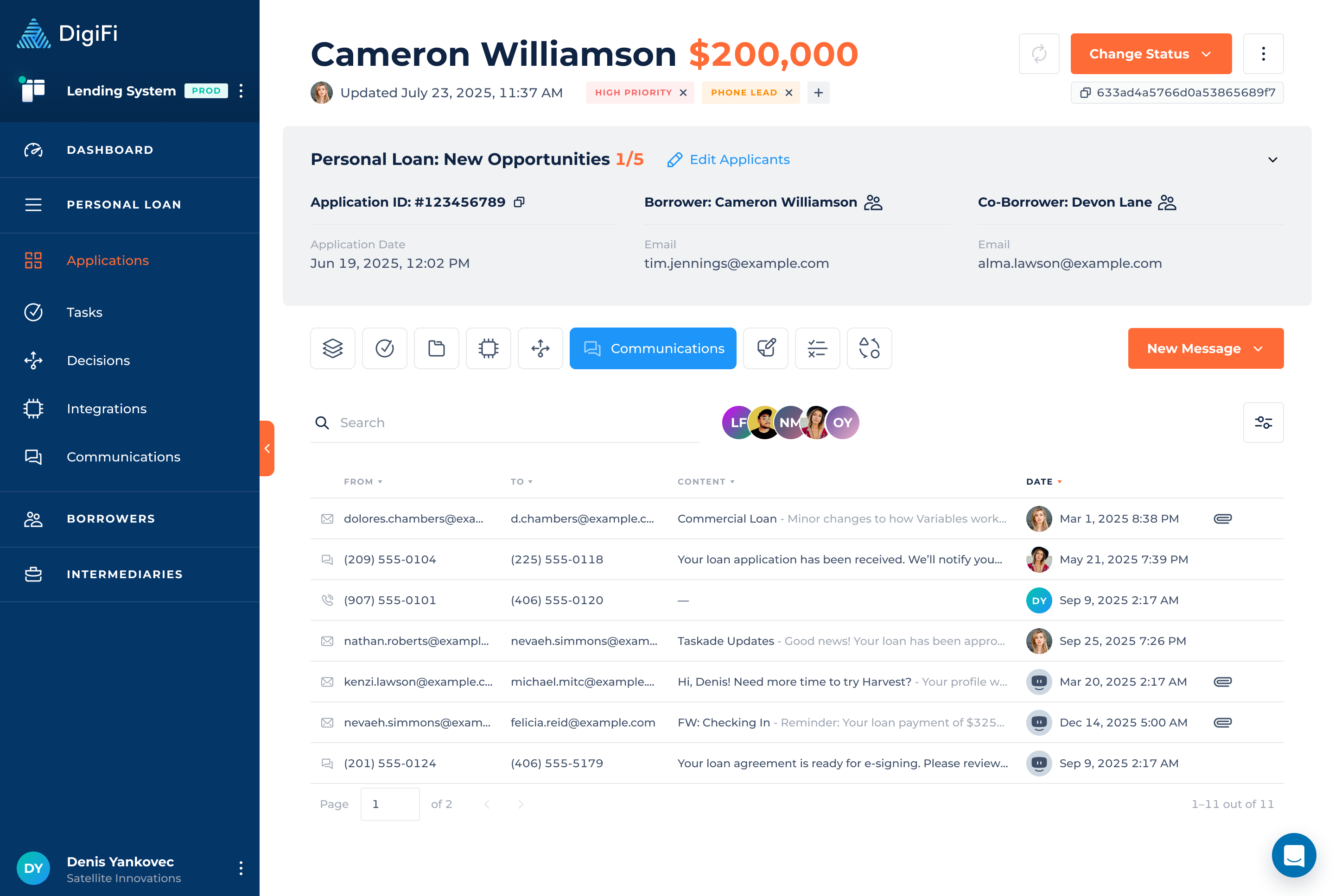
How to Send Emails
You can send emails directly from within DigiFi via our SendGrid integration, which is available in the Marketplace.
Emails can be created in two ways: by using a communication template or by manually composing a new email.
All emails, whether sent manually or automatically, are tracked in the Communications section. They are also reflected within the relevant application, as well as in the borrower’s and intermediary’s profiles, so you can view correspondence with a specific person in context.
To send an email within DigiFi:
- Open the dropdown.
- Select Send Email.
- Choose one of the following options:
- New Email, to manually create a message without a template
- Use Template, to send an email based on a preconfigured communication template
- Complete or review the email configuration, then click .
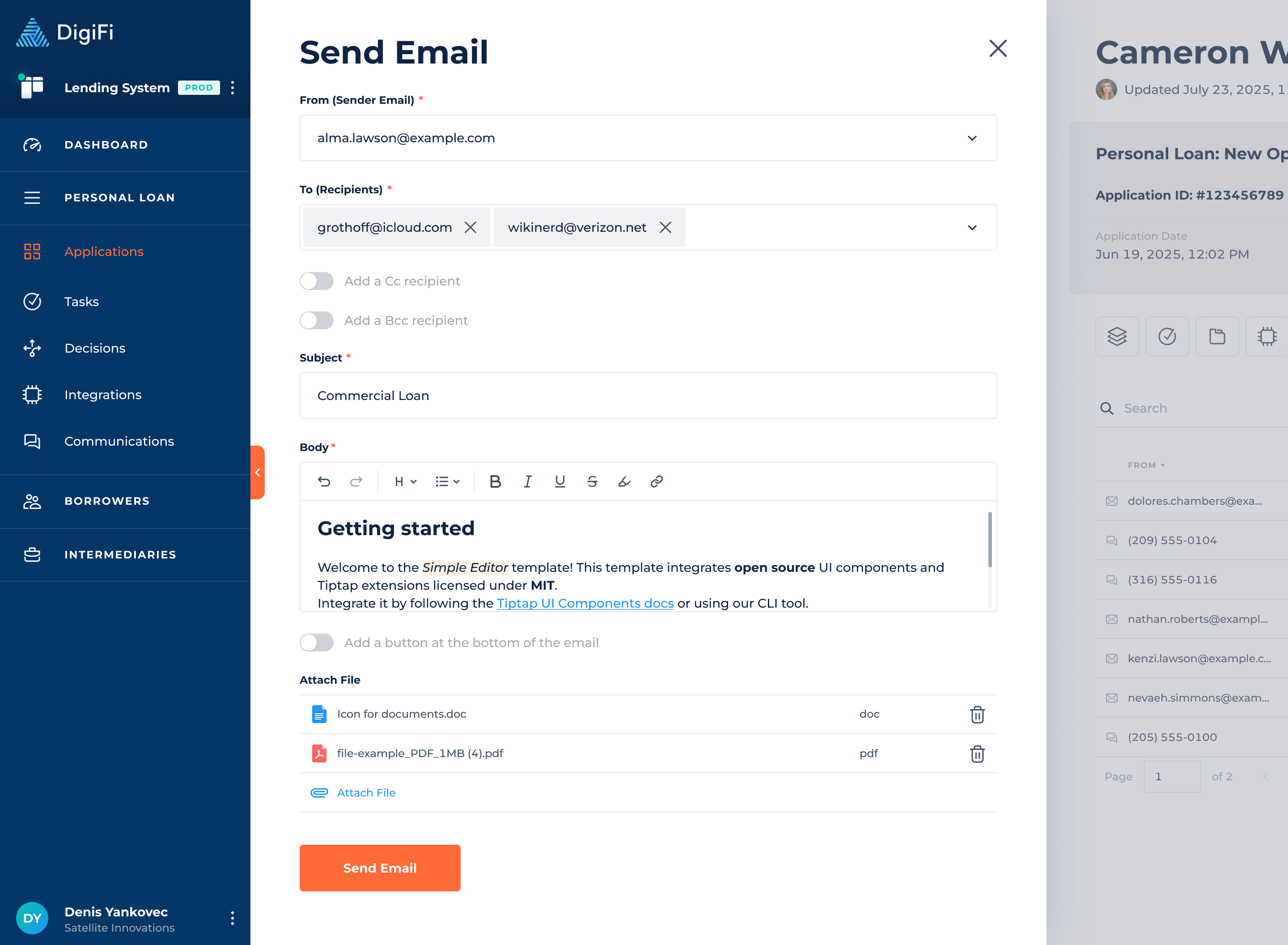
The Send Email form includes the following fields:
- From (Sender Email) – choose the email address, configured via SendGrid.
- To (Recipients) – select one or multiple recipients (borrower, co-borrower(s), intermediary, a variable with an email address type or a custom address).
You can also add Cc or Bcc recipients if needed.
- Subject – the title of the email.
- Body – the email content.
- The email editor supports rich text formatting (bold, italic, headings, lists, links, etc.).
- You may reference system variables within the text, if applicable.
Optionally you can:
- Toggle on Add a button at the bottom of the email if you want to include a call-to-action button.
- Attach files by clicking Attach File (up to 20 MB). You can either upload a file from your device or link an existing email document.
When using Use Email Template, the email is automatically populated based on the selected communication template configuration.
How to Send Text Messages
Text messages can be sent directly from DigiFi via our Twilio Integration, which is available in the Marketplace.
All messages are automatically logged in the Communications section and are also reflected within the relevant application, as well as in the borrower’s and intermediary’s profiles, so you can view correspondence with a specific person in context.
To send a text message within DigiFi:
- Open the dropdown
- Select Send Text Message
- Choose one of the following options:
- New Text Message, to manually create a message without a template
- Use Template, to send a message based on a preconfigured communication template
- Complete or review the message configuration, then click .
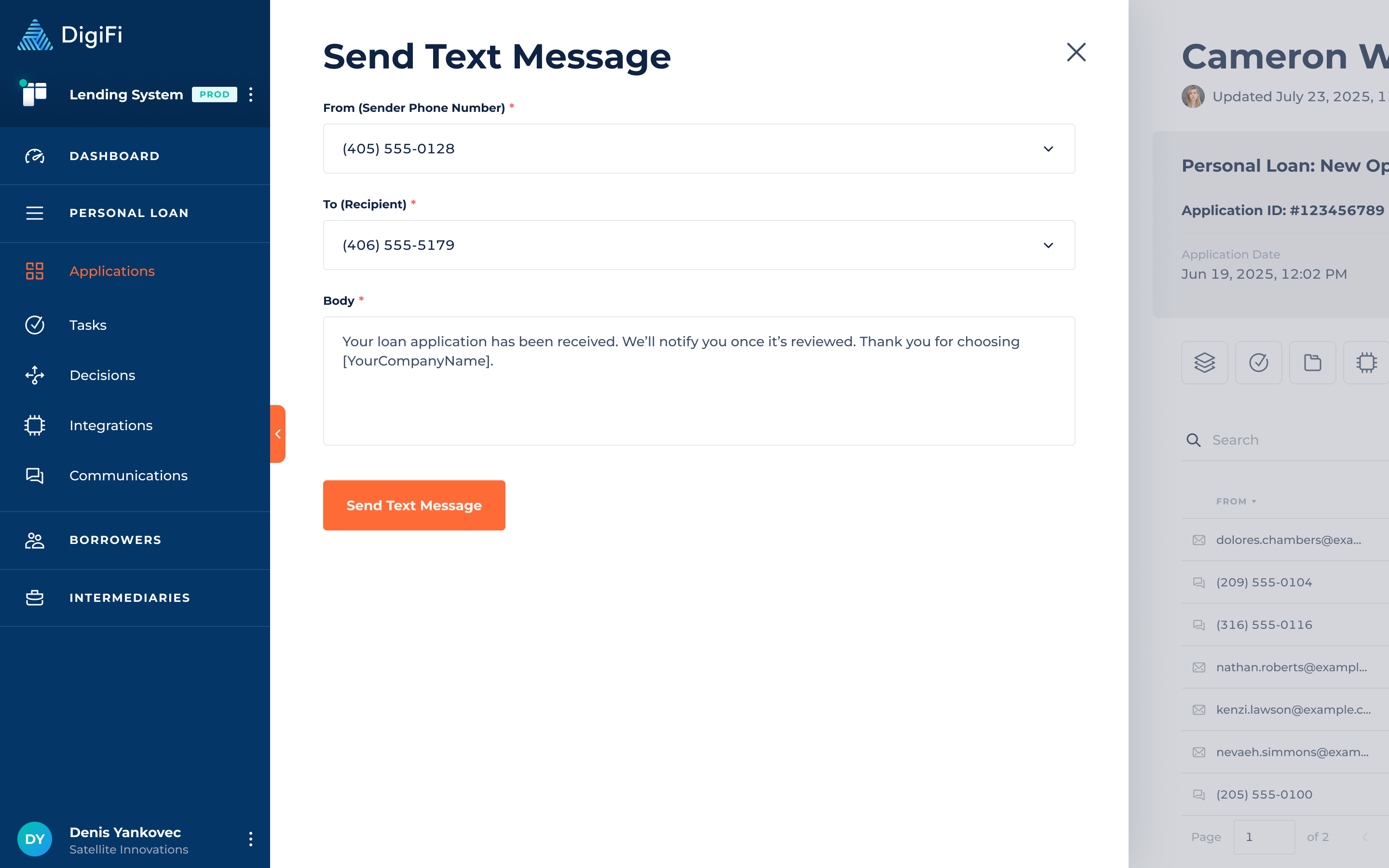
The Send Text Message form includes the following fields:
- From – choose the phone number, purchased and configured via Twilio.
- To – select the recipient number (borrower, co-borrower, intermediary, a variable with a phone number type, or a custom number).
- Body – the message content. You can personalize it using the rich text editor and system variables.
When using Use Text Message Template, the message is automatically populated based on the selected communication template configuration.
How to Automatically Record Externally-Delivered Emails
If you are using an email delivery system external to DigiFi, you can record your outbound applicant and intermediary emails in DigiFi using our BCC parsing feature, which automatically associates emails with applications, borrowers and/or intermediaries.
To track automated emails sent outside of DigiFi, generate a dynamic email address and place it in the BCC field. The required format is below.
- Test Mode Emails: o-development-organizationId-applicationId@domain
- Prod Mode Emails: o-organizationId-applicationId@domain
Example: o-6650fb1536935f8db3a13a89-69498b0ffac66b024356020c@mail.digifi.io
How to Manually Record Communications
In addition to sending tracked emails and text messages, DigiFi also allows you to manually log communications that take place outside the system - such as phone calls, and also Emails and Text Messages.
Manually recorded communications appear in the Communications section and are also linked to the relevant application, borrower, and intermediary.
It is not required to have SendGrid or Twilio integrations set up to manually record communications.
To manually record a communication:
- Open the dropdown.
- Select Record Communication.
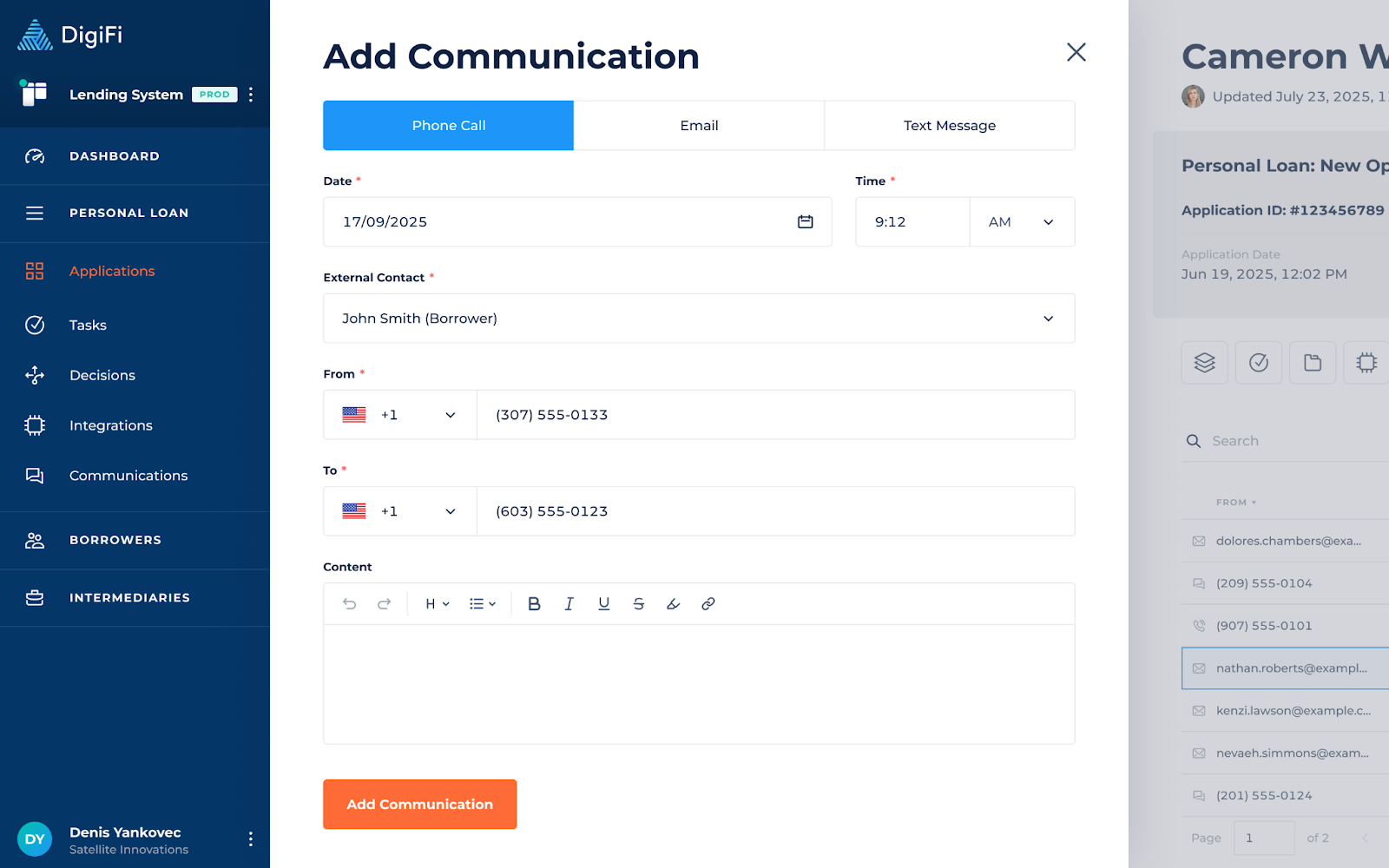
- From the top tabs, choose the communication type you want to log: Phone Call, Email, Text Message.
Regardless of the communication type, the manual entry form includes the same core fields:
- Date: when the communication occurred.
- Time: the exact time of the communication.
- External Contact: the borrower, co-borrower, or intermediary to which this communication should be linked.
- From (Sender): who initiated the communication.
- To (Recipient): who received the communication.
- Content: the message body or summary of the conversation (supports rich text formatting).
When logging an email, you will also see:
- Subject: the email subject line.
- Cc / Bcc: optional additional recipients.
How to View Communication Contents
To view communications in DigiFi:
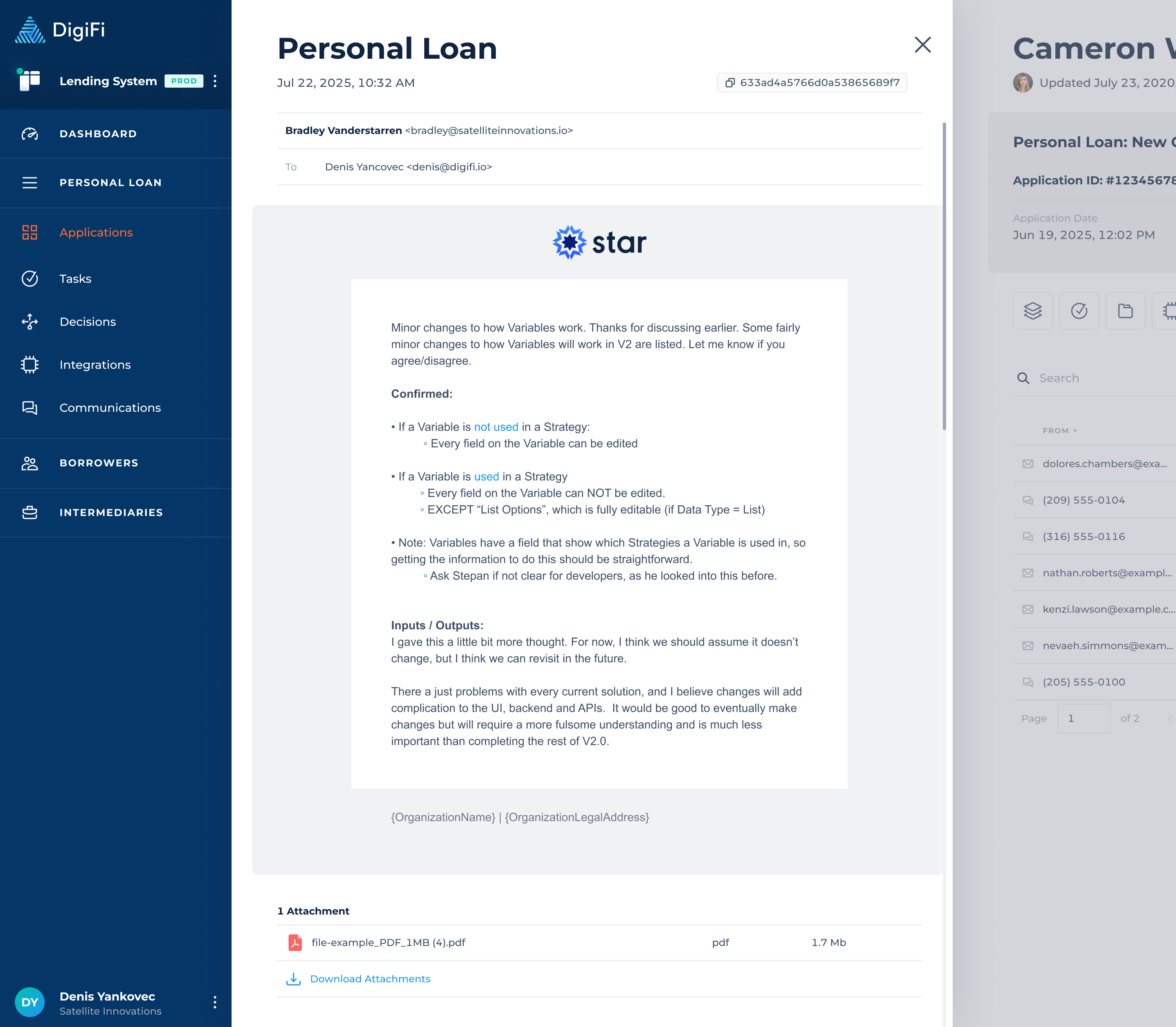
- Navigate to the Communications tab of the application.
- Click on the communication you would like to view.
- A view will open from the side with the full communication contents and attachments.
Updated 3 months ago