
Twilio SMS Messaging
How to connect your Twilio account to DigiFi for text messaging.
Overview of the DigiFi-Twilio Integration
The DigiFi platform includes a built-in integration with Twilio, a leading cloud communications provider that enables programmable messaging and phone verification services.
You must set up this integration to enable SMS functionality within DigiFi, including:
- Sending text messages to borrowers, co-borrowers, and intermediaries manually from the Communications tab
- Sending automated SMS messages through the Automation Builder
- Supporting borrower actions such as account creation, login verification, and phone number updates
Connecting your Twilio account also ensures that text messages sent from DigiFi to your borrowers or intermediaries will be delivered from your own phone number and properly tracked in the system.
This integration is also required for enabling SMS-based authentication and ensures a secure and seamless communication experience across both borrower and intermediary portals.
How to Create a Twilio Account
It only takes a few minutes to create a new Twilio account. Click here to get started.
How To Set Up Twilio
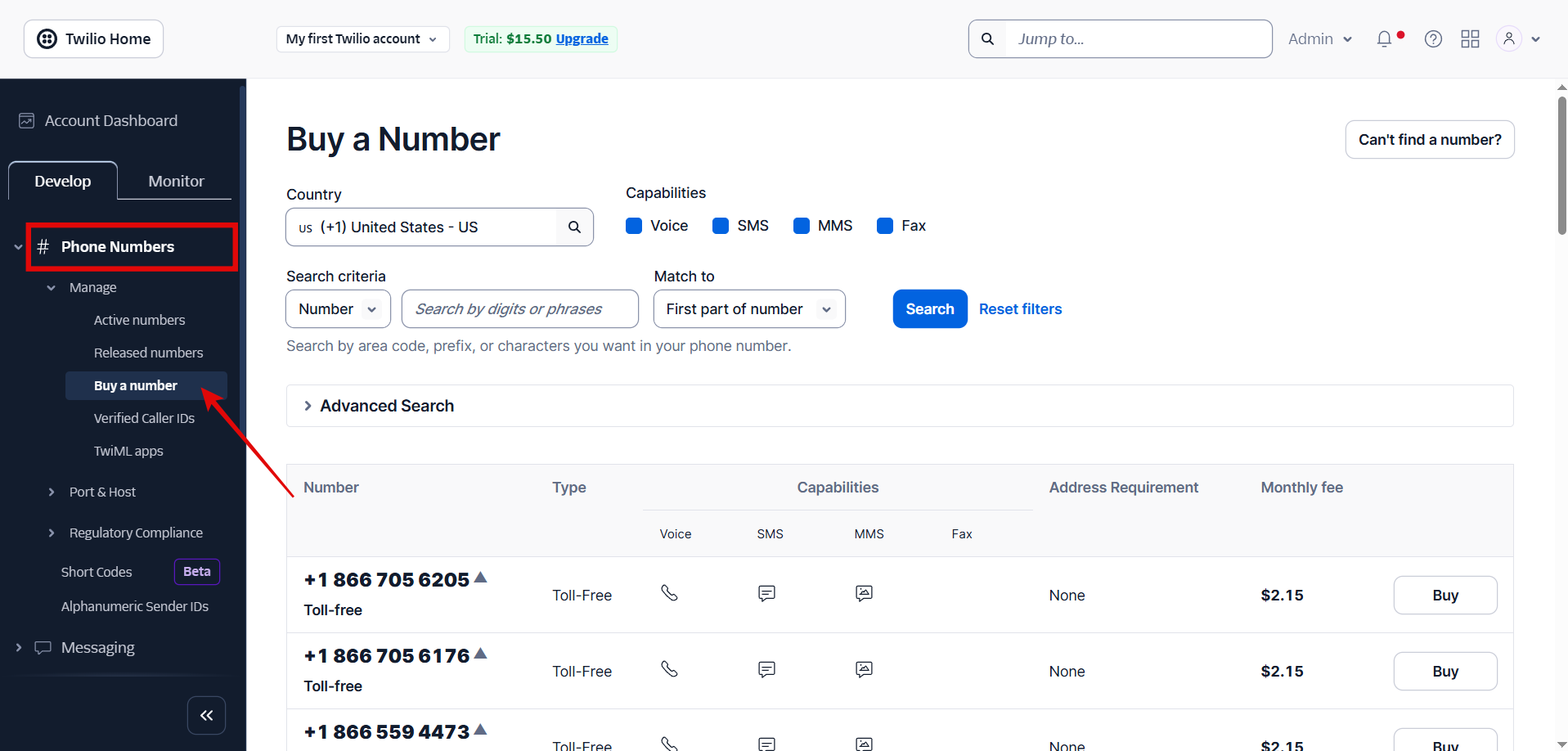
After creating a Twilio account, navigate to Phone Numbers > Manage > Buy a Number and purchase a phone number that will be used for text messaging.
If you are using a trial account, please note that the trial phone number must be verified before it can be used in DigiFi for text messaging.
If you purchase a phone number, it must also go through A2P 10DLC registration before you can send text messages to recipients in the United States.
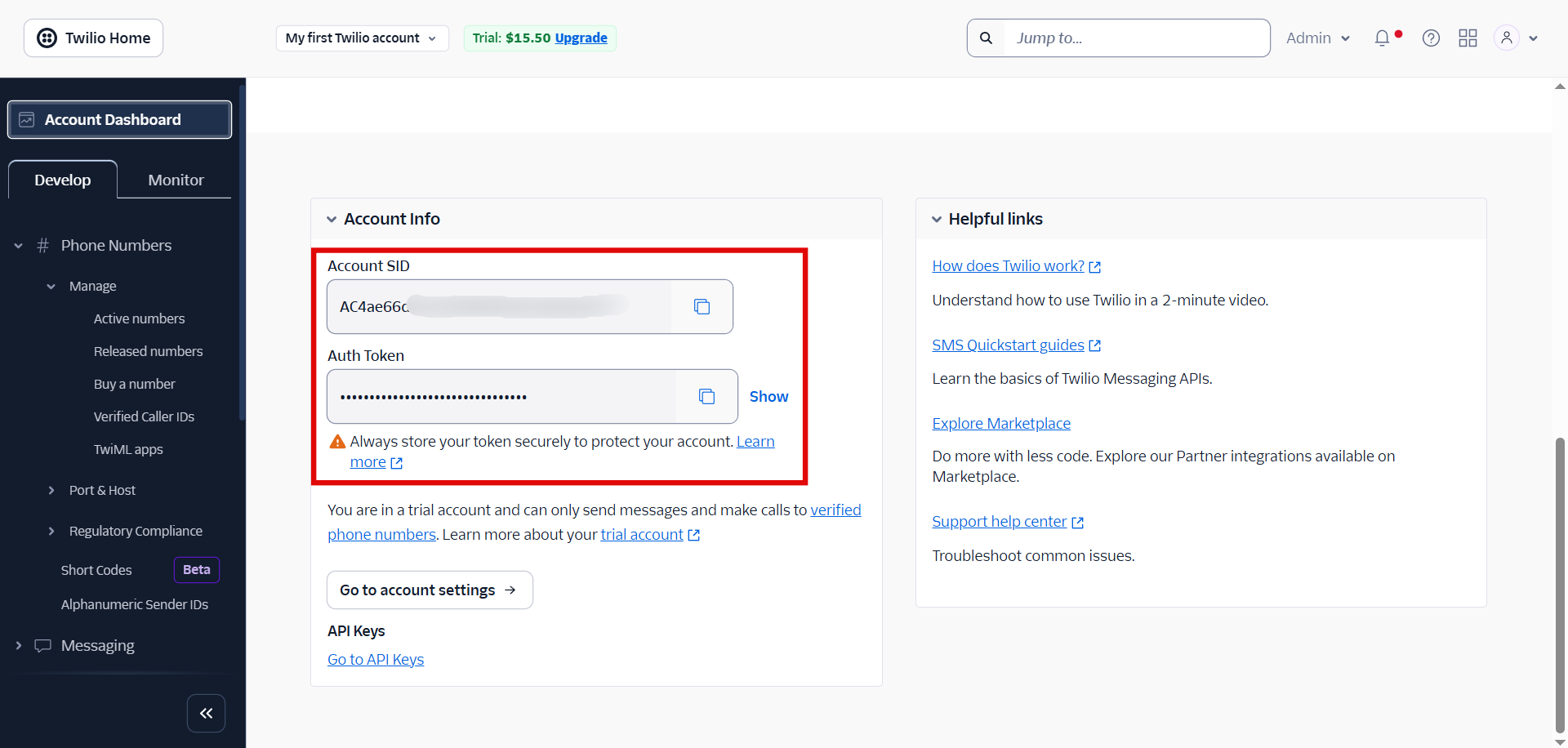
After purchasing, go to the Account Dashboard (Get Started page), scroll down, and copy the Account SID and Auth Token, which will be used to connect DigiFi to Twilio.
How to Connect Your Twilio Account to DigiFi
Once your Twilio account is created and set up, you can integrate it through DigiFi.
To connect your Twilio account to DigiFi:
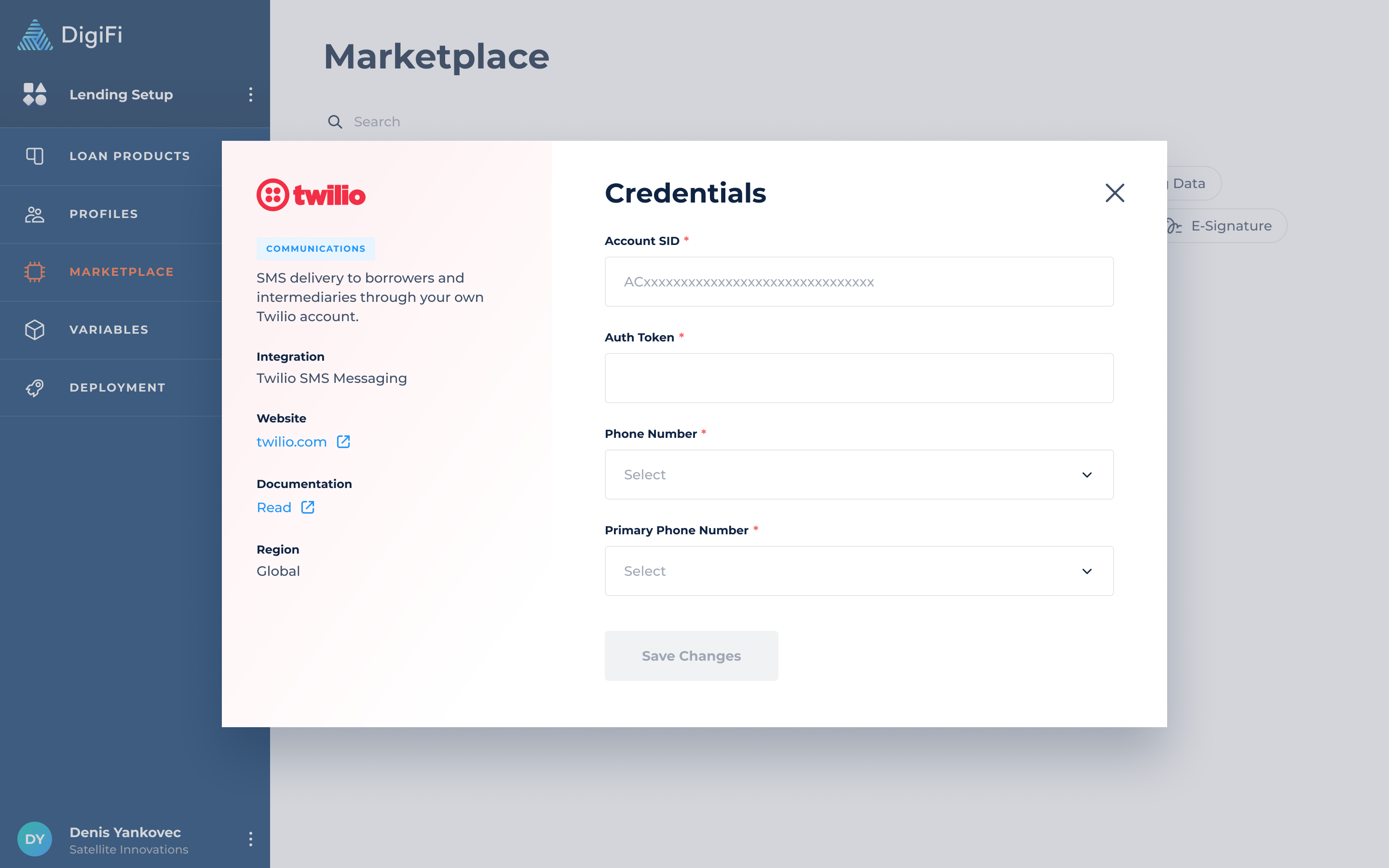
- Navigate to Lending Setup > Marketplace > Twilio
- Provide your Account SID and Auth Token (which can be found inside your Twilio account).
- Select phone numbers (from the list of phone numbers you've purchased in your Twilio account).
- Select the primary phone number, which will be used by default for system text messages (e.g., verification codes).
- Click the "Save Changes" button.
DigiFi will automatically check that the credentials are valid. If they are, your Twilio account will now be connected.
Updated 4 months ago