
PandaDoc E-Signature
How to connect your PandaDoc account to DigiFi for electronic signatures.
Overview of the DigiFi-PandaDoc Integration
The DigiFi platform includes a built-in integration with PandaDoc, an electronic signature provider.
You can set up this integration to use DigiFi's e-sign feature, which lets you send documents for signature directly from the platform. Once the signing process is completed, the signed file is automatically saved back to the application in DigiFi.
How to Create a PandaDoc Account
You’ll need an API Developer account to integrate with PandaDoc. Please note that PandaDoc provides access to the production key only with the Enterprise plan.
Step 1: Generate Account Credentials
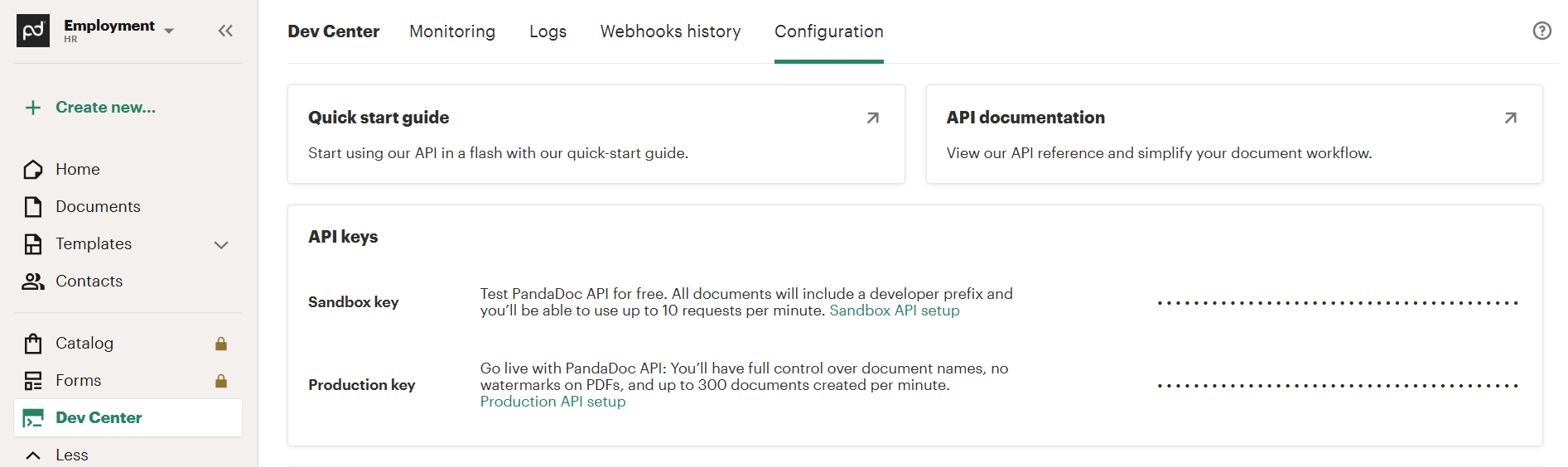
To create an API key in PandaDoc:
- Go to
Dev Center > Configurationin your account. - In the API Keys section, generate a Sandbox key for testing.
When using a sandbox API key during the free trial, both the sender and recipient email addresses must belong to the same organization (email domain) when testing e-signature requests.
Step 2: Add PandaDoc credentials in DigiFi
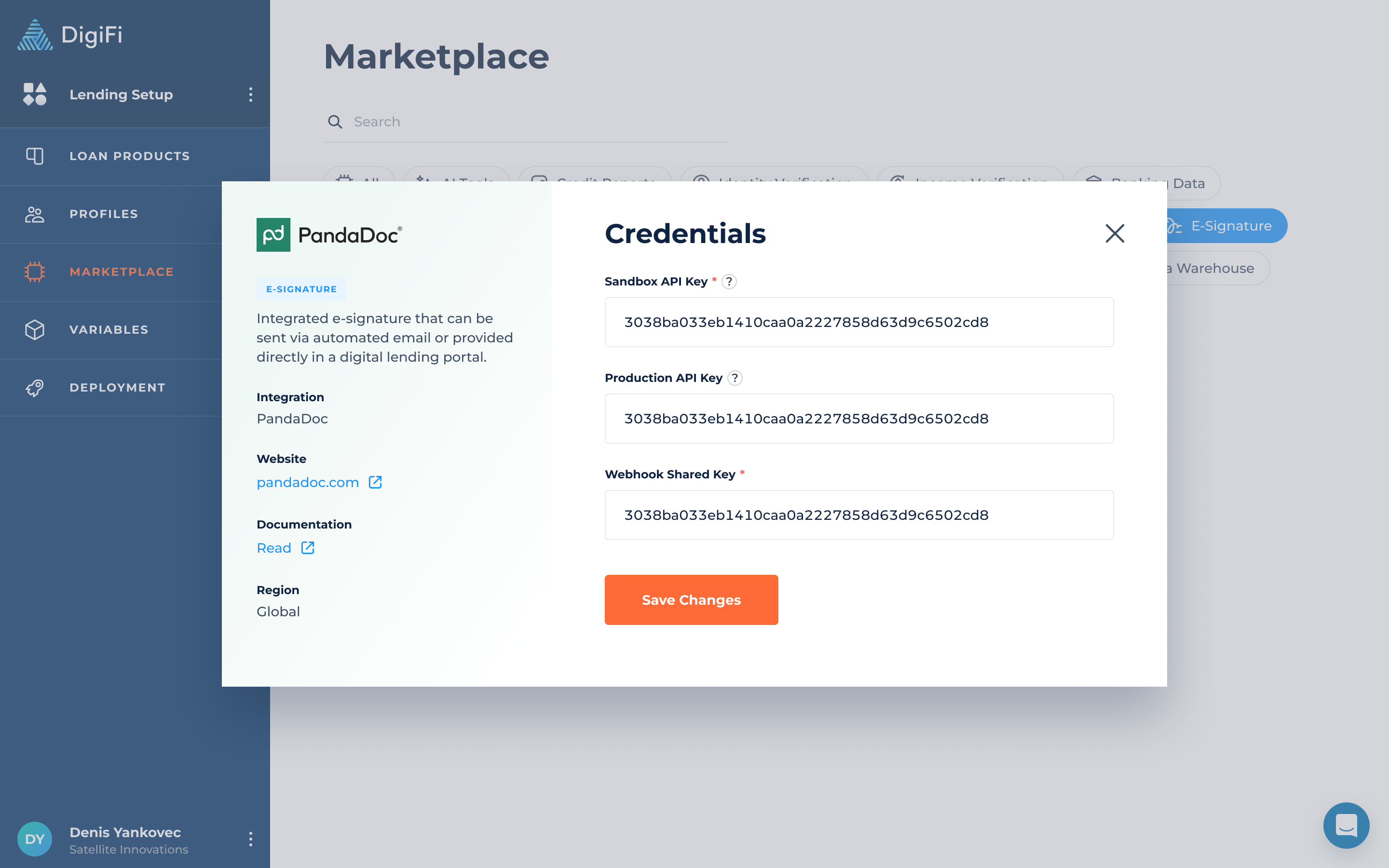
In this step, you'll add your PandaDoc credentials to the DigiFi platform. To get started, open DigiFi and navigate to Lending Setup > Marketplace > PandaDoc.
To update your credentials:
- Click the "Edit Credentials" button.
- Add your PandaDoc Sandbox API key.
- Click the "Save Changes" button.
The integration card includes two keys: Sandbox and Production.
The Sandbox key enables sending PandaDoc documents for e-signature in the Lending System (Test), while the Production key enables sending documents in the Lending System (Prod).
Step 3: Configure a Webhook
To set up a webhook in PandaDoc:
- Go to
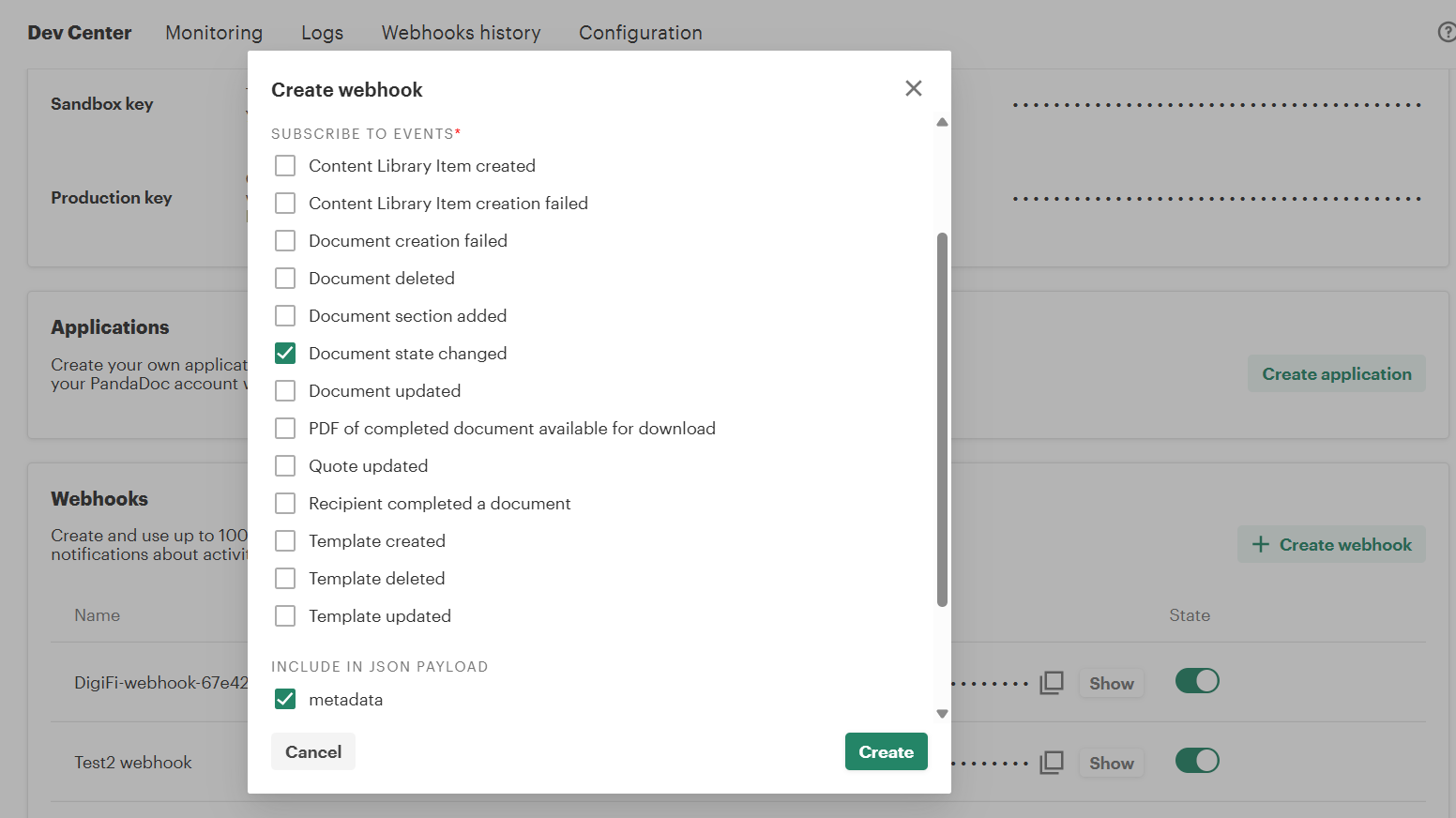
Dev Center > Configuration > Webhooksand click “Create Webhook". - Set the Webhook Endpoint URL:
- Cloud: https://api.cloud.digifi.io/panda-doc-document-callback
- Private: use your own domain (e.g., https://api.name.digifi.io/panda-doc-document-callback)
- Select the following options:
- Subscribe to events: Document State Changed
- Include in JSON Payload: metadata
- Copy the Webhook Shared Key and add it to the Marketplace integration card in DigiFi.
Step 4: Import Templates To DigiFi
To import PandaDoc templates to DigiFi, please follow the instructions in the User Manual. Templates can be imported once PandaDoc credentials are added to DigiFi.
Step 5: Go Live With PandaDoc
After successfully testing your DigiFi–PandaDoc integration, complete the following steps to move to production:
- Log in to your PandaDoc account.
- Ensure you have an active Enterprise API plan, and request a Production API key from PandaDoc customer support or your designated CSM.
- Once you receive the Production key from PandaDoc, open the PandaDoc integration card in the DigiFi Marketplace and add the Production API key.
- Verify that your webhook configuration is set up correctly.
Once completed, your PandaDoc integration will be live and ready to send documents for e-signature in production.
Updated 3 months ago