
Dealertrack
How to connect your Dealertrack account to DigiFi to receive loan applications, send decisions, and more.
Overview of DigiFi-Dealertrack Integration
The DigiFi platform includes a built-in integration with Dealertrack, a widely used platform in the automotive financing industry. It connects dealerships with lenders, enabling them to submit, review, and process loan applications efficiently.
You can set up this integration to access applications from Dealertrack, send credit decisions back, track deal updates, exchange comments with dealers and stay updated on deals – all while maintaining compliance with industry standards.
Step 1: Access the Integration
The Dealertrack integration is available as a pre-built solution in the DigiFi Marketplace.
- Go to DigiFi Marketplace
- Navigate to the Aggregators category
- Select the Dealertrack integration
Step 2: Configure Basic Settings
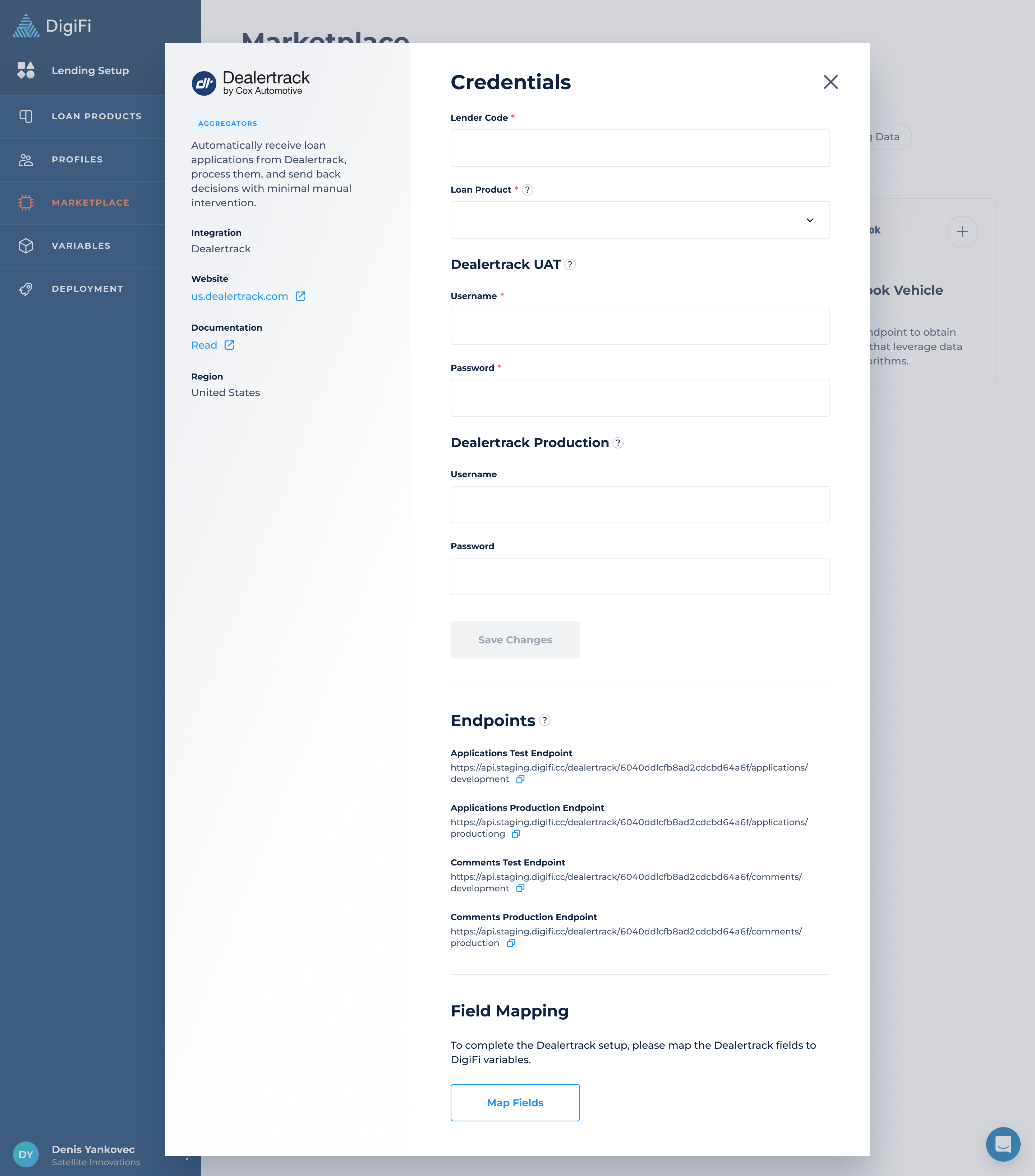
Enter Your Lender Code
Input the unique Lender Code provided by Dealertrack. This code is essential for authentication and application processing.
Select Your Loan Product
Choose which DigiFi loan product will receive applications from Dealertrack. All active loan products will be available in the dropdown.
Choose Your Environment
Dealertrack offers two environments that sync with DigiFi modes:
| Dealertrack Environment | DigiFi Mode | Purpose |
|---|---|---|
| UAT | Test | Testing and validation |
| Production | Production | Live loan processing |
Tip: Start with the UAT environment to test your setup before going live.
Step 3: Share API Endpoints ⚠️
Important: To receive applications and comments from Dealertrack, you must complete this step.
- Copy the endpoints from the Dealertrack card.
- Share these endpoints with Dealertrack during their setup process.
This enables Dealertrack to send data directly to DigiFi.
Step 4: Map Your Fields
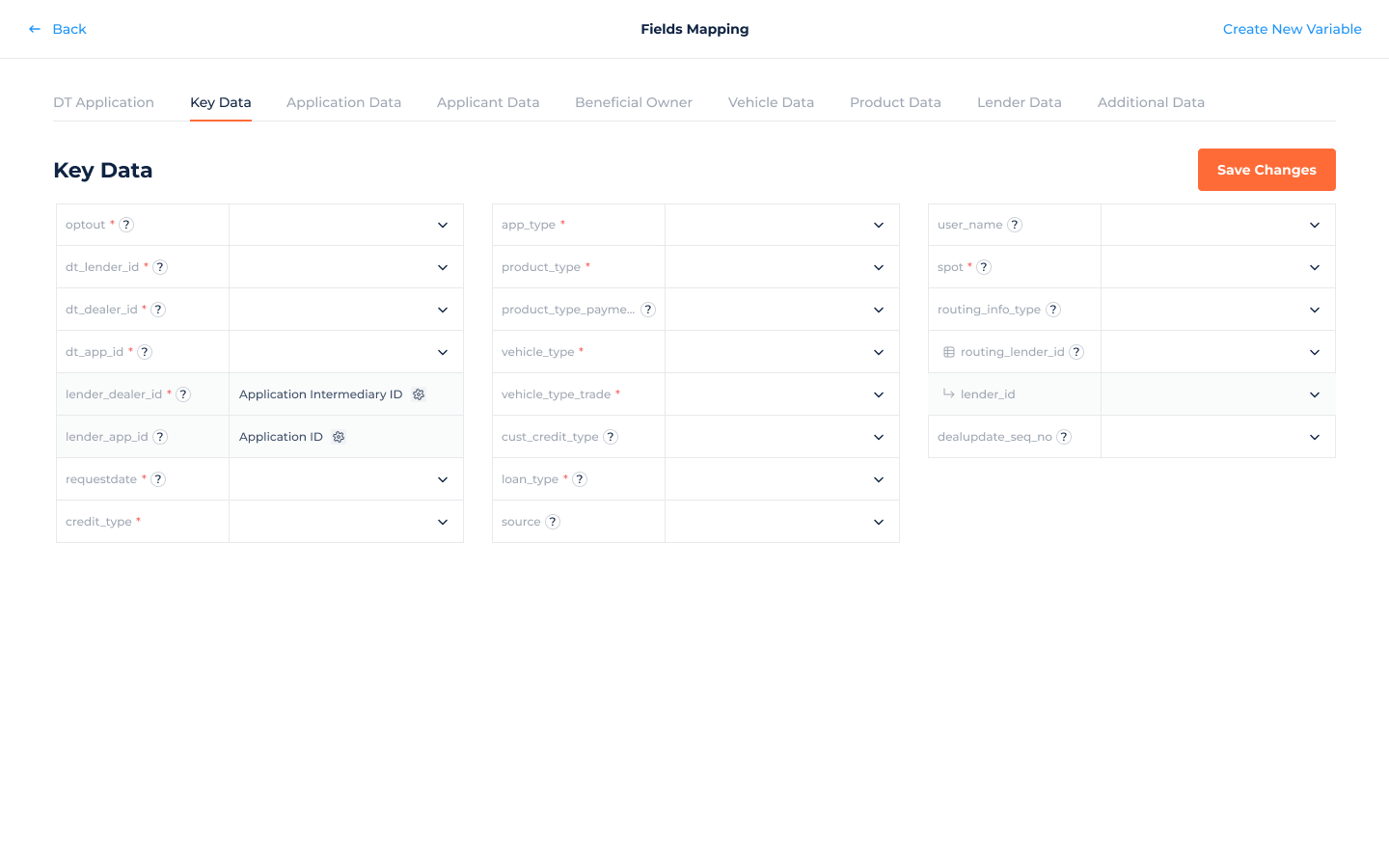
Field mapping connects Dealertrack data fields to your DigiFi variables.
- System Fields (marked with a ⚙️ icon): These are predefined in DigiFi and cannot be changed. They are required for the data flow to work correctly.
- Standard Variables: Certain fields in the Applicant Data section are automatically mapped to standard variables to ensure borrowers and intermediaries are uniquely identified.
- Custom Mapping: Map the fields relevant to your lending process. For each Dealertrack field you want to receive or send, select the corresponding DigiFi variable.
Step 5: Enable the Aggregators Section
Once connected (UAT or Production):
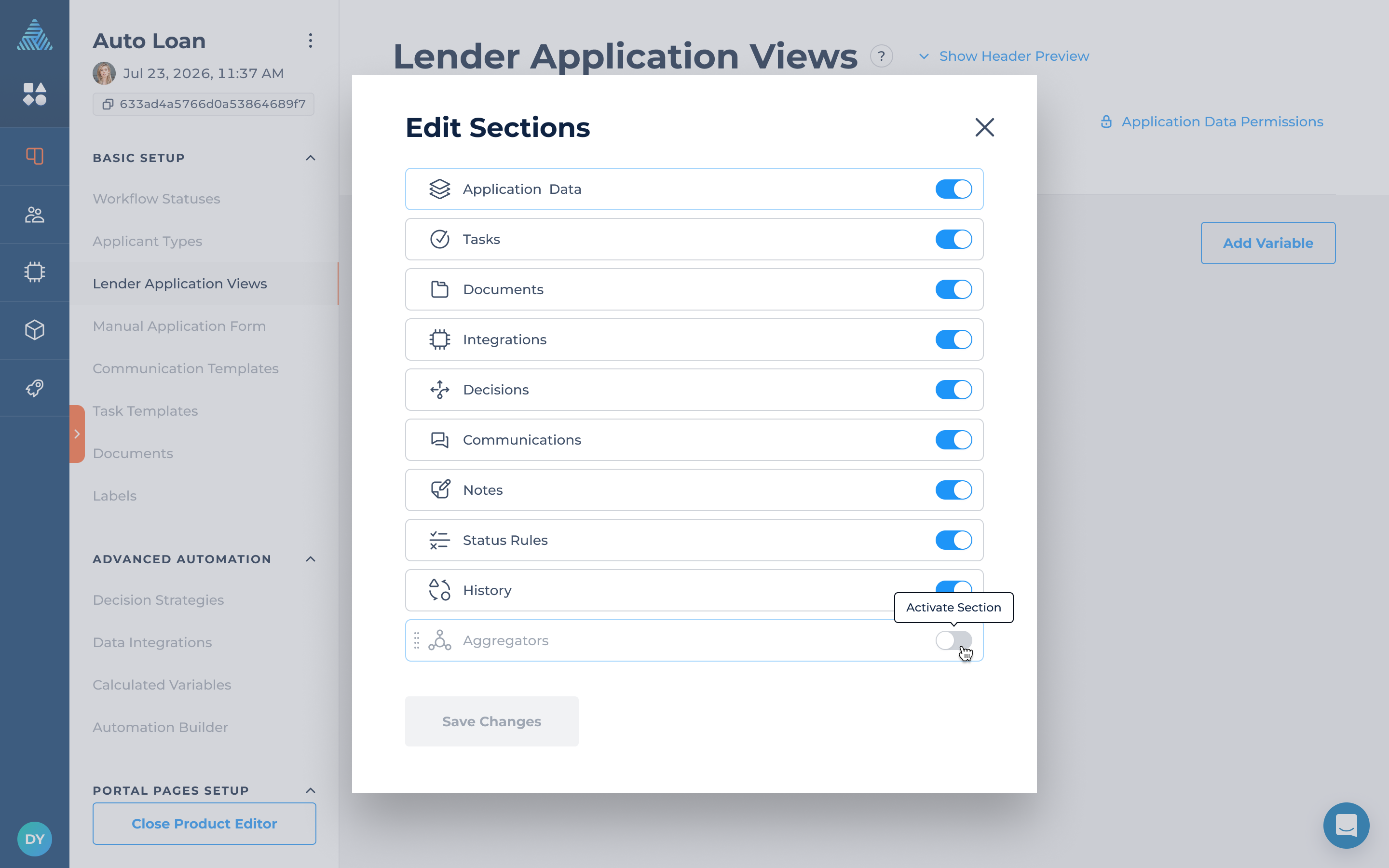
- Go to Lending Setup > Your Loan Product > Lender Application Views
- Click the blue Pen icon
- Activate the Aggregators section
This section allows you to manage credit decisions and comments for Dealertrack applications.
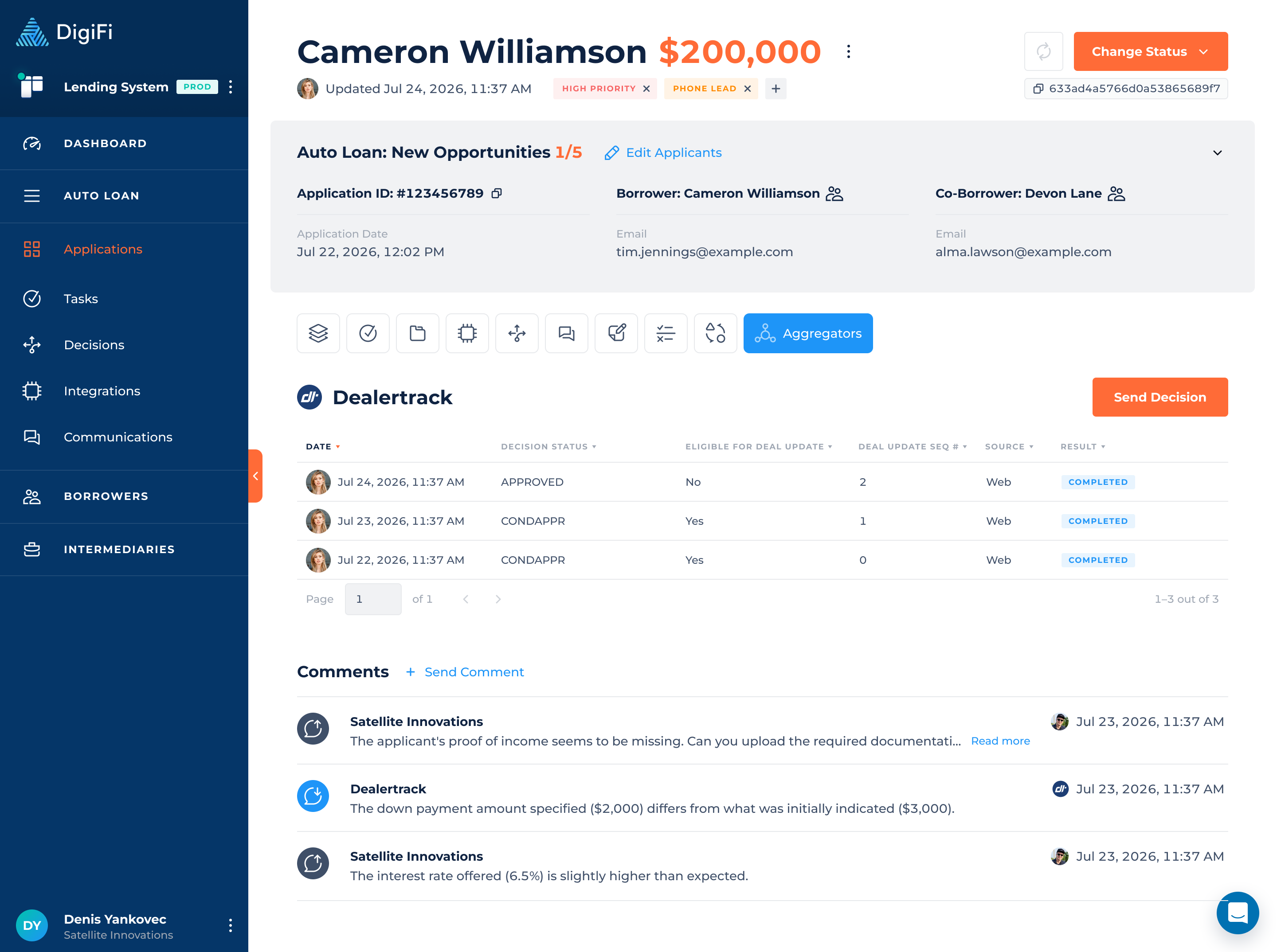
Once activated, the Dealertrack section becomes available in the Lending System. From here, you can manage credit decisions and exchange comments with dealers for all applications received from Dealertrack.
- Sending comments: Add notes in the Dealertrack section to communicate with dealers about specific applications.
- Receiving comments: Comments from dealers in Dealertrack automatically appear in DigiFi, keeping all communication in one place.
Step 6: Send Credit Decisions
You can send credit decisions to Dealertrack either manually or automatically.
Manual Decision Sending
Send decisions directly from the Aggregators section in your loan application view whenever you're ready to communicate with the dealer.
Automated Decision Sending
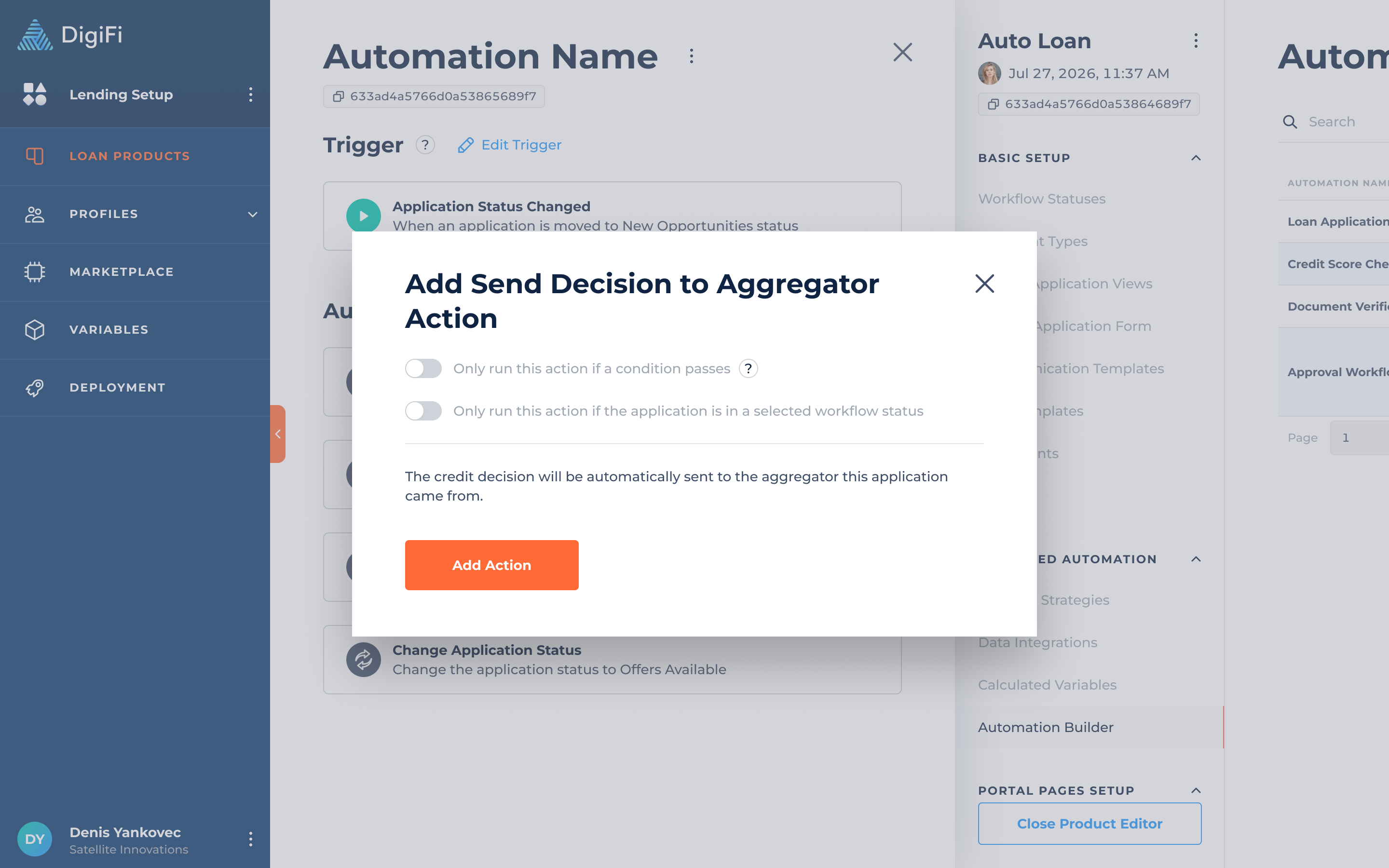
To automatically send decisions based on triggers and conditions:
- Navigate to Lending Setup > Your Loan Product > Automation Builder
- Click Create an Automation
- Click + Add Action
- Select Send Decision to Aggregator
Decision Status Codes
Use thedecision_status_codefield to send decisions:
| Decision Status Code | Dealertrack Status |
|---|---|
| APPROVED | Approved |
| CONDAPPR | Counteroffer / Conditionally Approved |
| DECLINE | Declined |
| CANCELED | Decision Cancelled |
| EXPIRED | Decision Expired |
Note: Each new decision replaces the previous one.
Trigger Contract Creation
Use the app_contract_status field:
- Send yes to initiate a contract in Dealertrack
- Leave blank or send no to skip contract creation
Allow Deal Updates
Control whether dealers can update and resubmit applications using the dealupdate_eligible field:
- Send yes and the dealer can update Vehicle and Finance info and resubmit the application.
- Send no or leave blank and the dealer cannot update the application.
When updates are allowed, DigiFi automatically updates the same application with the dealer’s new values.
Step 7: Review Integration Files and Sent Data
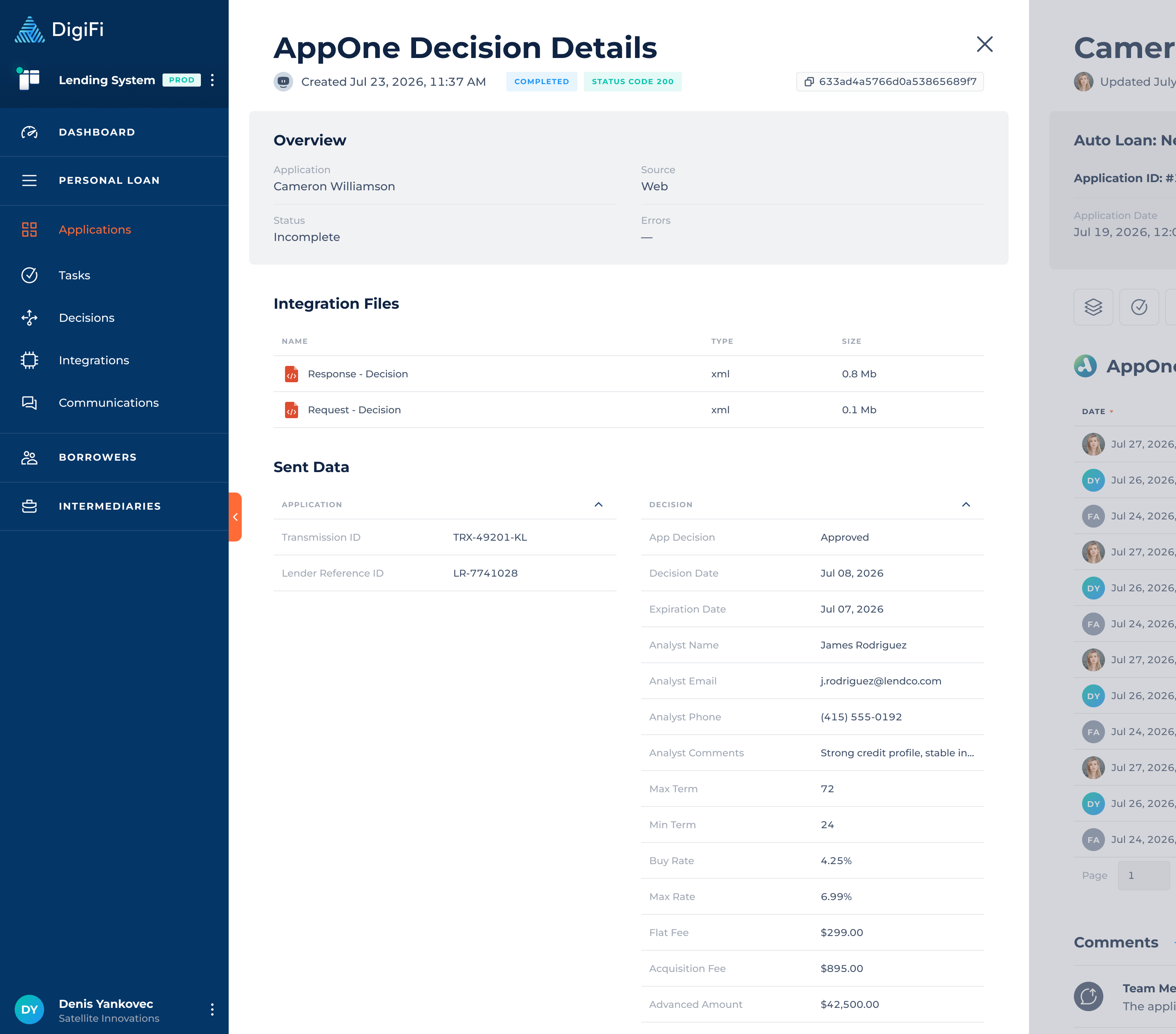
After sending a decision to Dealertrack, you can review the data exchanged between DigiFi and Dealertrack from the Aggregators section of the application.
Integration Files
The Integration Files section contains the request and response files associated with the Dealertrack decision.
You can:
- Open each file to review its contents.
- Download the request or response file for further review.
- Use these files to verify the data sent to Dealertrack and troubleshoot mapping issues.
Sent Data
The Sent Data section shows the application data that was sent to Dealertrack, organized into the following categories:
- Application
- Vehicle Data
- Key Data
- Product Data
- Application Data
- Lender Data
- Applicant Data
- Additional Data
- Beneficial Owner
This allows you to review the exact data included in the Dealertrack request and verify that your mappings are configured correctly.
Step 8: Enable Notifications
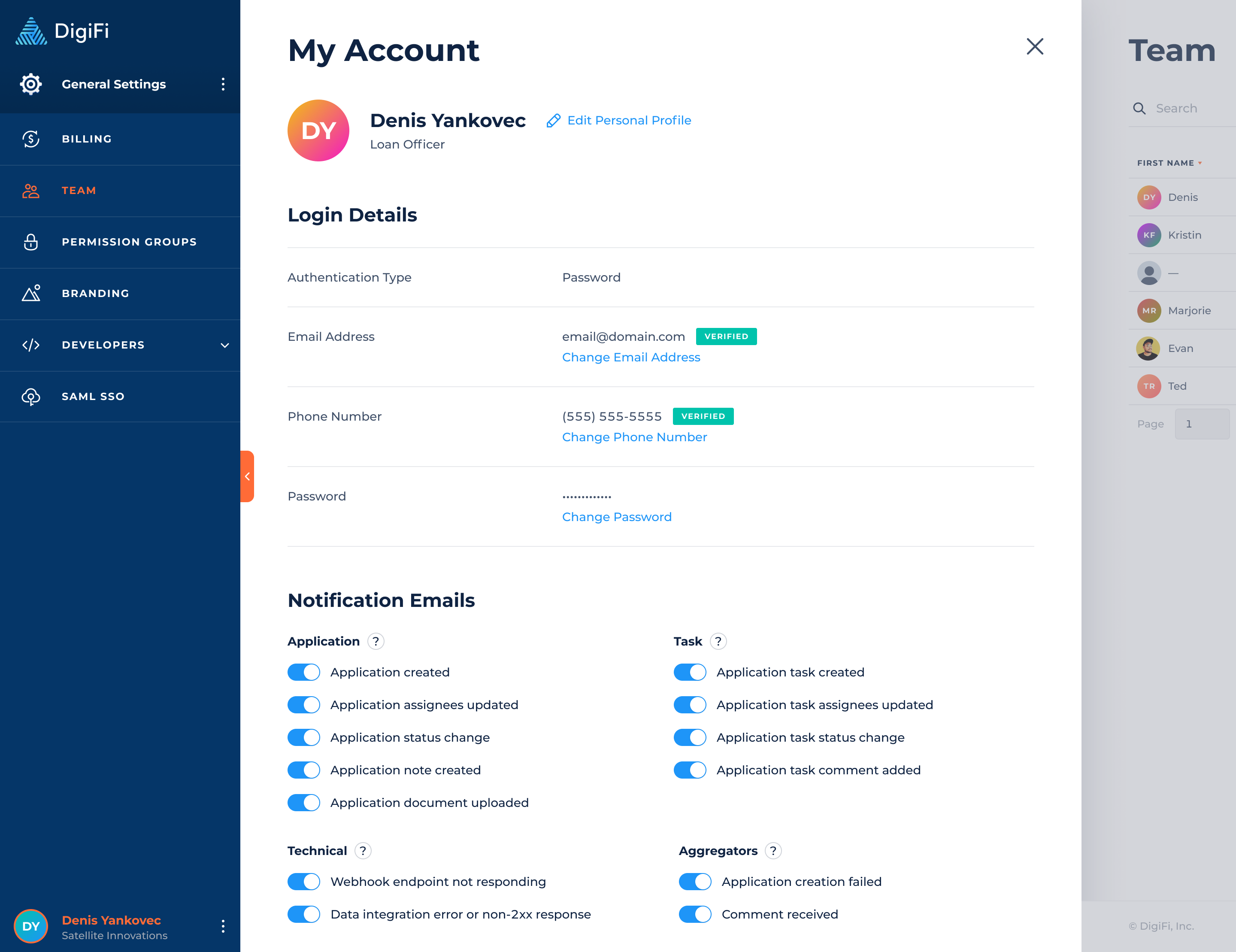
Stay informed about important aggregator events by enabling email notifications:
- Go to My Account > Notification Emails
- Enable the notifications you want to receive:
- Application creation failed - Alerts when an application fails to arrive from an aggregator due to an unexpected or validation error.
- Comment received - Alerts when a new comment is received from an aggregator.
This ensures you don't miss important application updates and communications from a connected aggregator.
Updated 13 days ago