
AI Assistant Settings
How to configure AI Assistant Prompt Presets and the Variables List for the AI Application Assistant.
The AI Assistant settings are available under Lending Setup > Loan Product > Advanced Automation. These settings help customize suggested conversation starters and improve how the Assistant identifies relevant application data.
AI Assistant Prompt Presets
Prompt presets let you configure suggested conversation starters that help users quickly begin common application-related tasks. When a user selects a preset in the AI Assistant, its configured prompt is sent as the first message in a new conversation.
Viewing Prompt Presets
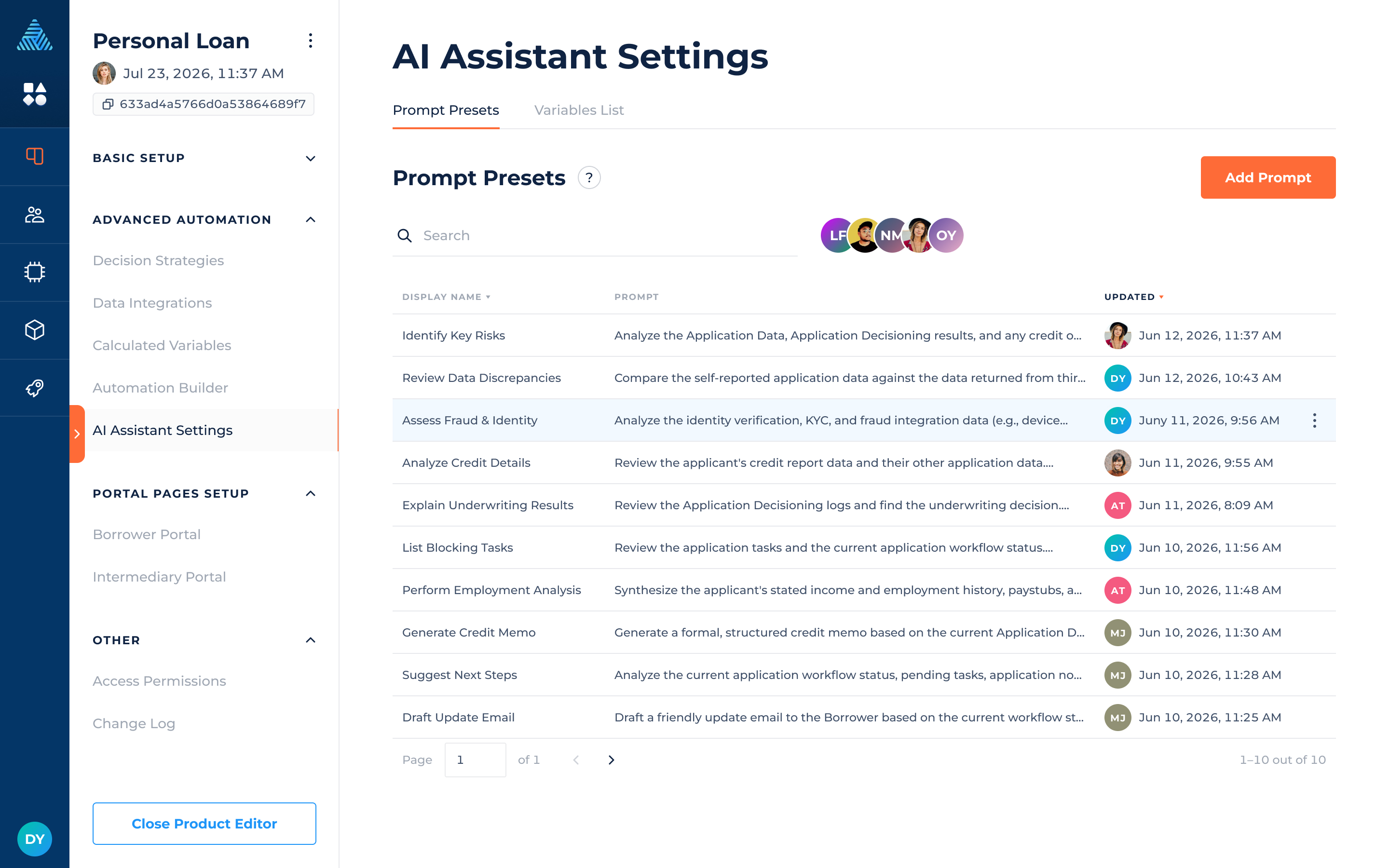
The table displays the following information:
- Display Name – the name shown as the conversation starter.
- Prompt – the instruction sent to the AI Assistant when the preset is selected.
- Updated – the date the preset was last updated.
You can search presets by display name or prompt content and filter them by user. Available actions include adding, editing, and deleting presets.
Adding or Editing a Prompt Preset
To create a preset, click Add Prompt. To modify an existing preset, simply click on it.
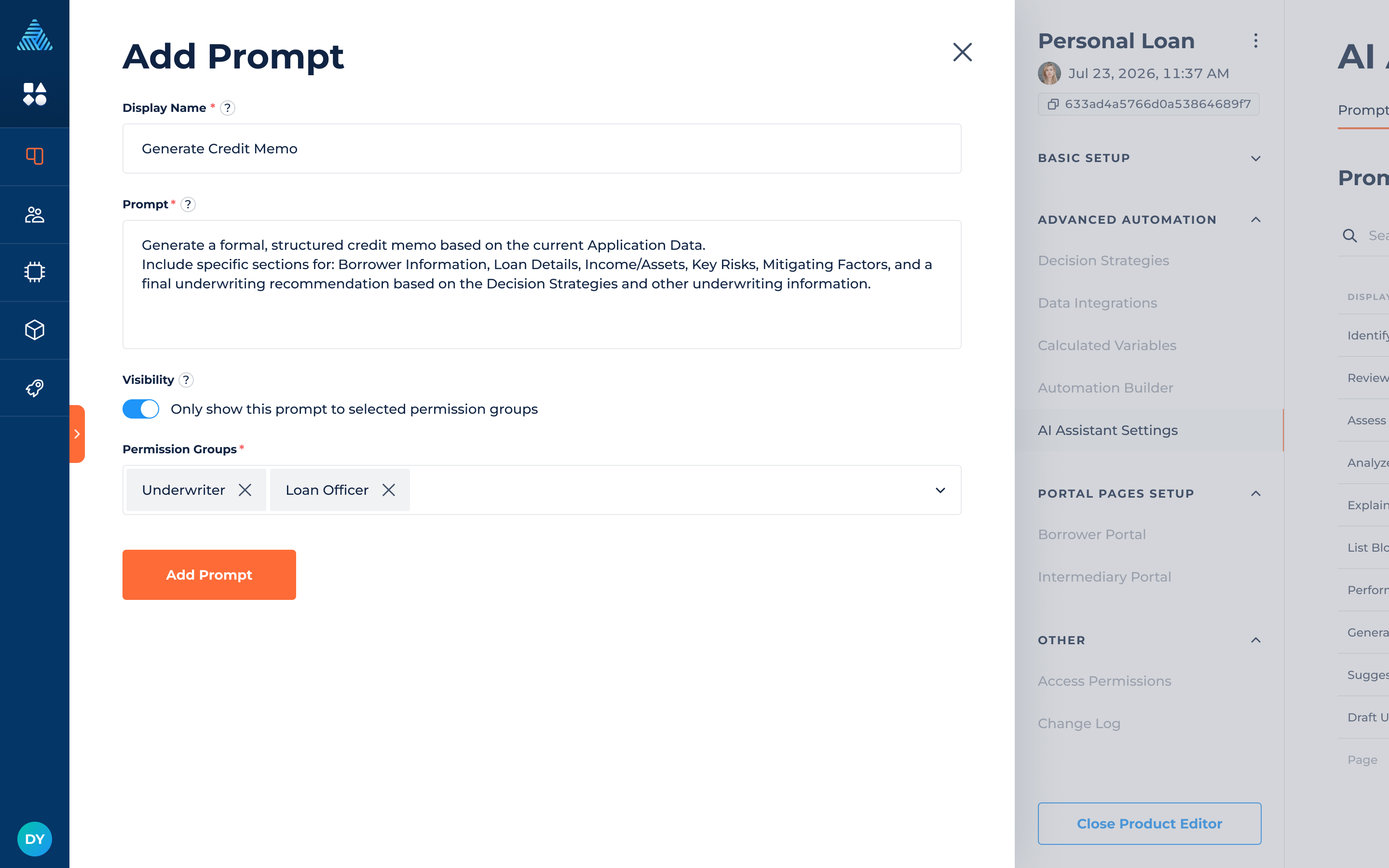
Configure the following fields:
- Display Name – the label displayed to users in the AI Assistant. This field is required and supports up to 40 characters.
- Prompt – the instruction sent to the AI Assistant when the preset is selected.
- Visibility – controls which permission groups can see the preset.
When Visibility is turned off, the preset is available to all users. When Visibility is turned on, select the permission groups that should have access to it.
You can edit or delete presets as needed to keep the suggested conversation starters relevant to your lending workflows.
Standard presets are provided by default. These presets can be edited or deleted by administrators.
Variables List
The Variables List specifies which application variables the AI Application Assistant uses for semantic search when answering high-level questions about application data.
Adding relevant variables and providing clear descriptions helps the Assistant identify and interpret the information needed to answer user questions.
The list does not restrict the Assistant to the variables it contains. When using its available data retrieval tools, the Assistant can also access relevant information outside the list, such as variables included in integration results and decision results, subject to the user's permissions.
Viewing the Variables List
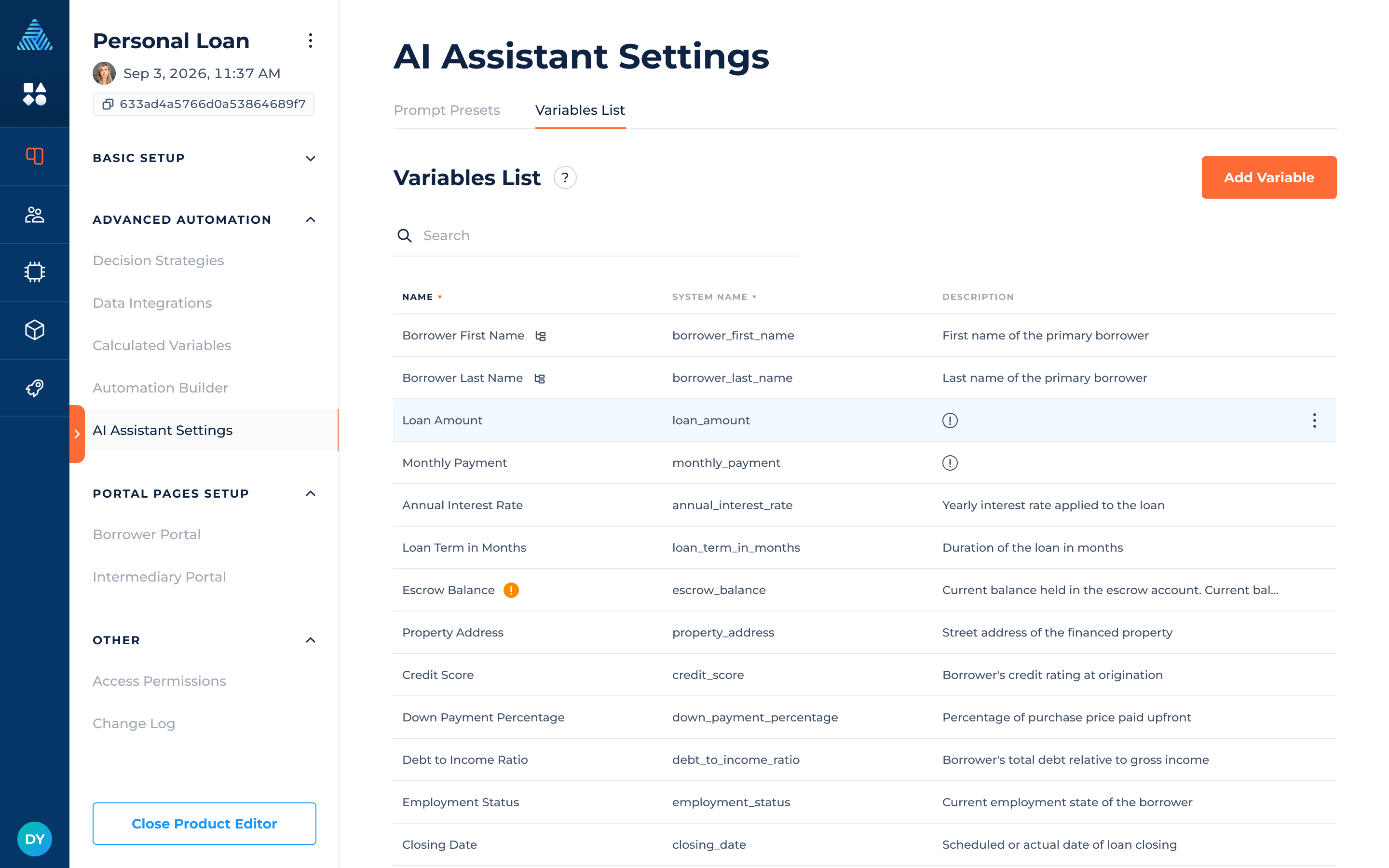
The table contains the following columns:
- Name – the variable's display name.
- System Name – the variable's system name.
- Description – the variable's description.
You can search the list by display name, system name, or description.
Warning icons indicate the following issues:
- Orange warning icon next to the variable name – indicates that the variable is archived.
- Warning icon in the Description field – indicates that the variable has no description. Add one so the AI Assistant knows what this variable means and when to use it.
Editing Variables
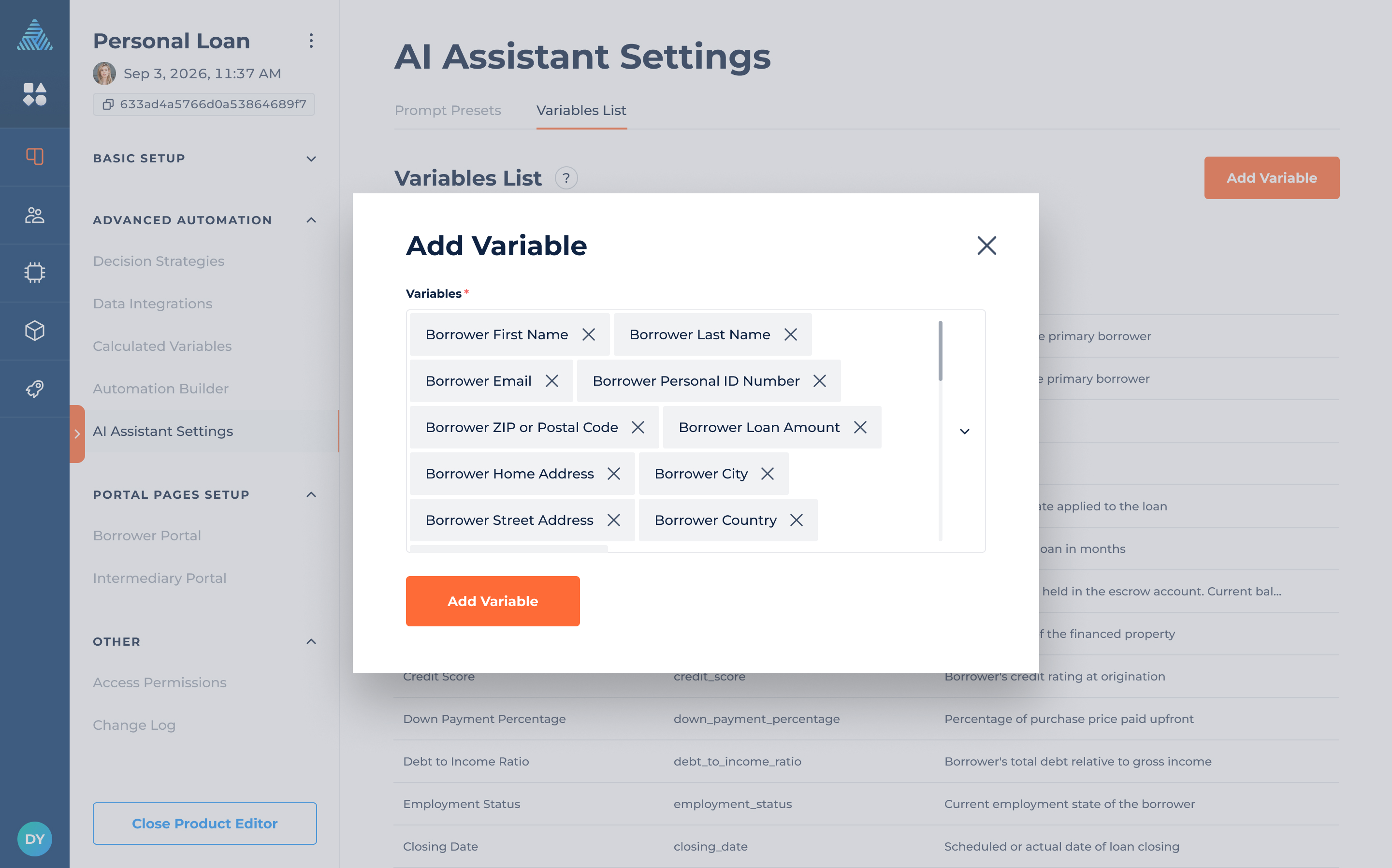
To add variables to the list:
- Click Add Variables.
- Search for the variables you want to include.
- Select one or more variables from the list.
- Click Add Variable to add the selected variables.
You can add up to 1,000 variables per loan product.
To remove a variable:
- Open the three-dot menu for the variable.
- Select the removal action.
- Confirm the removal.
Removing a variable from this list does not mean that the variable itself is deleted from the loan product.
Updated 4 days ago