
AppOne
How to connect your AppOne account to DigiFi to receive loan applications, send decisions, and more.
Overview of DigiFi-AppOne Integration
The DigiFi platform includes a built-in integration with AppOne, a web-based lending platform that connects dealers with lenders and streamlines the submission and processing of applications.
You can set up this integration to receive applications from dealers through AppOne, provide credit decisions and funding updates, track application and deal status, and exchange application and deal information efficiently.
Step 1: Access the Integration
The AppOne integration is available as a pre-built solution in the DigiFi Marketplace.
- Go to DigiFi Marketplace
- Navigate to the Aggregators category
- Select the AppOne integration
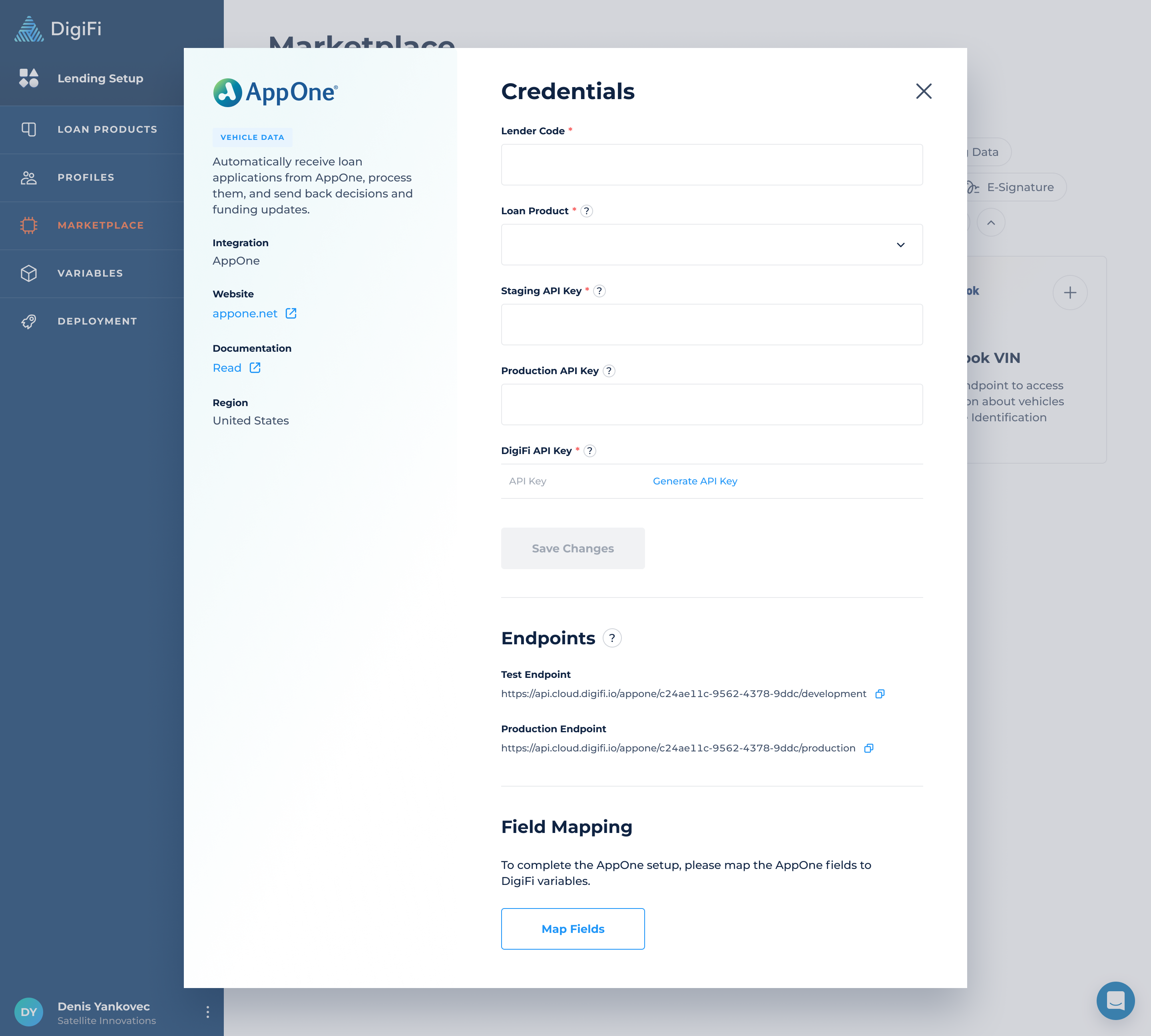
Step 2: Configure Basic Settings
Enter Your Lender Code
Input the unique Lender Code provided by AppOne. This code is essential for authentication and application processing.
Select Your Loan Product
Choose which DigiFi loan product will receive applications from AppOne. All active loan products will be available in the dropdown.
Choose Your Environment
AppOne offers two environments that sync with DigiFi modes:
| AppOne Environment | DigiFi Mode | Purpose |
|---|---|---|
| Staging | Test | Testing and validation |
| Production | Production | Live loan processing |
Tip: Start with the UAT environment to test your setup before going live.
Step 3: Share API Key and Endpoints ⚠️
Important: To receive applications and comments from AppOne, you must complete these steps.
- Generate an API key for DigiFi from the AppOne card.
- Copy the endpoints provided in the AppOne card.
- Provide the API key and endpoints to AppOne as part of their setup process.
This enables AppOne to send data directly to DigiFi.
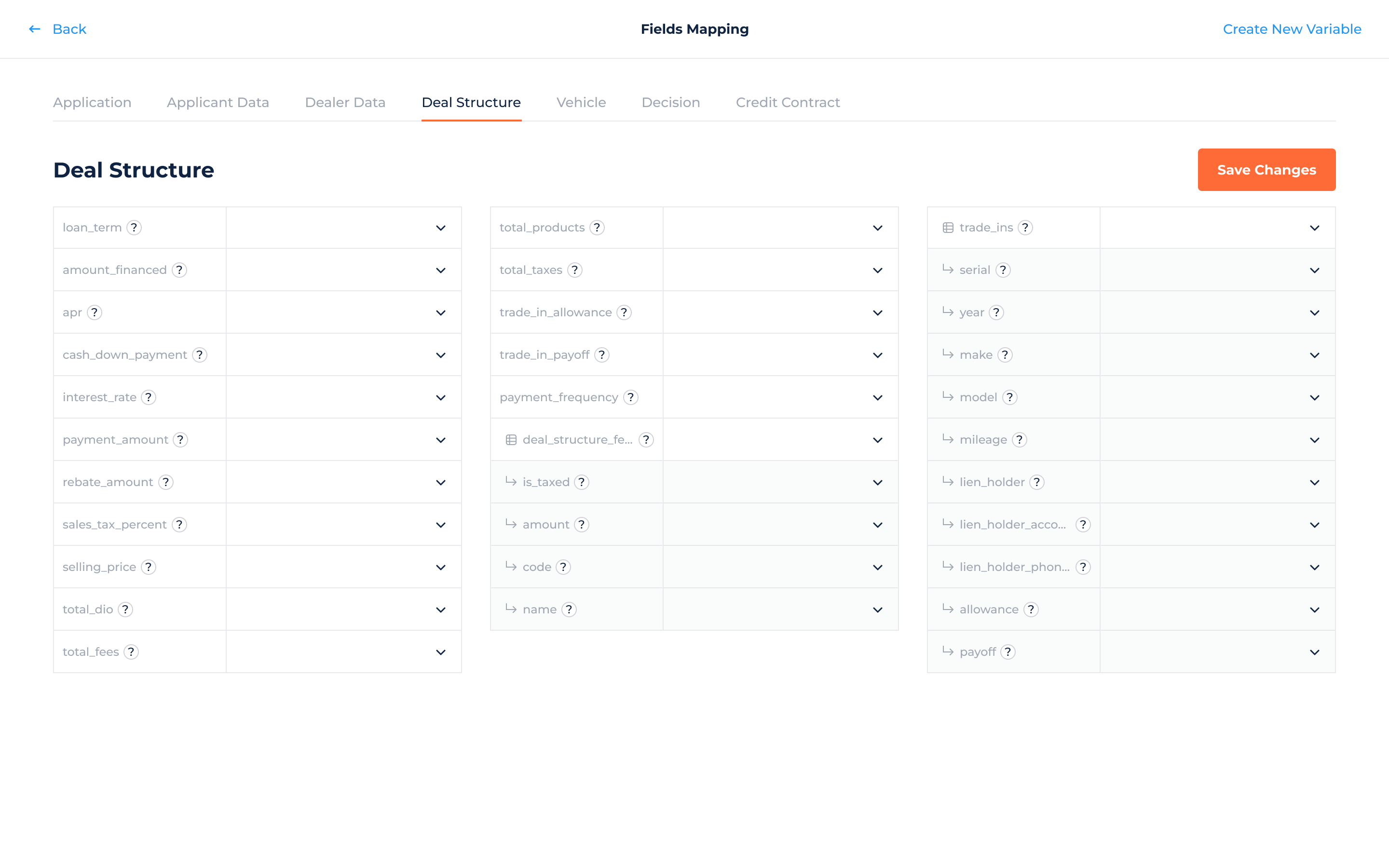
Step 4: Map Your Fields
Field mapping connects AppOne data fields to your DigiFi variables.
- System Fields (marked with a ⚙️ icon): These are in DigiFi and cannot be changed. They are required for the data flow to work correctly.
- Standard Variables: Certain fields in the Applicant Data section are automatically mapped to o ensure borrowers and intermediaries are uniquely identified.
- Custom Mapping: Map the fields relevant to your lending process. For each Dealertrack field you want to receive or send, select the corresponding DigiFi variable.
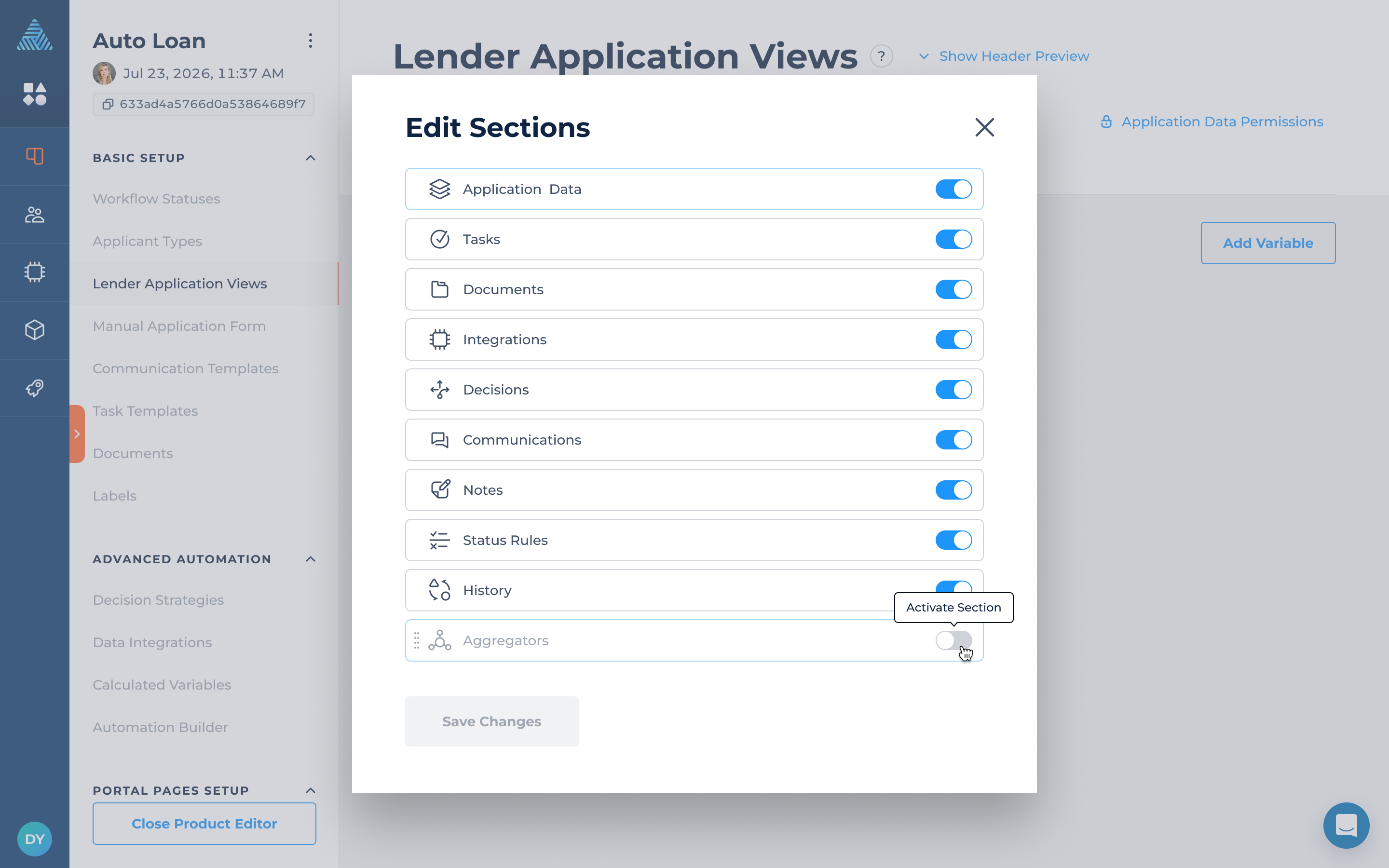
Step 5: Enable the Aggregators Section
Once connected (Staging or Production):
- Go to Lending Setup > Your Loan Product > Lender Application Views
- Click the blue Pen icon
- Activate the Aggregators section
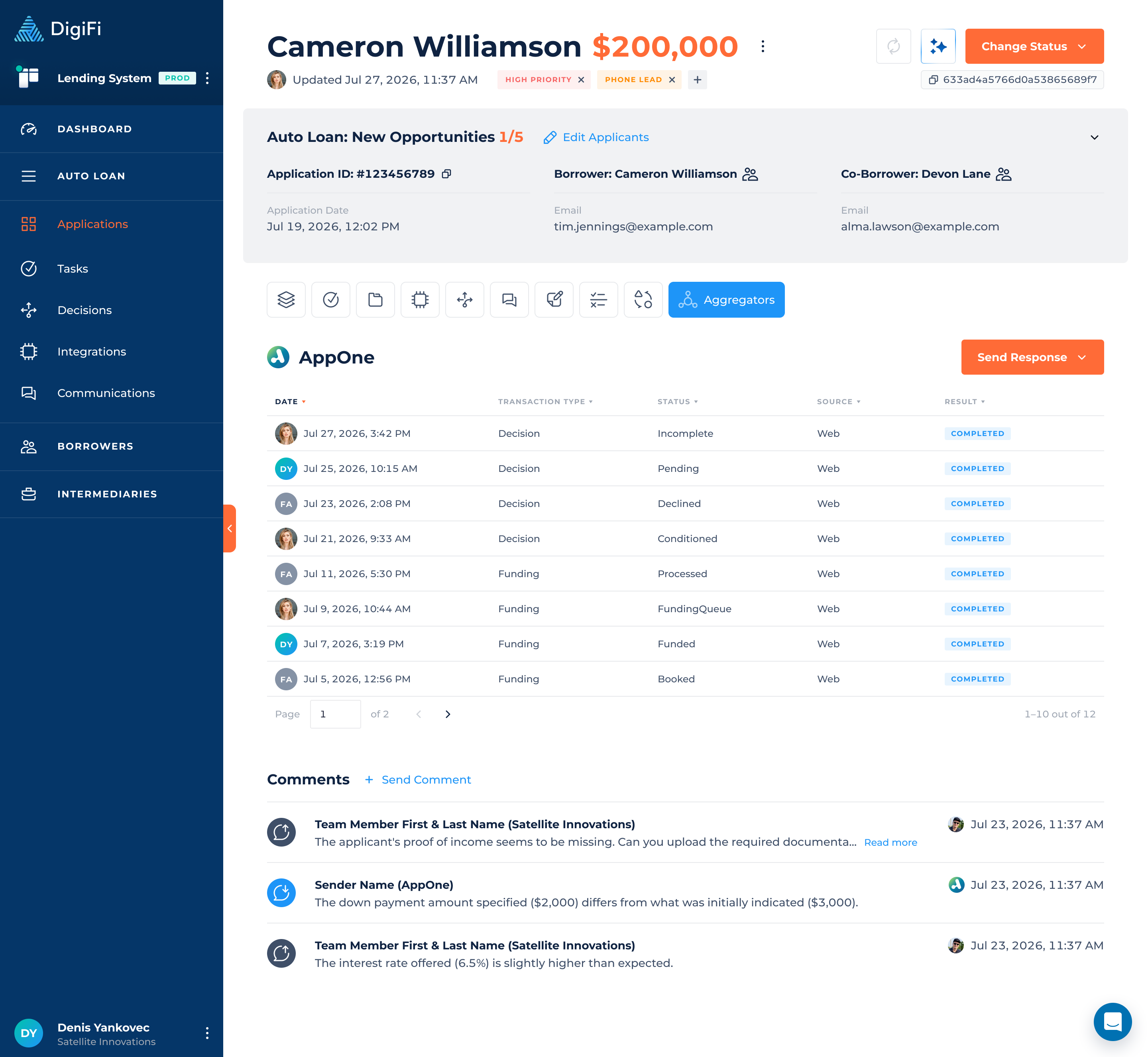
This section allows you to manage credit decisions, funding updates and comments for AppOne applications.
Once activated, the Aggregators section becomes available in the Lending System. From here, you can manage credit decisions, send funding updates and exchange comments with dealers for all applications received from AppOne.
- Sending comments: Add notes in the Aggregators section to communicate with dealers about specific applications.
- Receiving comments: Comments from dealers in AppOne automatically appear in DigiFi, keeping all communication in one place.
Step 6: Send Decisions and Funding Updates
Send Decisions
You can send credit decisions to AppOne either manually or automatically.
Manual Decision Sending
Send a decision directly from the Aggregators section in your loan application view whenever you're ready to communicate the decision to AppOne.
Automated Decision Sending
To automatically send decisions based on triggers and conditions:
- Navigate to Lending Setup > Your Loan Product >
- Click Create an Automation
- Click + Add Action
- Select Send Decision To Aggregator
Decision Statuses
Use the AppDecisionfield to send the decision status:
| AppDecision | Description |
|---|---|
| Incomplete | Application is incomplete. |
| Pending | Decision is pending. |
| Declined | Application is declined. |
| Conditioned | Application is conditionally approved. |
| Approved | Application is approved. |
Send Funding Updates
You can send funding updates to AppOne either manually or automatically.
Manual Funding Update Sending
Send a funding update directly from the Aggregators section in your loan application view whenever you're ready to communicate the funding status to AppOne.
Automated Funding Update Sending
To automatically send decisions based on triggers and conditions:
- Navigate to Lending Setup > Your Loan Product >
- Click Create an Automation
- Click + Add Action
- Select Send Funding Update To Aggregator
Funding Statuses
Use the FundingStatus field to send the funding status:
| FundingStatus | Description |
|---|---|
| Received | Funding request has been received. |
| Processing | Funding request is being processed. |
| Processed | Funding request has been processed. |
| FundingQueue | Application is in the funding queue. |
| Funded | Application has been funded. |
| Booked | Loan has been booked. |
| NotApplicable | Funding does not apply to the application. |
When the action runs, DigiFi builds the decision request using the variables mapped for AppOne and sends it to AppOne.
Required fields are always included. Optional fields are included only when they contain a value.
Step 7: Review Integration Files and Sent Data
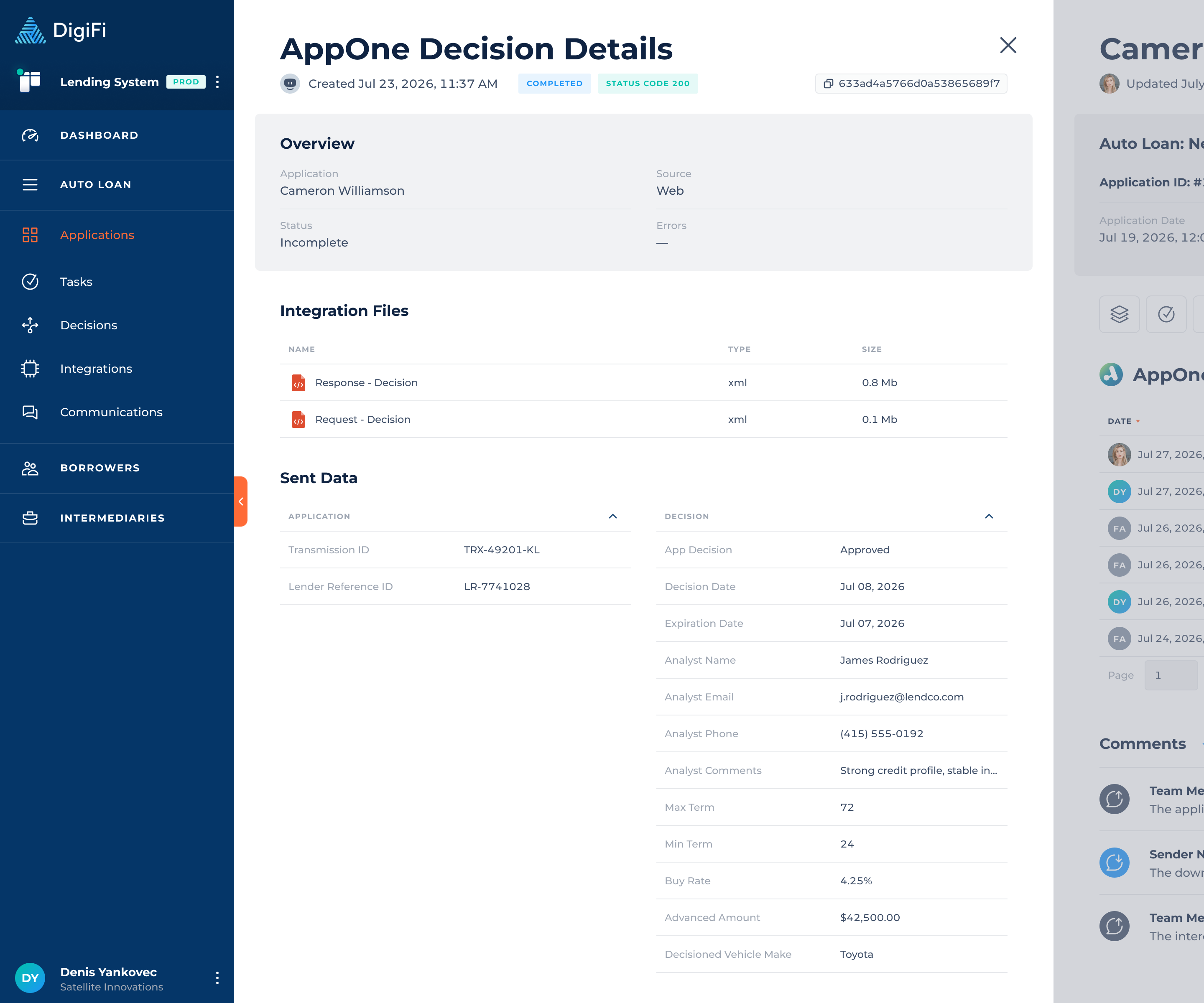
After sending a decision or funding update to AppOne, you can review the data exchanged between DigiFi and AppOne from the Aggregators section of the application.
Integration Files
The Integration Files section contains the request and response files associated with the AppOne integration.
You can:
- Open each file to review its contents.
- Download the request or response file for further review.
- Use these files to verify the data sent to AppOne and troubleshoot mapping issues.
Sent Data
The Sent Data section shows the application and decision data included in the AppOne request.
You can review the data used to build the LoanApplicationResponse XML, including the relevant Application, Decision, and, for funding updates, Credit Contract data.
This allows you to review the exact data included in the AppOne request and verify that your mappings are configured correctly.
Step 8: Enable Notifications
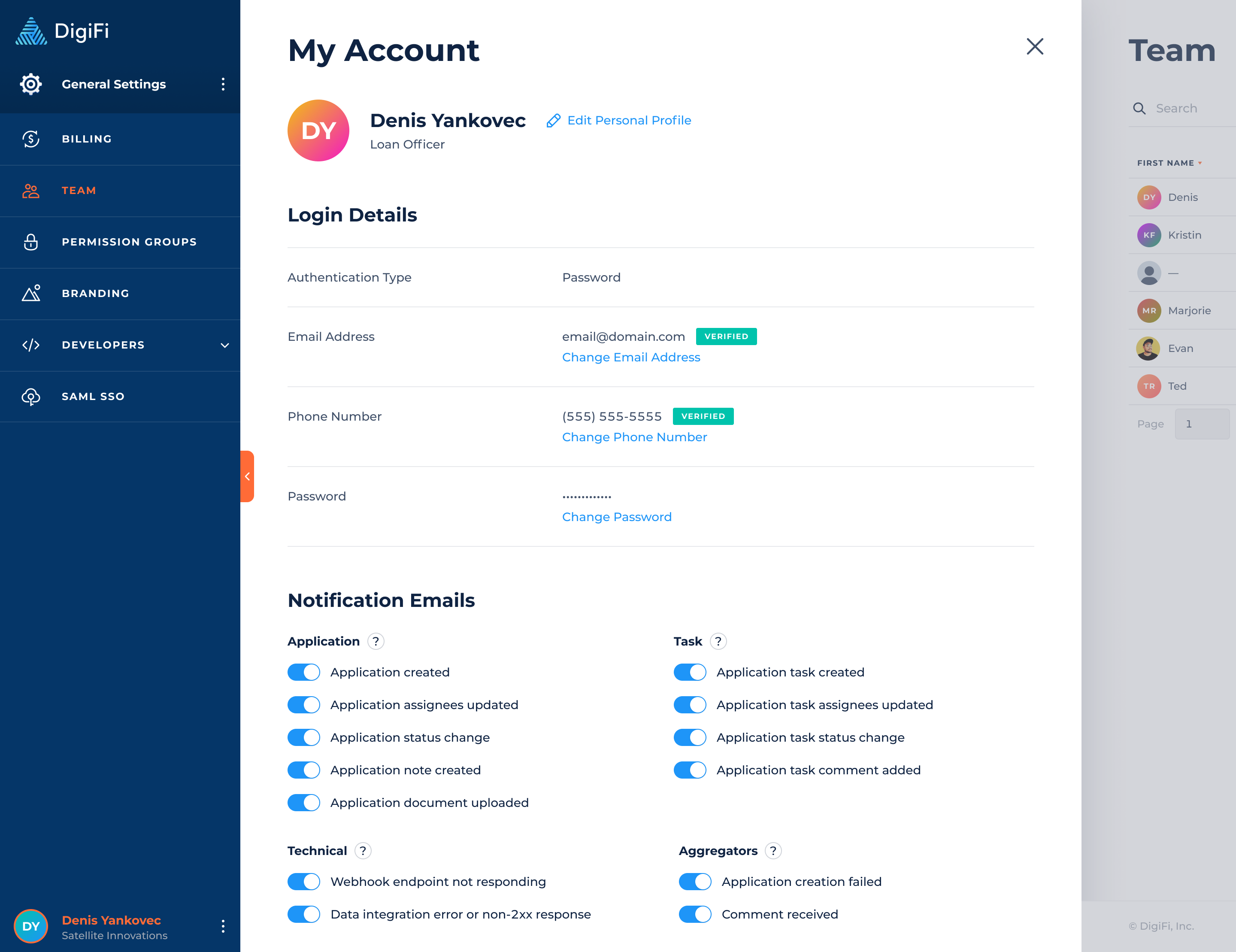
Stay informed about important aggregator events by enabling email notifications:
- Go to My Account > Notification Emails
- Enable the notifications you want to receive:
- Application creation failed - Alerts when an application fails to arrive from an aggregator due to an unexpected or validation error.
- Comment received - Alerts when a new comment is received from an aggregator.
This ensures you don't miss important application updates and communications from a connected aggregator.
Updated 11 days ago