
Communication Templates
How to create and manage reusable email and text message templates.
Overview Of Communication Templates
DigiFi’s platform provides the ability to create reusable communication templates that standardize outbound messaging across application workflows and automation processes.
Communications generated from these templates can be sent in two ways:
- Manually, from within an application
- Automatically, via the Automation Builder using the Send Email and Send Text Message actions
Emails will be sent using your SendGrid Email Delivery integration and Company Branding, both of which must be set up to use this feature. Text messages will be sent using your Twilio SMS Messaging integration.
Communication templates provide a standardized framework for messaging across borrowers, co-borrowers, intermediaries, and internal users, ensuring consistency across operational scenarios.
Multiple templates can be configured per loan product and organized by communication type (Email or Text Message).
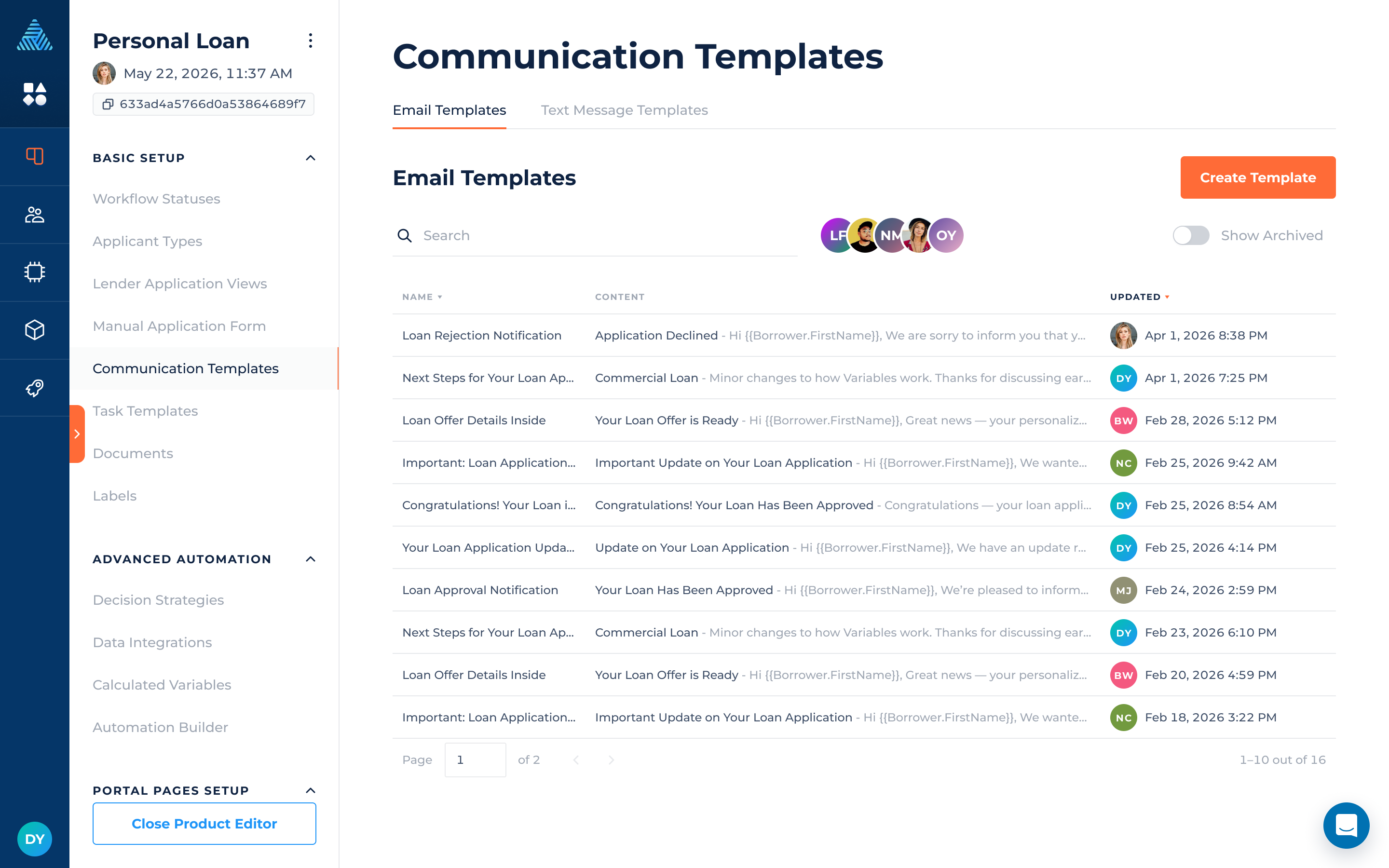
Email Templates
Email templates allow teams to create structured, reusable email content with rich formatting and dynamic data insertion.
Creating A New Email Template
To create a new email template:
- Navigate to
Lending Setup > Loan Product > Communication Templates. - Open the Email Templates tab
- Click
- Provide the following information:
- Template Name (required)
- Subject (required)
- Email Body (required)
- Attachments (optional)
- Apply Document Label(s) to categorize attachments
- Call-to-Action Button (optional)
- Button Text
- Button URL (Production Mode)
- Button URL (Test Mode)
- Click
The system will create a reusable email template that can be selected in automations and used for manual communication.
Email Template Editor & Capabilities
Within the email template editor, you can:
- Create and edit rich-text email content
- Apply formatting such as headings, bold text, highlights, lists, and links
- Insert dynamic variables and system fields
- Create reusable communication structures for different workflow stages
- Build reusable message structures for different workflow stages and communication types
Use Dynamic Variables & Fields In Emails!
Variables
You can use variables to give emails dynamic content. To reference a variable within an email, surround the variable's system name with
{and}.For Example. Here is a sample email Body.
Hi {borrower_first_name} - Your request for a {loan_amount} loan has been approved!When this email is sent, the variables would be replaced with actual values. If the borrower's first name is John and the loan amount is $10,000. The email would look like this when sent:
Hi John - Your request for a $10,000 loan has been approved!System Fields
In addition to variables, you can also reference certain standard system fields in emails. The following fields can be accessed (using the
$field_name lexicon provided):
$application_id$application_display_id$application_product_id$application_rejected_date$application_approved_date$application_created_date$application_status_id$application_borrower_id$application_borrower_type$application_intermediary_id$application_decline_reasons$application_coborrower_idsand$application_coborrower_types
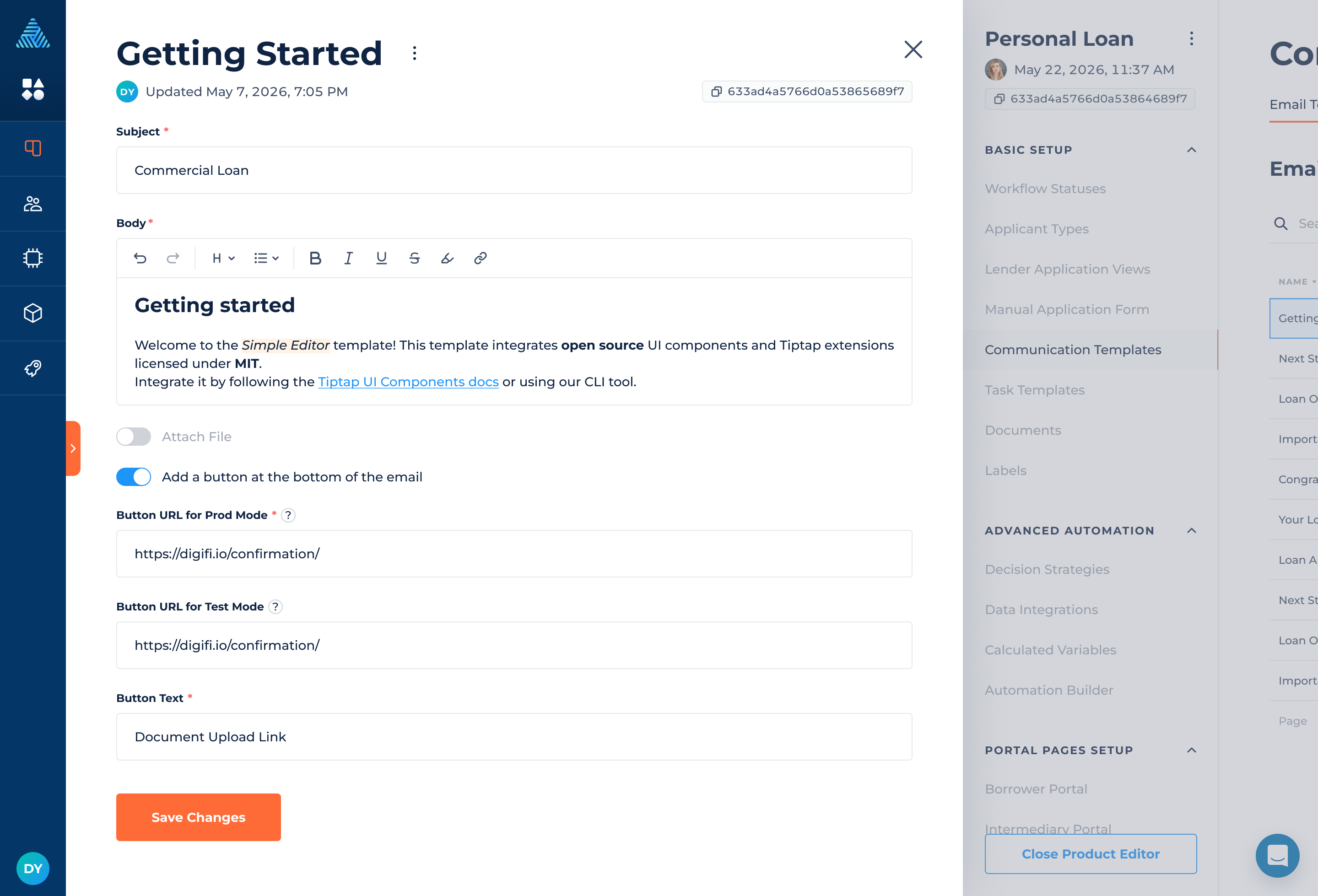
Text Message Templates
Text message templates enable standardized SMS communication that can be triggered manually or automatically within application workflows.
SMS messages created from templates are delivered via the Twilio integration, which must be configured in the Integration Marketplace before use.
Creating A New Text Message Template
To create a new text message template:
- Navigate to
Lending Setup > Loan Product > Communication Templates. - Select the “Text Message Templates” tab.
- Click
- Provide the following information:
- Template Name (required)
- Message Body (required)
- Click
The system will create a reusable text message template that can be used in workflow automations and manual messaging.
Text Message Template Capabilities
Text message templates support:
- Plain-text SMS content
- Dynamic variables and system fields
- Create reusable communication structures for different workflow stages
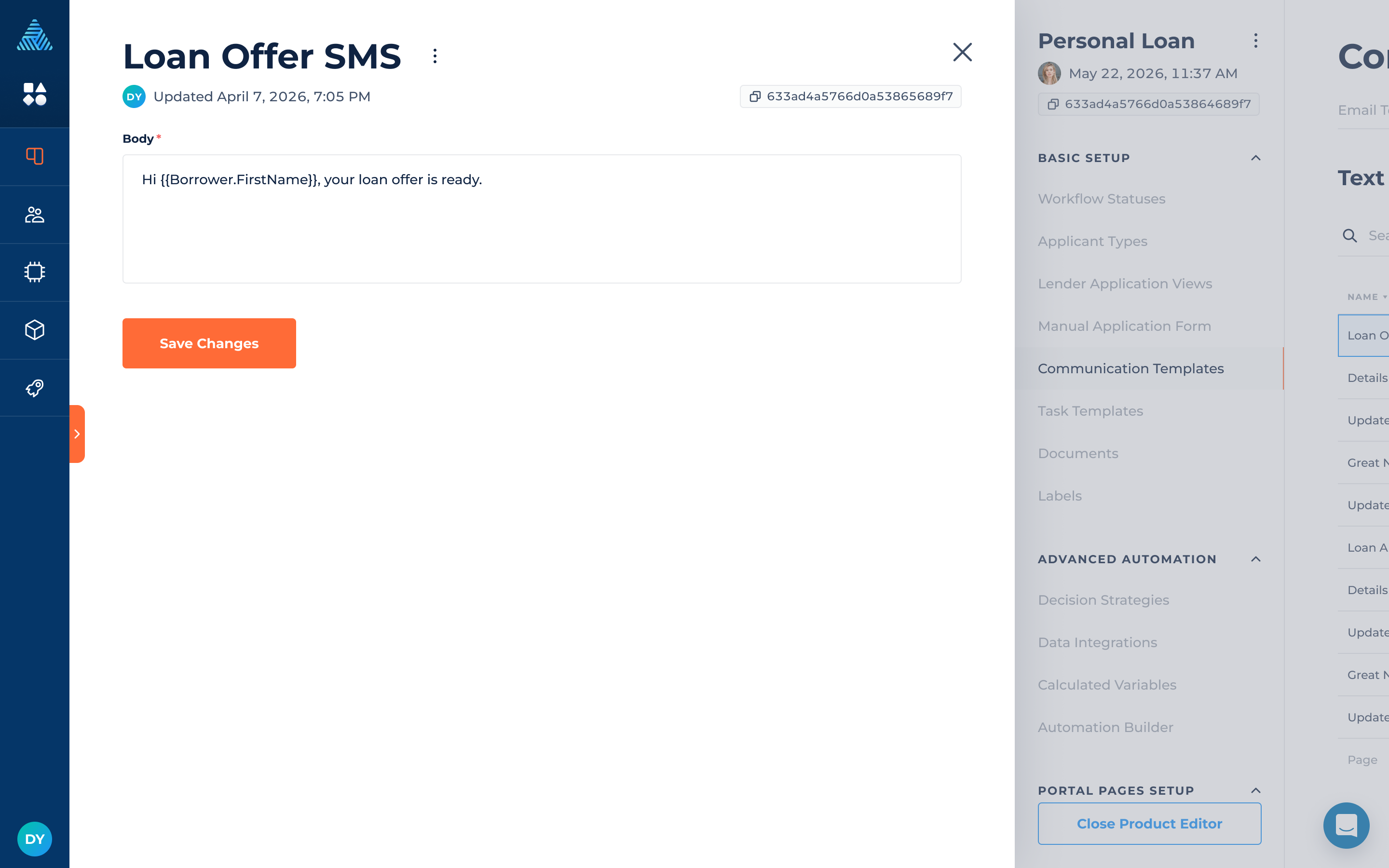
How To Use Communication Templates
Communication templates are used to send standardized emails and text messages consistently across applications. They can be triggered manually from within an application or automatically via Automation Builder, helping teams communicate faster while maintaining compliance and consistency.
To use a communication template manually:
- Navigate to an
Application > Communications - Click
- Select the action you would like to take: Send Email or Send Message.
- Select Use Email or Text Message Template
- Choose a template from the Template dropdown
- Click Continue
The message will automatically populate using the selected template configuration, including any dynamic variables, and will be sent to the selected recipient (e.g. borrower, co-borrower, intermediary, or other contacts).
Alternatively, select New Email or New Text Message to create a standalone communication without a template. In this case, all message fields must be configured manually.
Updated about 1 month ago