
Task Templates
How to create and manage reusable task templates for application workflows and operational processes.
Overview Of Task Templates
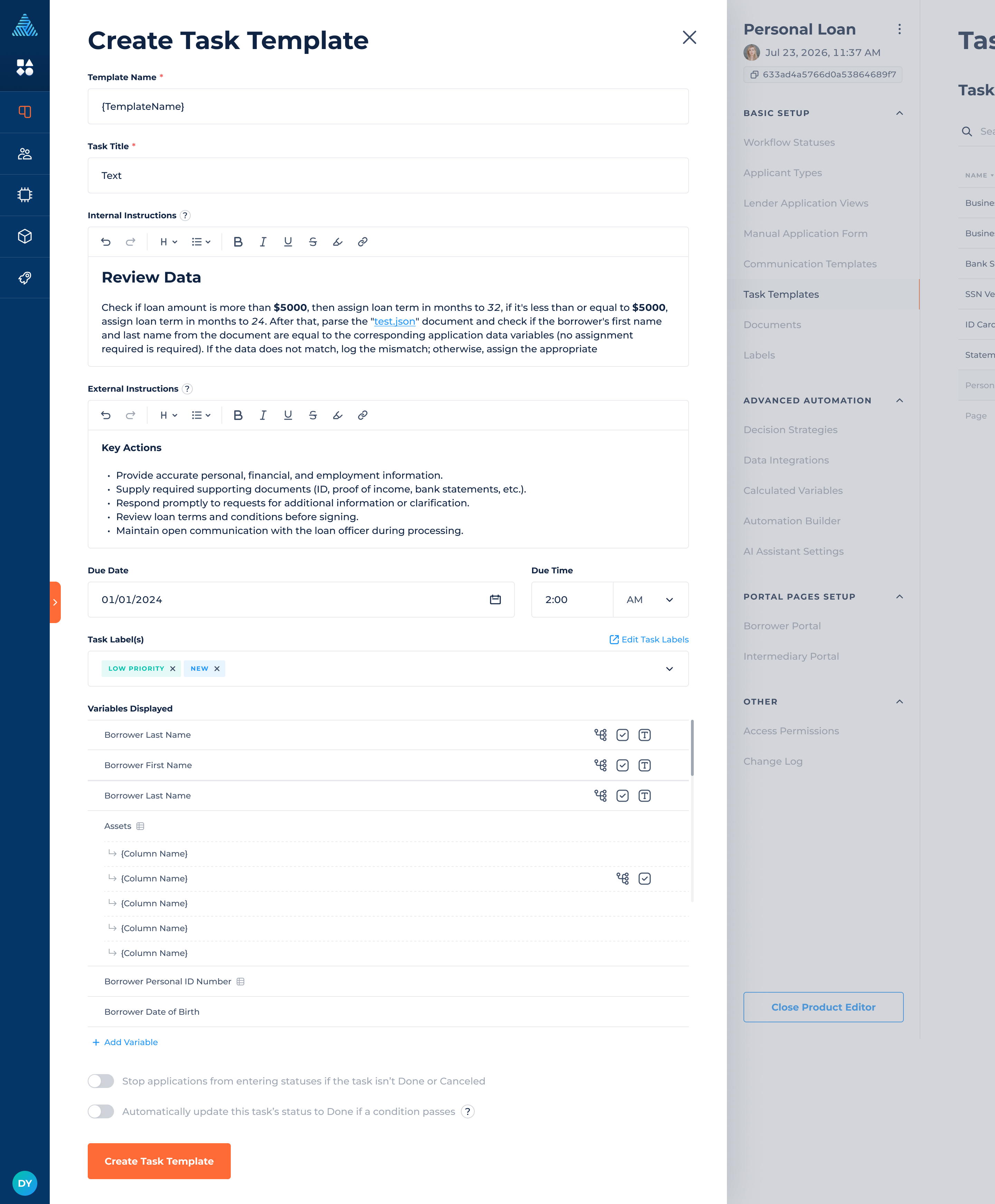
DigiFi’s platform includes the ability to create reusable task templates that can be used across application workflows and automation processes. Tasks based on these templates can later be created manually within applications or automatically through the Automation Builder using the “Create Task” action.
Task templates can include internal and external instructions, due dates, labels, displayed variables, workflow restrictions, and automatic status updates. Internal tasks can also be assigned to AI Agents to support automated operational workflows and AI-assisted task processing.
You can create multiple task templates for a loan product and reuse them across different workflow statuses and operational scenarios.
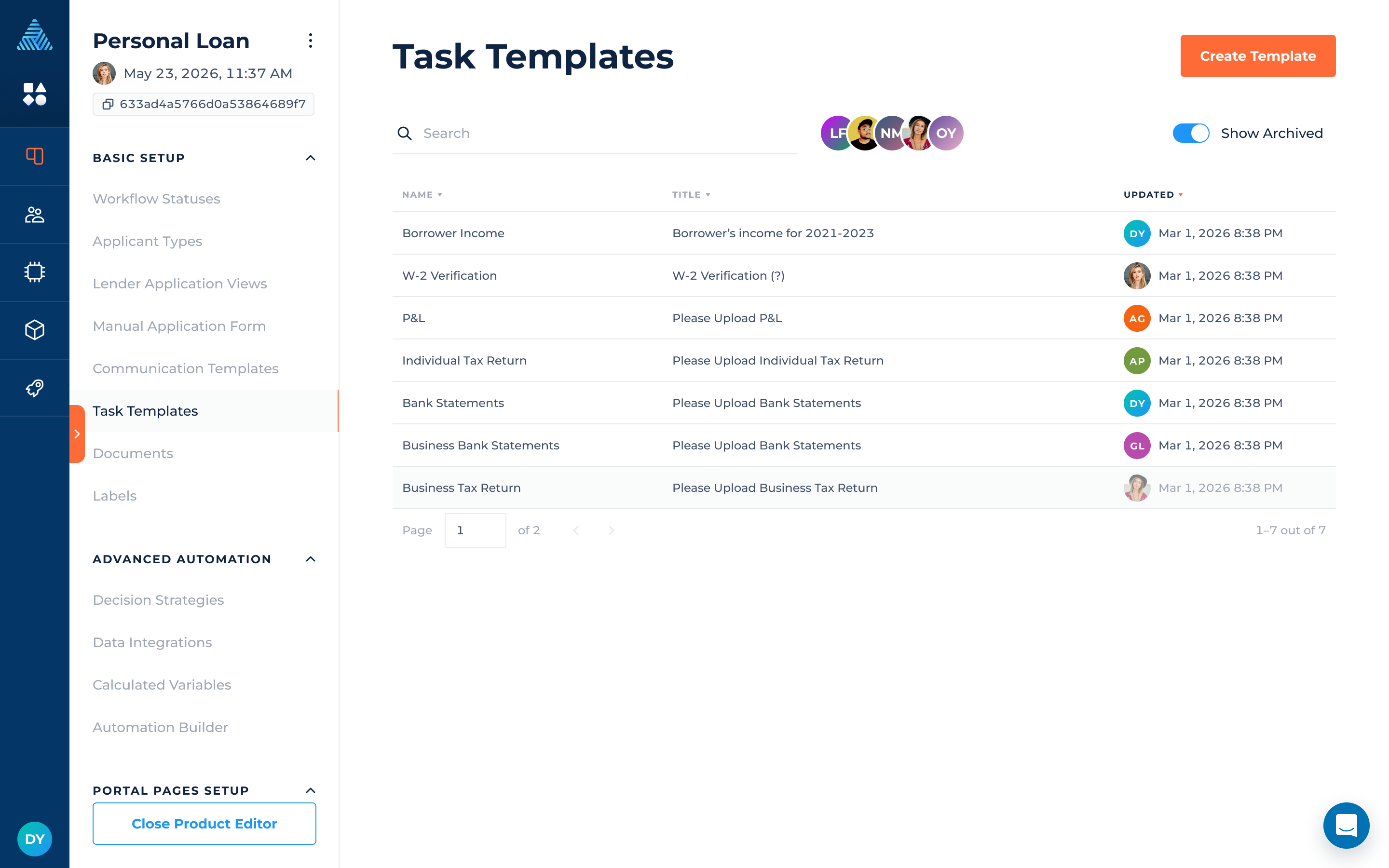
Creating A New Task Template
To create a new task template:
- Navigate to
Lending Setup > Loan Product > Task Templates. - Click
- Complete the required fields.
- Configure additional task options and displayed variables.
- Click
The "Create Task Template" form includes the following fields:
- Template Name - Defines the name of the task template.
- Task Title - Defines the title of the generated task.
- Internal Instructions - Internal instructions are visible to assigned internal team members and explain how the task should be completed. Internal instructions can also be used by AI Agents when tasks are assigned for automated.
- External Instructions - External instructions are visible to borrowers or intermediaries assigned to the task. These instructions can be used to:
- Request documents
- Explain required actions
- Provide submission guidelines
- Communicate deadlines or requirements
- Due Date And Due Time - Task templates can include a default due date and due time to help assignees understand expected completion timelines.
- Task Labels - Labels help categorize and organize tasks. They can also be used to reference tasks for AI Agents and other automated task actions. Multiple labels can be assigned to a single task template.
- Variables Displayed - Task templates can display application variables directly within the task view. This helps users quickly review and update related application data while completing tasks. AI Agents assigned to tasks can also read and update application variables that are attached to the task as part of automated task processing workflows. In addition, displayed variables support advanced configuration options similar to the Lender and Manual Application Views, including:
- Display Condition, to dynamically show or hide variables based on configured conditions
- Conditional Formatting, to visually highlight variables based on rules or values
- Custom Validation, to enforce validation requirements and data integrity rules
- Display Condition and Custom Validation can be also configured for individual columns to control when they are shown in Edit Row Form and define validation requirements for their values.
- Stop applications from entering statuses if the task isn't in the Done or Canceled- to set blocked status(es) that the application will not be able to enter until the task is completed or canceled.
- Automatically update this task's status to Done if a condition passes - if a condition passes it will be checked every time the application is updated. This condition must return “true” (string) or TRUE (boolean) to pass.
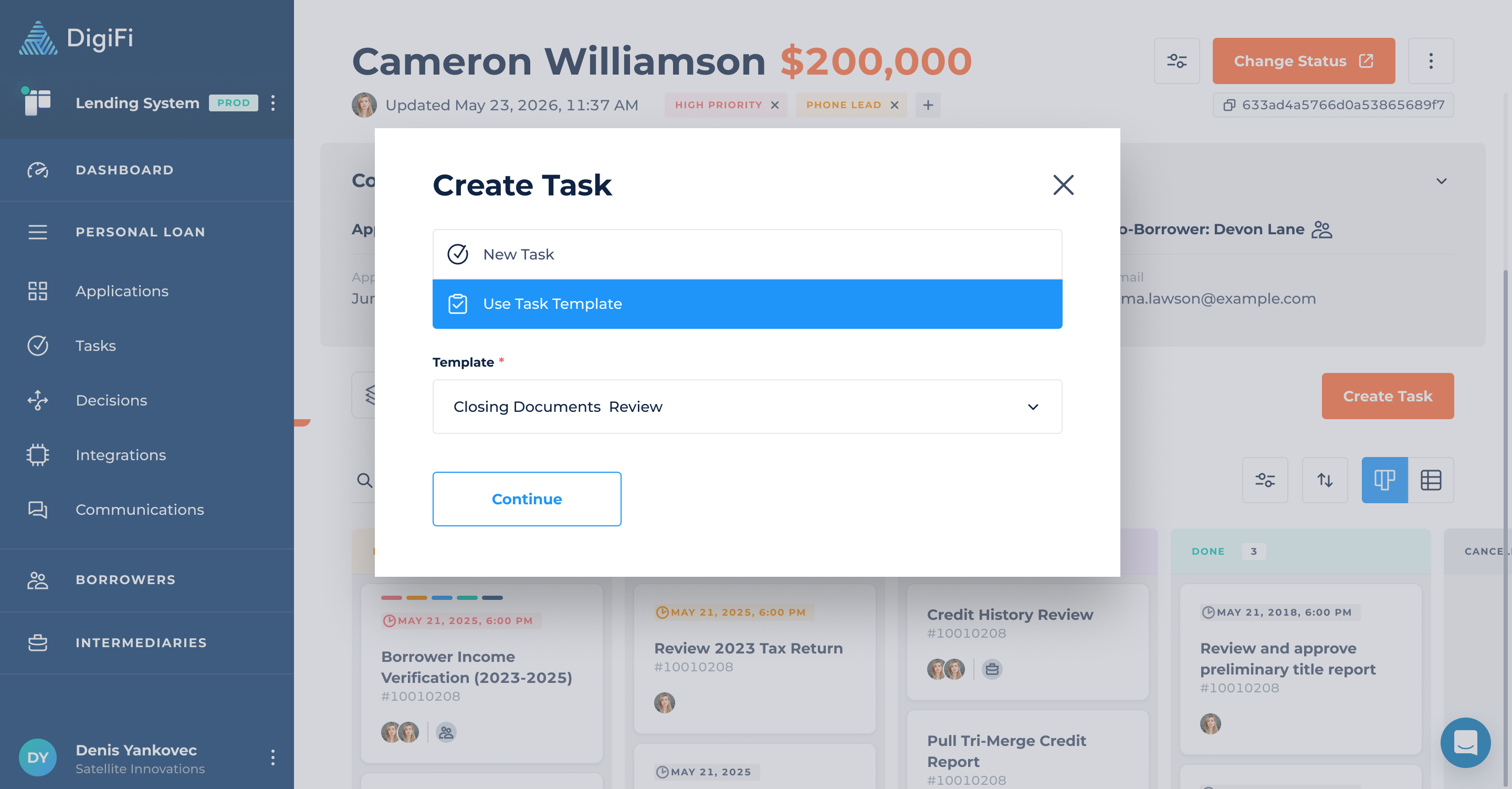
How To Use Task Templates
Task templates can be used when manually creating tasks within an application or automatically through the Automation Builder using the “Create Task” action.
To use a task template manually:
- Navigate to an
Application > Tasks - Click
- Select Use Task Template
- Choose a template from the Template dropdown
- Click Continue
The task will automatically populate using the selected template configuration.
Alternatively, you can select New Task to create a standalone task without a template. In this case, all task fields must be configured manually.
Updated 23 days ago